
 Script Planner Assistant▸
 AI Apps
 AI News
Beginner's Tutorial on Making the "Answer Me" Video (with Source Video Link)
小编 ·

Beginner's Tutorial on Making the "Answer Me" Video (with Source Video Link)
Recently, a "Answer Me" complaint video has gone viral on Douyin. Various historical figures have "stepped up to govern" one after another, creating a very amusing scene. Even People's Daily joined this trending video craze on March 14th. If this type of content can be presented in a positive and fun way, it is indeed very interesting. Below, I will teach you step by step how to create an "Answer Me" video.
Prepare Materials:
Character Images: Use Jimeng AI to process character images
Generate Script: Use AI to generate corresponding scripts (use Dubbing Tool PRO to extract the original video script, and use DeepSeek to generate scripts with different themes)
Video Composition: Use Viggle AI for video composition
Voice Cloning + Lip Sync: (Use Jimeng AI's Digital Human)
Edit the Final Video (Use Jianying)
Remove Video Watermark (Use Tencent Zhiying Smart Removal Tool)
Production Tutorial Steps:
1. Creating Character Images
Search for relevant character images on Baidu, and try to choose images that match the familiar images from textbooks as reference images. Choose historical figures or topics with complaint points that are likely to spark controversy, such as Liu Shan, Wei Yan, etc.
Use Jimeng AI to generate character images, import the reference image, set the parameters, and choose an appropriate image aspect ratio (such as Douyin 16:9, Xiaohongshu 3:4).
2. Script Extraction and Generation
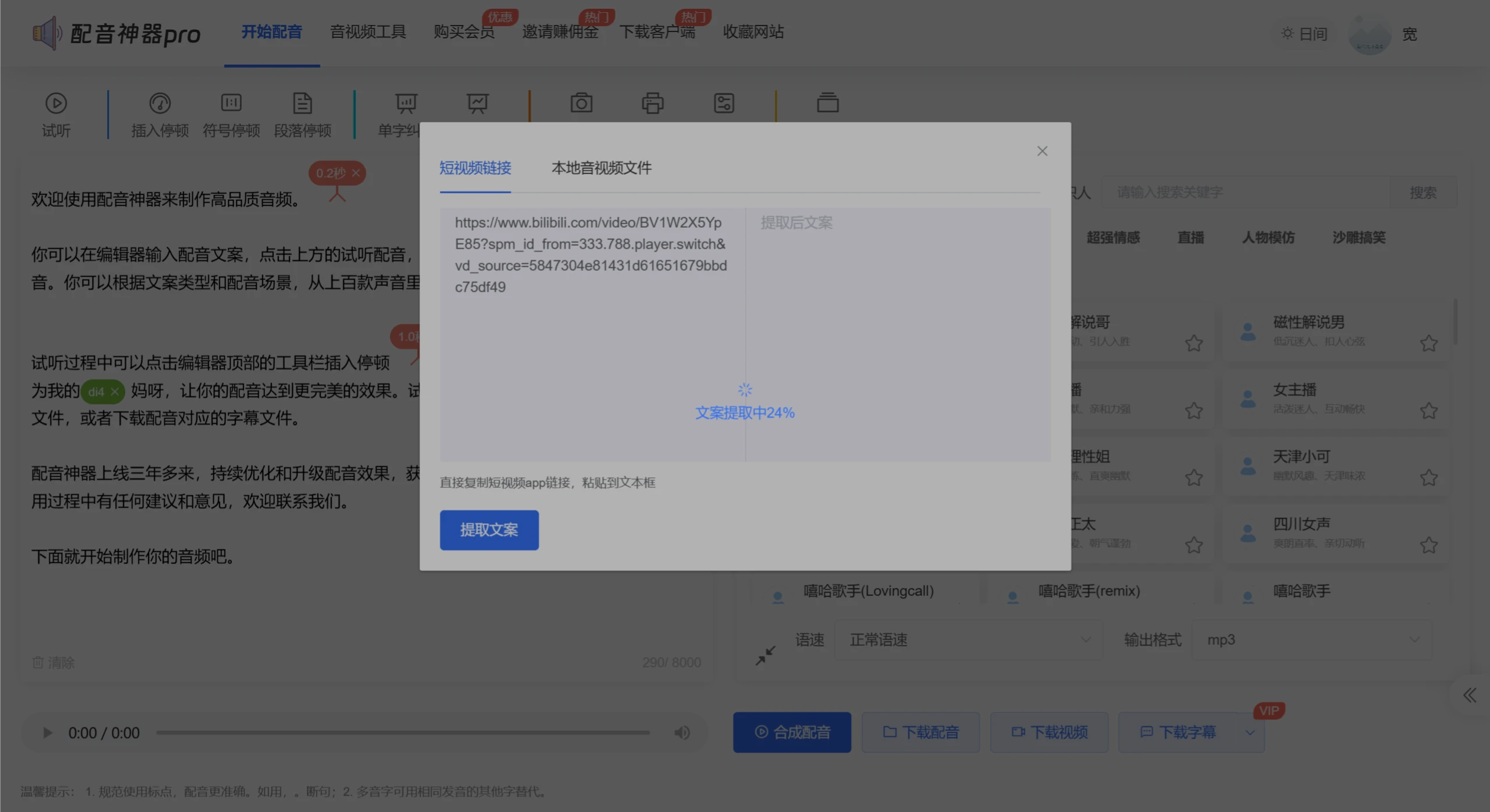
1. Extract Script: Use "Dubbing Tool," copy the "Answer Me" original video link, go to "Dubbing Tool PRO" and click the [Extract Script] function. After extraction, check it against the original video to ensure the script structure and language are accurate.
2. Generate Similar Scripts:
Use DeepSeek to generate scripts, specifying requirements including retaining specific content in the script (such as the English part in brackets), maintaining the original script structure and language style, and ensuring the generated content is authentic and has complaint points.
3. Check the Script:
Check the generated script to ensure it meets the requirements.
3. Video Composition
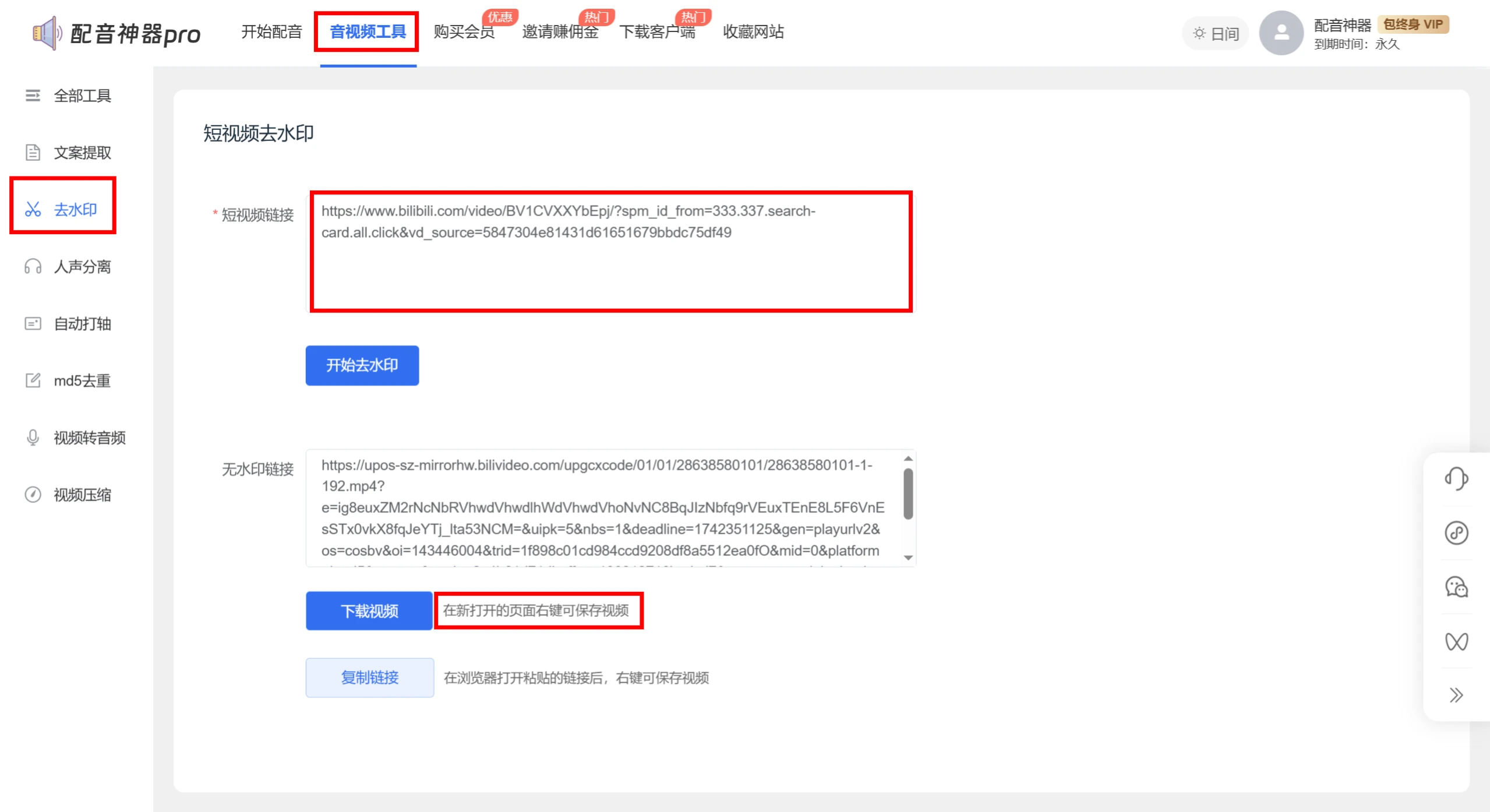
1. Download the Original Video:Search for the "Answer Me" original video on Bilibili, and choose the highlight version that is 50-something seconds. I've found it for you directly. Address: https://www.bilibili.com/video/BV1CVXXYbEpj/?spm_id_from=333.337.search-card.all.click&vd_source=5847304e81431d61651679bbdc75df49, 50+ seconds, no watermark, no subtitles version. If the one you find has a watermark, you can use "Dubbing Tool PRO" to remove it.
2. Use Viggle AI to Composite the Video:
Open the Viggle AI website and click [Try On Web]

Select the "V3-BETA" model and upload the original video and the generated character images.
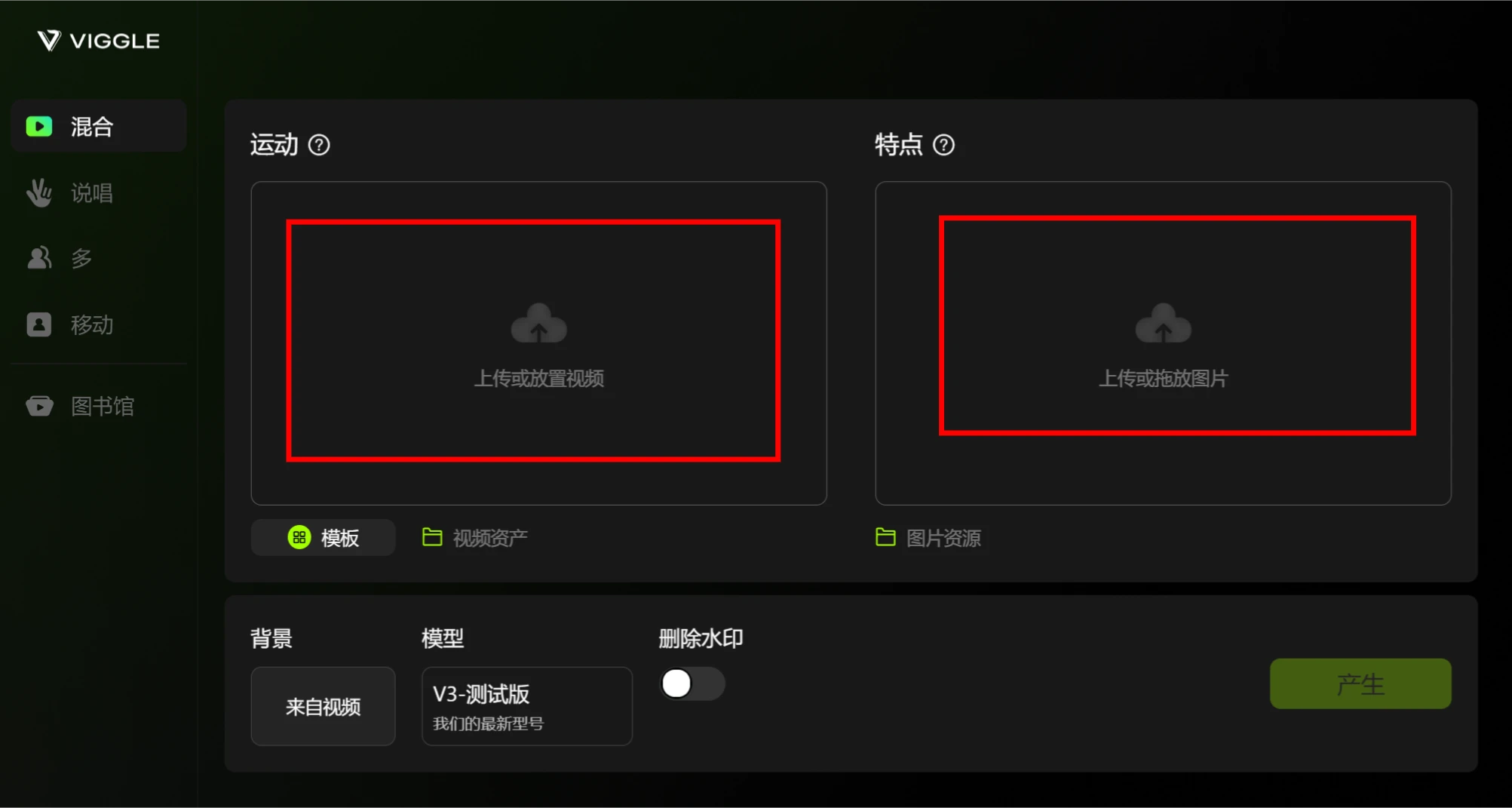
You can customize the video background, choose the default or upload your own background.
Click generate and wait for the video composition to complete (it may take seven or eight minutes).
Note: If you can't open it or log in, you may need a scientific internet tool. In addition, the free version only supports original videos under 60 seconds and less than 50MB. The Viggle AI tutorial is here.
4. Dubbing and Lip Sync
>Choose a voiceover tool:It is recommended to use Jimeng AI's digital human feature, which can both provide voiceover and achieve lip-syncing. Method: Go to Jimeng AI and click [AI Video]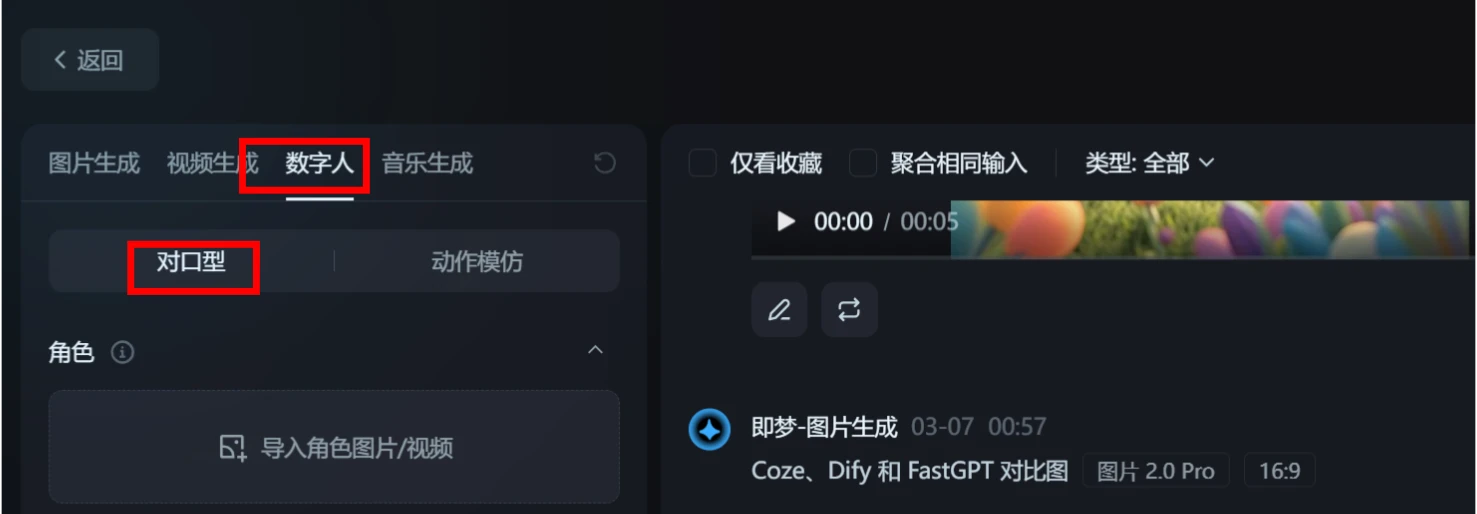
Note: Jimeng AI can only generate videos of about 20 seconds at a time.
Break Down the Script and Video:
Break the generated script and video into segments by paragraph, ensuring the script corresponds to each video clip.
Upload the broken-down video clips, copy the generated script, create a new voice room, and upload the original creator's original audio as a reference.
Generate voiceover and lip-sync videos, and replace each segment's script and video in sequence.
Note: The uploaded original audio must be longer than 5 seconds and shorter than 33 seconds; when generating videos, the video duration should be longer than the script duration to allow for subsequent editing.
V. Editing the Final Video
1. Import Video Clips:
Import the generated video clips into Jianying (CapCut) in sequence, maintaining continuity.
Use Jianying's auto-subtitle recognition feature to add subtitles to the video.
2. Replace the Highlight Audio:
Split the highlight portion of the script separately, and lower or delete the AI-generated voiceover for that part.
Extract the original creator's audio and replace it at the highlight position to enhance the emotional impact.
You can add subtitles, background music, etc. as needed, and optimize by imitating the style of People's Daily.
VI. Removing Watermarks
Use Tencent Zhiying's smart removal tool to remove watermarks. The tutorial is here:
Go to the Tencent Zhiying smart watermark removal tool website: https://zenvideo.qq.com/smart/waterMask, and upload the video that needs watermark removal.
According to the watermark position in the video, create a new watermark box and frame the watermark area.
Click Confirm and wait for the watermark-free video to be generated.

Other Considerations
Copyright Risks: Avoid using unauthorized photos of real people; try to use ancient-style portraits or anime/manga illustrations instead.
Tool Usage: Some features may require a membership; you can use green/portable versions of the tools as alternatives.
Video Optimization: Adjust the video duration, aspect ratio, and style according to the platform's characteristics to ensure video quality.









