
 Script Planner Assistant▸
 AI Apps
 AI News
Tutorial on Removing Video Watermarks with Tencent Zhiying's Smart Eraser Tool
小编 ·

Tutorial on Removing Video Watermarks with Tencent Zhiying's Smart Eraser Tool
What is Tencent Zenvideo Smart Eraser?
The Tencent Zenvideo Smart Eraser tool is an online video editing tool launched by Tencent, specifically designed to remove watermarks and subtitles from videos.
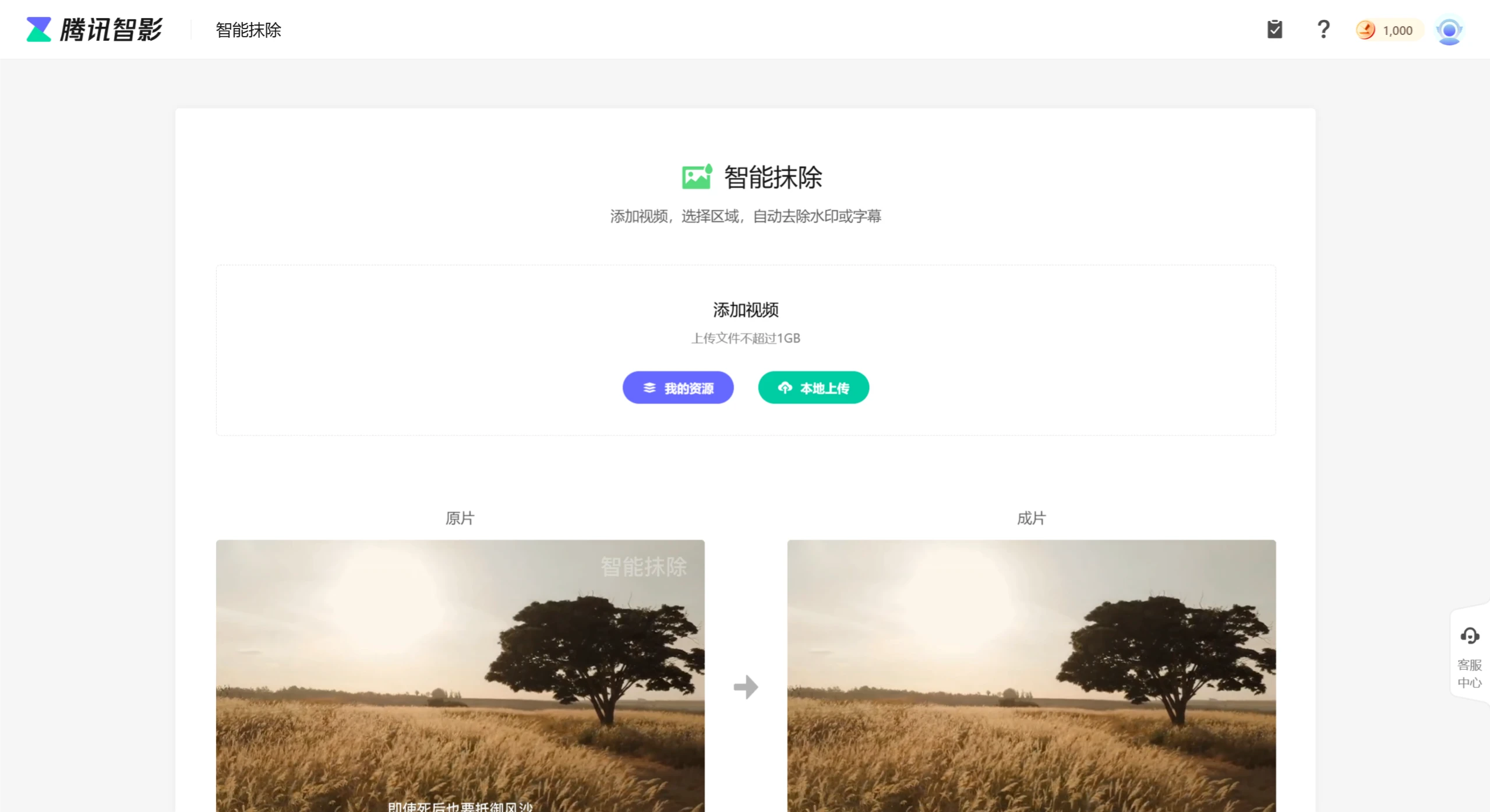
Features of Tencent Zenvideo Smart Eraser
Smart Recognition and Removal: Using AI technology, it can automatically identify watermarks and subtitles in videos and remove them with one click.
Removal of Multiple Elements: It can not only remove watermarks but also remove subtitles, dates, times, URLs, and other elements from videos.
Multi-Target Processing: Supports adding multiple removal frames at the same time, allowing simultaneous removal of multiple watermarks or subtitles.
Real-Time Preview and Adjustment: During the removal process, users can preview the effect in real time and adjust the removal range and parameters.
Efficient Processing Speed: Adopts optimized algorithms and hardware acceleration technology, offering fast processing speed and saving users' time.
Steps to Remove Video Watermarks Using Tencent Zenvideo Smart Eraser
1. Access the Tencent Zenvideo Smart Eraser Tool
Open your browser and visit the official website of the Tencent Zenvideo Smart Eraser tool: https://zenvideo.qq.com/smart/waterMask
2. Upload Video
Find the "Smart Eraser" function at the tool entry on the Tencent Zenvideo homepage.
Click "Local Upload" and select the video file from which you want to remove the watermark. The file size should not exceed 1GB.
3. Frame the Watermark Area
After the video is uploaded, the page will display a "purple watermark frame" and a "green subtitle frame".
Drag the "purple watermark frame" and adjust its size and position so that it just covers the watermark area in the video. It is recommended that the framed area does not exceed 1/4 of the video frame.
If there are multiple watermark areas, you can click the "Add Selection Frame" button at the top to add new selection areas.
4. Confirm Processing
After framing is complete, click the "Confirm" button at the bottom of the page, and the system will start processing the video.
5. Download the Processed Video
After processing is complete, you can download or continue editing the video in the following two ways:
On the "Smart Eraser" tool homepage, click the "Download" button to save the processed video.
In "My Resources" on the Tencent Zenvideo homepage, find the processed video to download or edit it online.
Notes
Usage Limit: Non-member users have 3 free uses per day. After becoming a member, you can get more uses.
Processing Effect: If the watermark area is large or complex, it is recommended to frame it as accurately as possible for better removal results.
Note: The Tencent Zenvideo Smart Eraser tool has been taken offline, and the official website is no longer accessible.









