
 Script Planner Assistant▸
 AI Apps
 AI News
Viggle Tutorial: How to Use Viggle

Viggle Tutorial: How to Use Viggle
What is Viggle AI?
Viggle AI is an AI video generator powered by JST-1, a platform that transforms static images and text into dynamic videos and animations. What sets it apart from typical AI video generation tools is that Viggle can convert photos into freely movable videos and is able to isolate a person's movements from the overall scene for processing, giving you complete control over the character's actions.
Viggle makes it possible to perfectly transfer real human motions onto another character, regardless of the pose. This is a clear distinction from previous AI video tools. The ability to precisely control character actions opens up new possibilities for AI video creation, greatly enhancing the precision and realism of AI video generation, and is sure to play an important role in a wide range of application scenarios in the future.
How to use Viggle AI?
There are two ways to use Viggle.ai: one is to register an account on the official website and use their Web version, and the other is to join the official Discord server to use it.
1. Discord Generation Tutorial
Enter the Discord server, Viggle's Discord channel: https://discord.com/channels/@me, find "animate" in the channel list on the left, and you can enter any of the rooms.
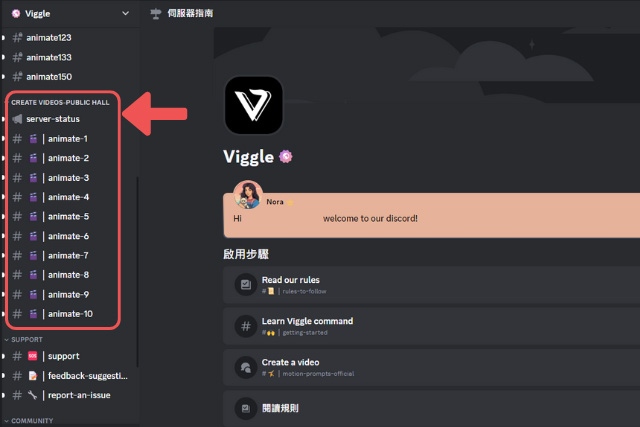
The Discord server of Viggle.ai requires the use of some commands. Here are some basic commands:
/mix: Mix a character image into a motion video.
/animate: Use text commands to generate animation for a static character.
/ideate: Generate a character video from text.
/character: Create and animate a character.
/stylize: Redesign and animate a character with text commands.
Image + Video
If you want your character to imitate the movements or dance from a video, type "/mix" in the input bar, then upload your image and video in the pop-up file boxes. A few notes: the uploaded image should be as clear as possible and show the full body, with a less cluttered background—you can cut out the subject and remove the background beforehand. Enter whether you want a green screen "Green" or white screen "White" background, and in the finetune field you usually enter "On". Finally, press Enter and the generation will begin.
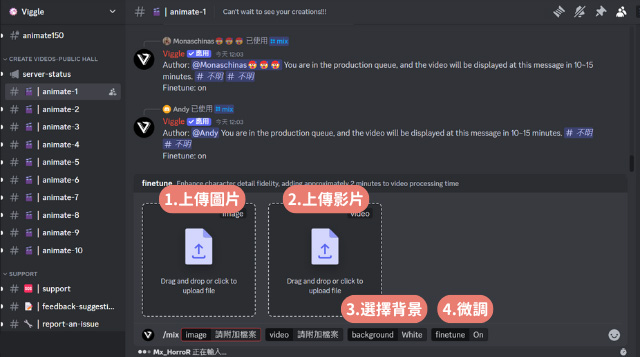
Image + Text Prompts
If you want your character to perform movements based on a prompt, you can also use text prompts directly. You can write your own motion prompts, or refer to the prompt templates provided on the Viggle official homepage. Here's how: type "/animate" in the input box, and several input fields will appear for you to fill in: [image], [motion_prompt], [background], [finetune]. Upload your prepared image in the file box, then enter the English prompt in the second field, choose the background color and whether to fine-tune as before, and finally press Enter to send and generate.
image: Set the image you want to turn into a video
motion_prompt: Specify the motion command (related video templates for motion_prompt can be found at this address: https://viggle.ai/prompt, where you can find your favorite motion videos and copy them, then paste them into the motion_prompt input box.)
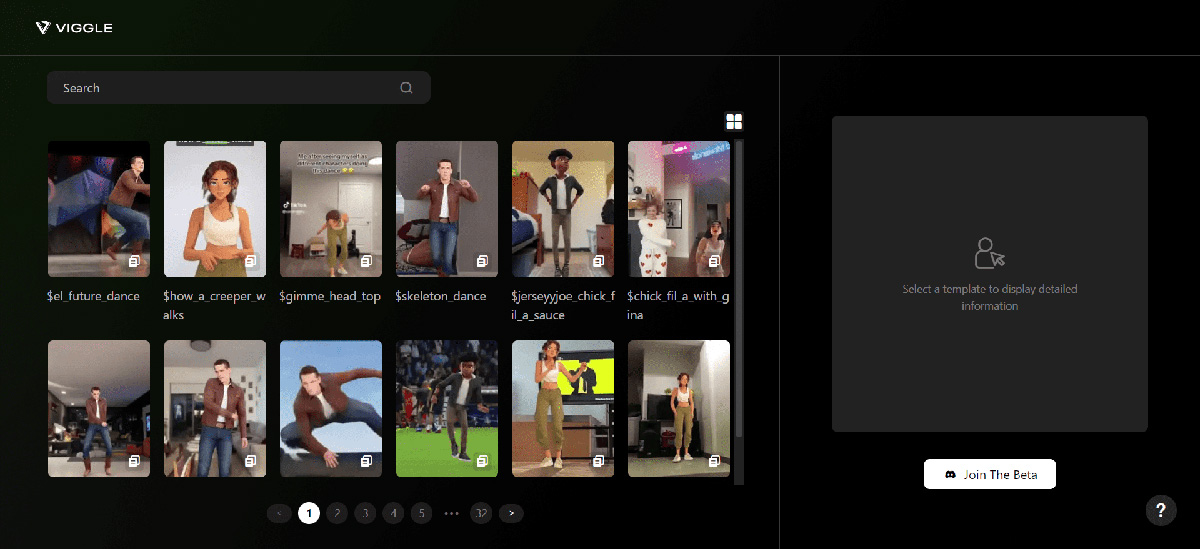
background: Add a background color
finetune: Set whether to optimize, i.e., whether to fine-tune
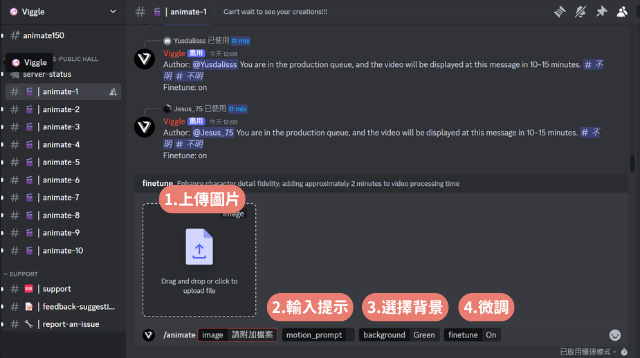
A video takes roughly 3–5 minutes or even longer to generate; during peak hours, generation time may be even longer.
2. Viggle Official Website Generation Tutorial
Go to the Viggle official website (https://www.viggle.ai/), register an account. The operation is the same as the Discord generation steps above: [upload image] [select template], then click generate—it's a foolproof process.
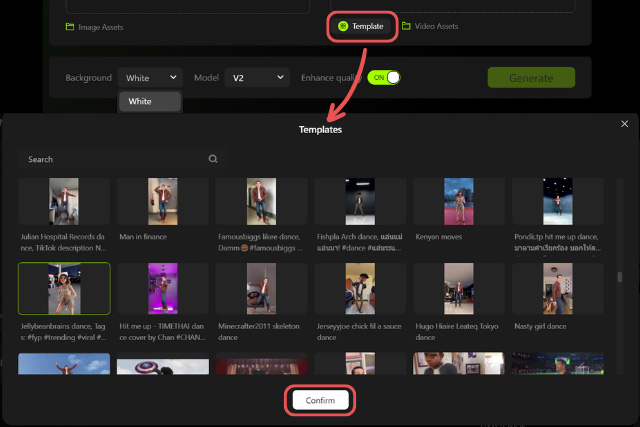
The Viggle official website currently does not offer a text-to-motion feature, but you can browse the template library on the Viggle official website to find the motion you want. Once selected, it will directly generate that same motion for you.
That's the tutorial on how to use Viggle—it can be generated via Discord or through the Viggle official website. If you have any questions, feel free to contact us.









