Script Planner Assistant▸
 AI Apps
 AI News

MCSeeder: Minecraft Seed Lookup & Map Generator
MCSeeder: Minecraft Seed Lookup & Map GeneratorIntroduction
What is MCSeeder
MCSeeder, generally called Seeder directly, is an online seed lookup and map generator tool for Minecraft players.It helps you "find a great start". Instead of creating worlds over and over in the game and hoping for the best, just go to the website, set your conditions, and let it automatically filter out seeds that meet your requirements.
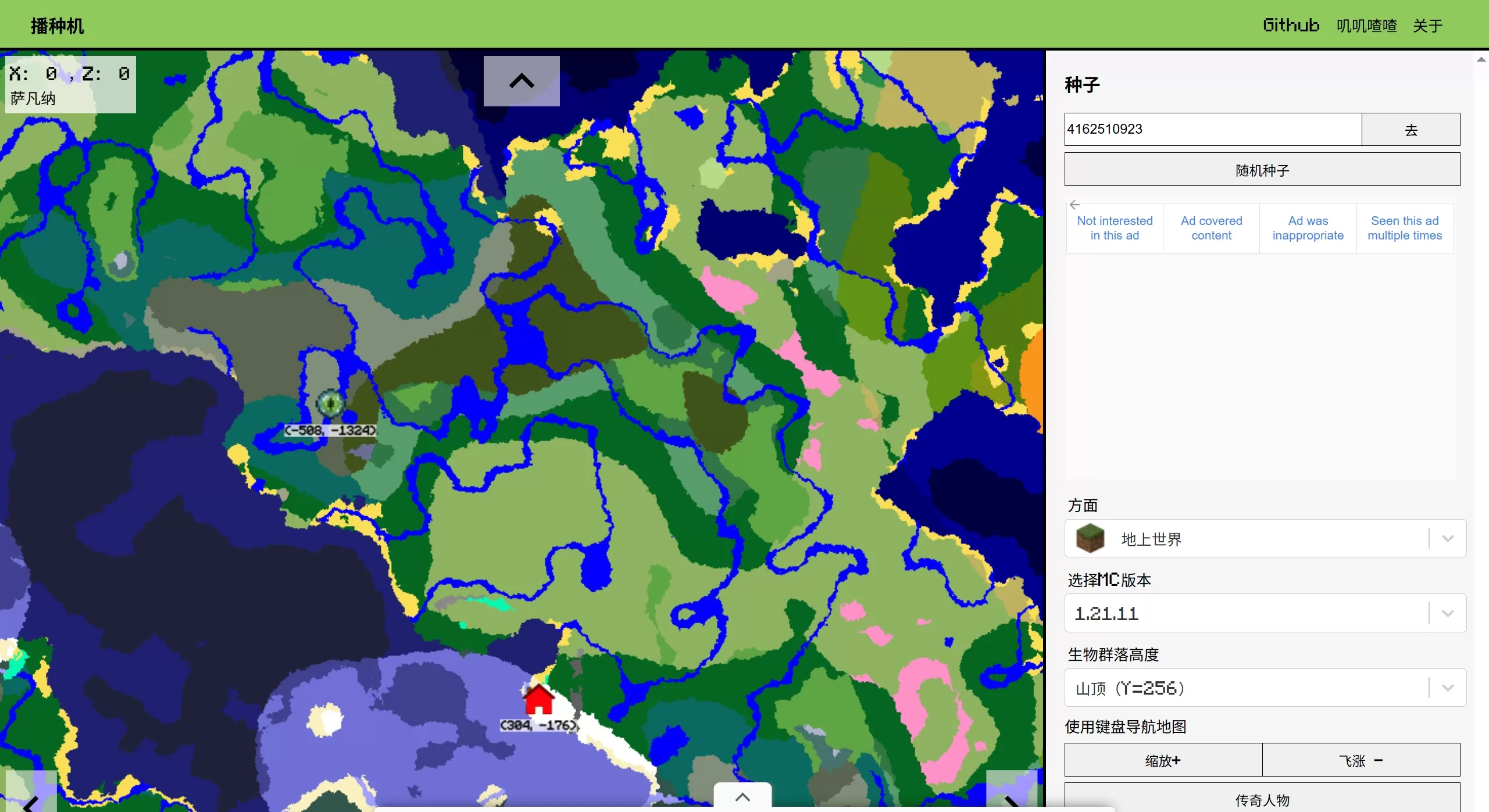
🎯 MCSeeder Core Features
Reverse search: finding seeds — this is its specialty. You can set specific requirements, such as "a village right next to spawn, and a flower forest within 500 blocks", and Seeder will match the corresponding numbers from the seed library or algorithm.
Structure location: if you already have a seed in hand, enter it and it can list the exact coordinates of all important structures (strongholds, monuments, temples, etc.) in that world, just like ChunkBase.
Full dimension support: not only the Overworld, but also terrain previews and structure lookups for the Nether and the End are supported.
🚀 MCSeeder Main Highlights
No installation required, pure web version: unlike Minemap, which requires downloading software, MCSeeder runs in the browser. It uses WebAssembly technology, so the map generation algorithm runs directly on the webpage — open and use, very convenient.
Cross-version compatibility: generally supports everything from older versions up to the latest 1.20+, ensuring the seeds you find are valid in the current version.
Visual preview: after getting results, a map is generated directly on the page, making terrain, biomes, and structure locations easy to understand at a glance.
🆚 How is it Different from ChunkBase?
Both are web tools, but they focus on different things:
ChunkBase: more focused on "lookup". You have a seed and want to check its coordinates and terrain. Map interactivity is stronger — like a big interactive map.
MCSeeder: more focused on "search". The name Seeder hints at this — its strength is helping you generate or find seeds that meet specific conditions.
💡 MCSeeder Use Cases
Completionist players: who want the spawn point to be in a specific biome, such as a cherry blossom grove or mushroom island.
Speedrunners: looking for seeds where a village is very close to spawn, or where ruins are in particularly good locations.
Server admins: looking for a resource-rich, good-looking initial map for the server.
How to Use MCSeeder?
The core logic is "find a map with conditions". No need to luck out in the game yourself — just tell it your requirements, and it calculates eligible seeds in the background.Below is a practical example with an "ideal newbie survival start".
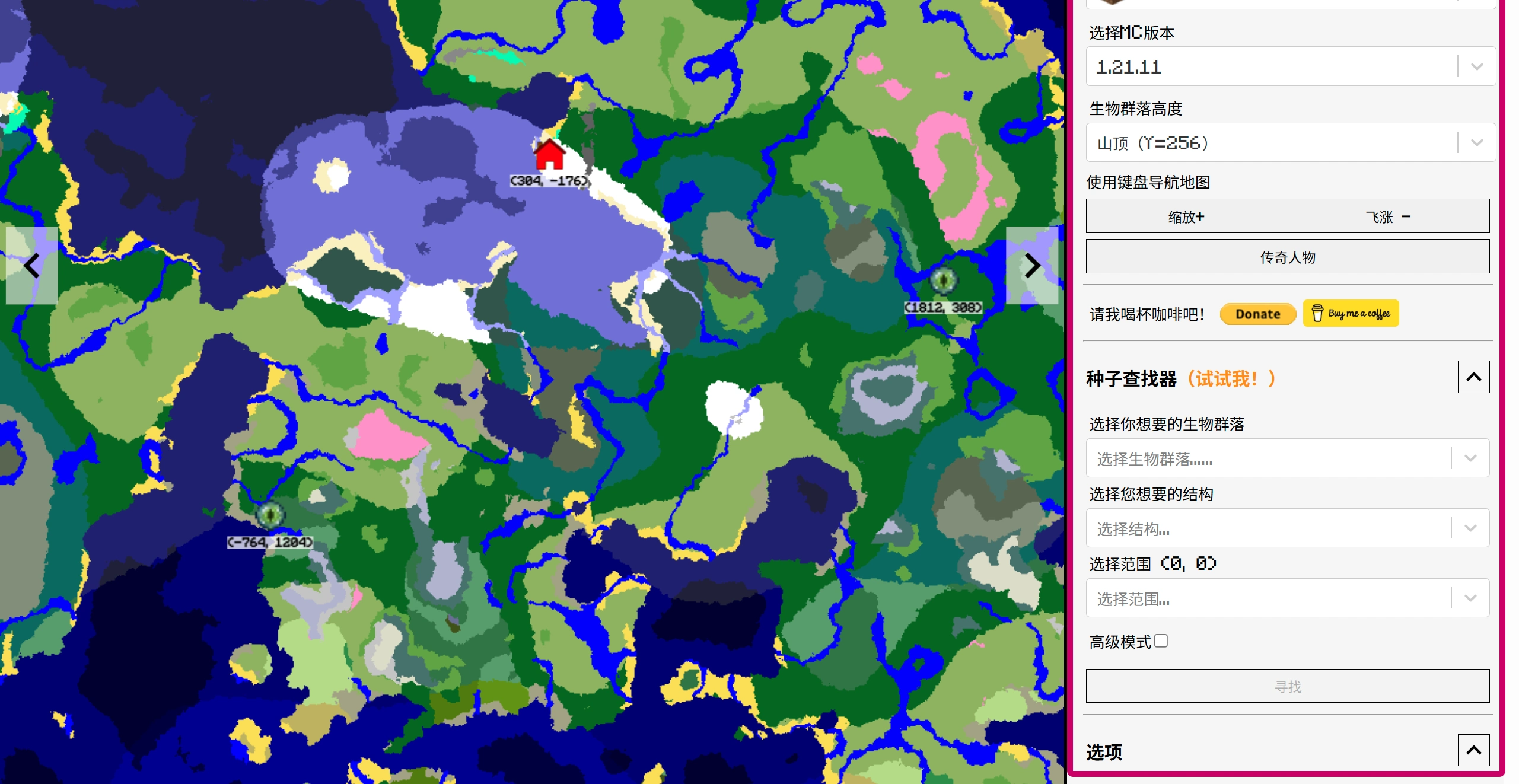
🎯 Example Goal
Find a world like this:
A village right next to the spawn point, convenient for getting beds and food
A zombie spawner nearby, convenient for building an XP farm in the early game
Version: choose the most popular current version, 1.20.1 (Java Edition)
🛠️ Specific Operation Steps
1. Go to the MCSeeder website and set basic options
Open the MCSeeder website.
Find [Select MC Version] in the right settings panel, select 1.20.1 (or the version you play).
Choose Java for Edition (choose Bedrock if you play Bedrock Edition — seeds are not interchangeable between the two, be careful not to choose wrong).
2. Add filter conditions
This step is the most critical — you need to add "filters":
Add village condition
Click the "Add Filter" button or the + button.
Select Structures → Village.
Distance is usually set to default "Spawn within X blocks", keep the default (usually a few hundred blocks) or change it to closer, like 200 blocks.
Add spawner condition
Click "Add Filter" again.
Select Structures → Dungeon.
Inside you can specify the mob type as Zombie, or choose Any.
Set the distance to, for example, within 500 blocks.
Tip: if you want to find a specific terrain type like cherry blossom grove, look for the Biomes option in Filters
3. Start searching
Click the "Start Search" button.Wait for it to run — you'll see a progress bar moving, and the site may test hundreds of seeds per second.Once a seed is found that satisfies both "has a village" and "has a spawner", the search will automatically pause (you can also stop it manually).
4. View results and copy the seed code
The found Seed, such as -123456789, will be shown on the interface.Click the Map preview to see the village (blue marker) and dungeon (black marker) right next to the spawn point (red marker).Click the copy icon next to the seed code.
🎮 Verify in-game
Open Minecraft Java Edition.
Click "Create New World" → "More World Options".
Paste the code you just copied into the "Seed" field.
Create the world.
After walking around a bit, you'll discover: "Hey, there's really a village here, and there really is a spawner underground!"