Script Planner Assistant▸
 AI Apps
 AI News

Inkarnate: An Online Fantasy-Style Map Maker
Inkarnate: An Online Fantasy-Style Map MakerIntroduction
What is Inkarnate
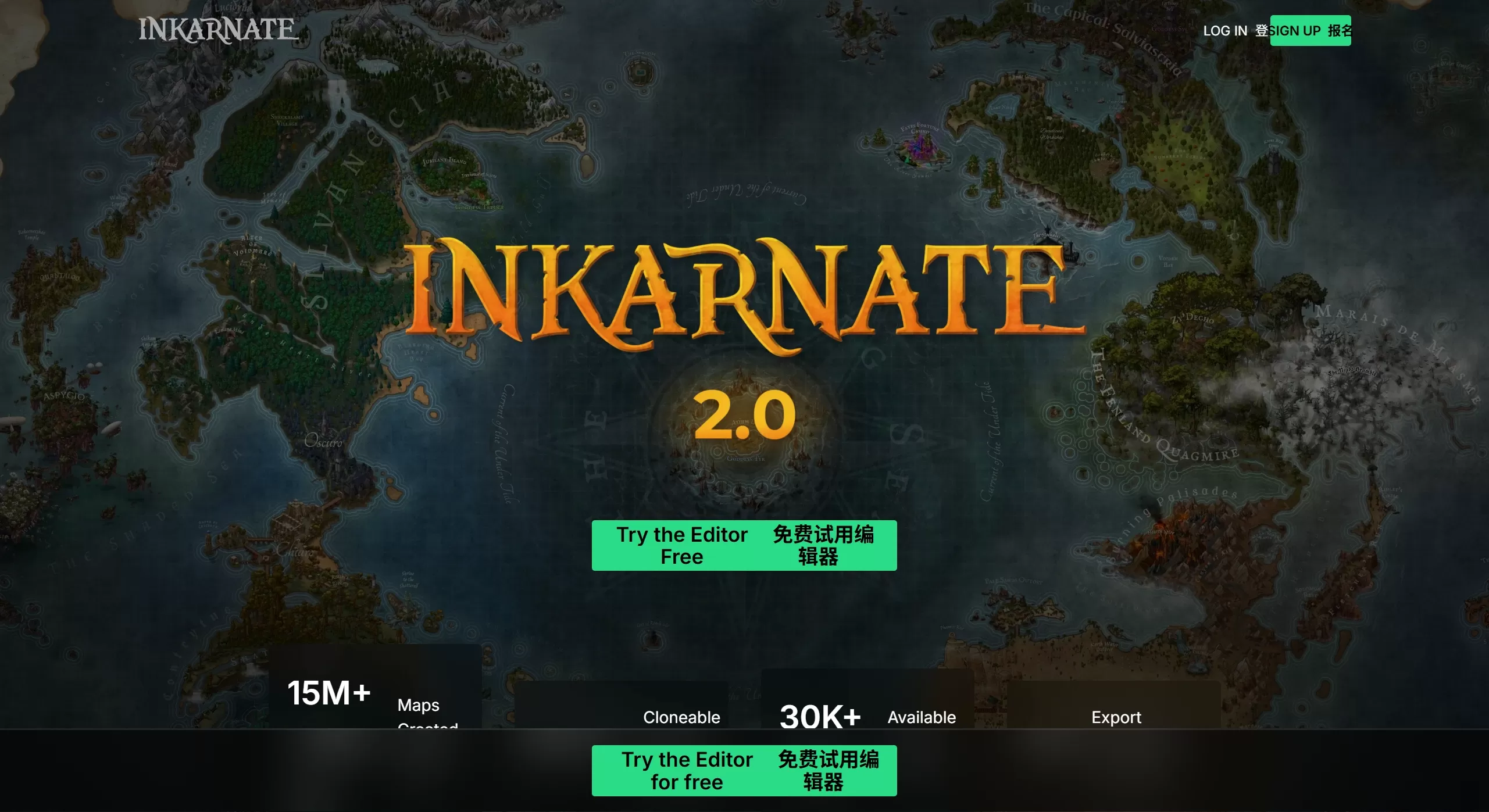
Inkarnate is a fantasy-style map-making tool with high ease of use, a rich asset library, and powerful editing features. It is suitable for tabletop game players such as D&D, novel authors, game developers, and map enthusiasts.
Inkarnate runs in the browser, requires no software installation, and supports multiple scales ranging from world continent maps to battle encounter maps. Its design philosophy is to enable non-professional users to create publication-grade map works.
Official Website: https://inkarnate.com
Inkarnate Features
Inkarnate primarily completes map creation through "Layers" and an "Asset Library":
Rich Asset Library (Stamps & Textures)
Stamps: Built-in with thousands of preset icons, including mountains, forests, cities, castles, trees, ships, monsters, etc., which can be placed by drag-and-drop.
Textures: Provides a variety of terrain textures (grassland, desert, snowfield, ocean depth, etc.) that can be blended and painted to achieve natural terrain transitions.
Labels & Decorations: Includes decorative elements such as compasses, title frames, and borders.
Powerful Drawing Tools
Brush Tool: Freely draw terrain, rivers, and roads; brush size, opacity, and blending modes can be adjusted.
Lines & Shapes: Draw straight lines, curves, and polygons to define boundaries or specific areas.
Grid System: Supports the display and hiding of square and hex grids, making it convenient to create wargame maps.
High-Resolution Export
Supports exporting images up to 8K resolution, suitable for printing or large-screen display. The export format is PNG, and in some cases a transparent background can be preserved.
Custom Uploads (Pro Feature)
Users can upload their own images as stamps or textures to expand their creative space.
Multi-Layer Map Support
Multiple maps can be created within a single "World" project—for example, a world map linked to multiple regional maps or city maps beneath it.
Inkarnate Use Cases
Tabletop Role-Playing Games (TTRPG)
Used for world overview maps, adventure maps, and battle maps in games such as D&D and Pathfinder.
Novel Writing & Worldbuilding
Helps fantasy and sci-fi authors visualize fictional worlds, aiding both writing and readers' understanding of geographical relationships.
Game Development
Independent developers can quickly prototype game world maps or use them as in-game background assets.
Education & Presentations
Can be used to create stylized historical or concept maps to support teaching presentations.
How to Use Inkarnate
Registration & Login
Visit the Inkarnate official website and click "Sign Up" to create an account (email or Google account supported). After logging in, you will enter the "Worlds" interface.
Create a New Map
Click "Create New Map" and choose the map type:
World Map: Suitable for drawing large-scale maps such as continents and countries.
Battle Map: Suitable for small-area encounter maps like interiors and dungeons, usually with a grid.
Regional Map: In between the two.
Drawing Workflow
Lay Down Terrain: Select "Textures" in the left toolbar and use a large brush to lay down the background (e.g., ocean), then paint the continent outline with a land texture (e.g., grass), using a blending brush for natural edge transitions.
Add Details: Switch to the "Stamps" tab, search for and drag in elements such as mountains, forests, and rivers, and adjust their size and angle via scaling and rotation to avoid repetition.
Draw Paths: Use the "Lines" tool to draw roads, boundary lines, or river flows.
Add Labels: Use the "Text" tool to add place names; multiple fonts are supported (more options in the Pro version), and color and size can be adjusted.
Post-Processing: Add filters (e.g., yellowed old-paper effect), borders, compasses, and other decorations to enhance the overall look.
Save & Export
The system automatically saves to the cloud. Click "Export" in the top-right corner and select the resolution (lower for the free version; 2K/4K/8K available for the Pro version) to download the image.
Inkarnate FAQ
Q1: What is the difference between Inkarnate's free version and Pro version?
Free Version: Basic asset library is limited, each map is limited to 100 stamp objects, export resolution is lower (usually 1080p or below), not for commercial use, and custom assets are not supported.
Pro Version (~$25/year or $5/month): Unlocks all premium assets, no limit on the number of objects, supports 2K/4K/8K export, allows commercial use (subject to license agreement), supports uploading custom stamps and textures, and supports multi-layer map management.
Q2: Does Inkarnate support Chinese input?
Yes. The text tool can directly input Chinese, but there are few built-in Chinese fonts (usually only one generic Song/Hei-style font). If you need special calligraphic fonts, you can leverage the Pro version to upload image text or add it later in Photoshop.
Q3: Can the map be used offline?
No. Inkarnate is a purely online tool and requires an internet connection to use and save.
Q4: What format are the exported images?
Primarily supports the PNG format, and JPG in some cases. PNG is better for preserving detail and the alpha channel.
Q5: Can it run on a low-spec computer?
The web version does not demand much from the local graphics card, but with a huge number of map elements (thousands of stamps), low-spec devices may experience slight lag. Chrome or Edge is recommended for the best performance.
Q6: How do I make a hex grid map?
Select the "Hex" option when creating a map, or enable Hex Grid in the map settings. Pro users can more flexibly adjust the grid color, thickness, and visibility.