Script Planner Assistant▸
 AI Apps
 AI News

BlurBackground AI: AI-Powered Background Blur & Removal
BlurBackground AI: AI-Powered Background Blur & RemovalIntroduction
What is BlurBackground AI?
BlurBackground AI is a free online background-blurring tool that can quickly blur image backgrounds, lets you adjust the blur intensity on your own, remove the background to make it transparent, or replace it with various solid-color backgrounds. Whether you're shooting portraits, product photos, or creating content, it's all useful. Your images aren't stored or shared during processing, and you can get a high-quality result in just a few seconds. BlurBackground AI requires no sign-up or download, and handles common image formats like PNG and JPG.
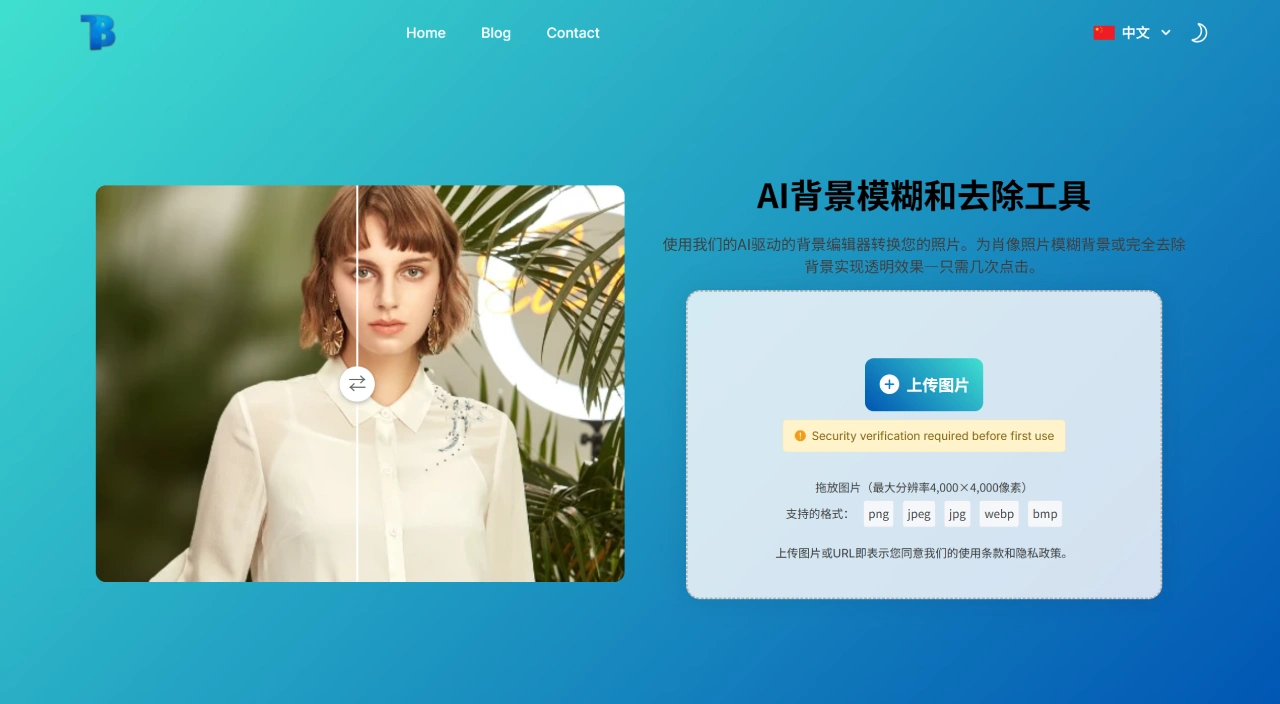
Core Features of BlurBackground AI
Background blur: A slider lets you adjust the blur intensity, ranging from a slight blur to a professional camera-style bokeh effect, making the subject stand out and giving the image real depth of field.
Background removal: Directly removes the background to make it transparent—ideal for scenarios that require a clean presentation.
Background replacement: Add any solid-color background directly—white, black, gray, blue, red, yellow, green, pink, light blue, and more are all free, with no watermarks on the image, so you can match different brand styles.
BlurBackground AI Use Cases
Portrait photography: For ID photos, profile shots, or social media avatars—one click gives you the shallow depth-of-field effect of a DSLR with a wide aperture.
E-commerce product images: For main images on Taobao, Amazon, or your own website, a slight background blur or a switch to a solid-color or transparent background makes the product more prominent and increases the chance that visitors will click in.
Content creation and posters: Adding text or stickers on top of a blurred background works great for WeChat official-account covers, promotional banners, or illustrations in PowerPoint decks.
Pets / food / still life: Complex pet fur, translucent cups, reflective jewelry edges—the tool identifies these accurately, and after defocusing the subject pops more.
Video thumbnails and livestream covers: Blur the background first, then add a title so viewers can see the focus at a glance. Tests show click-through rates can increase by more than 15%.
How to Use BlurBackground AI
Step 1: Open the official BlurBackground AI website using the link above.
Step 2: Click "Upload Image" and pick an image from your computer (file size between 5 and 50 MB, up to a maximum of 8000×8000 pixels).
Step 3: The AI automatically identifies the main subject in the image, and a "Blur Intensity" slider appears on the right.
Light (10%–30%): A slight background blur where you can still see some of the surroundings.
Medium (30%–60%): People or products become more prominent—this is the most common level for e-commerce main images.
Heavy (60%–90%): Mimics the effect of shooting with an f/1.8 wide aperture, great for artistic portraits.
For natural edge transitions, 70%–90% is recommended.
Step 4 (optional): Click the "Remove Background" tab to get a transparent PNG directly, and you can swap in any solid color or new background yourself.
Step 5: Click "Download" to get a watermark-free, high-definition image with up to twice the resolution of the original. The whole process takes just 3 to 8 seconds.
Pro Tips
Complex hair strands: Turn on the "Fine Edges" switch—the AI applies a 1-pixel softening to the hair edges, so even against a white background you won't see any jagged edges.
Batch consistency: With the Pro version, you can upload up to 50 images at once, set the same blur intensity, and download them together as a package—perfect for e-commerce seasonal new launches.
Color grade first, then blur: Use Lightroom to bump up the contrast of your image first, then upload it to BlurBackground AI—the depth-of-field effect will look even more transparent and clean.
Key Questions
Q: What are the core features and use cases of BlurBackground AI?
A: Core features include adjustable-intensity background blur, background removal with transparent output, and replacement with various solid-color backgrounds, supporting common formats like PNG and JPG. Use cases include portrait photography, product photography, content creation, and professional profile shots—applicable to social media, e-commerce displays, and professional/personal branding.
Q: What are the advantages and workflow when using BlurBackground AI?
A: Advantages include being free, no sign-up or download required, no ads, privacy protection (your images aren't stored), fast speed (results in seconds), no loss of image quality, and highly professional results. The workflow is just three steps: ① Upload an image (common formats supported) → ② Pick an effect (blur, remove background, or replace background) → ③ Download the processed image.
Q: What makes BlurBackground AI's background blur feature flexible and effective?
A: The flexibility comes from the slider that lets you adjust the blur intensity directly, ranging from a slight blur to a professional bokeh effect. The effect is characterized by the AI's highly accurate recognition of subject and background, a very natural blurring process that produces a professional depth-of-field look—keeping the subject sharp with no loss in image quality, making the subject pop without destroying details.
Related Articles: