Script Planner Assistant▸
 AI Apps
 AI News

Snippai: AI-Powered Screenshot Tool for Instant Content Recognition
Snippai: AI-Powered Screenshot Tool for Instant Content RecognitionIntroduction
Snippai is an AI-powered smart screenshot tool that helps you quickly recognize and process content in screenshots, including formulas, text, tables, code, etc., and provides features such as translation, analysis, and conversion—turning screenshots from mere images into editable, usable information.

Core Features
✅ Formula Recognition: Automatically identifies math formulas in images and converts them to LaTeX format for easy editing and layout.
✅ Text Extraction: Precisley extracts text from images, ready to copy directly into documents or notes.
✅ Table Conversion: Recognizes tables in screenshots and automatically converts them to Markdown format for easy data organization.
✅ Image Analysis: Analyzes image content and generates text descriptions to help you understand the image information.
✅ Problem Solvinging: Recognizes questions content (such as math or physics questions) and provides solution with AI-generated steps and answer.
✅ Code Understanding: Provides AI-explained functionality logic for code snippets in screenshots, helping programmers quickly understand them.
✅ Language translation: Directly translates text in screenshots (supports multiple languages), suitable for reading foreign documents or interfaces.
✅ Color extraction: identifies the primary colors in images and provides Hex and RGB values for convenient design color matching.
(More AI features in development...)
Use Cases
📚 Academic & Education
Formula to LaTeX: Quickly extract math formulas from papers or courseware for easy editing.
Text note organization: Screenshot board writing or textbooks, and AI extracts text and organizes it into electronic notes.
Smart question solver: Snap a picture of a math/physics problem, and AI provides solution with steps and answer.
💼 Office & Data Processing
Table to Markdown: Convert tables in screenshots (such as handwritten reports) into structured data for easy analysis.
Text extraction & reuse: Screenshot contracts or meeting minutes and copy the text directly without manual typing.
Translate foreign materials: Quickly translate emails, documents, labels, and other foreign-language content.
💻 Programming & Development
Code analysis: AI explains the functionality logic of code in screenshots, making it easy to understand unfamiliar code.
Code snippet extraction: Directly reuse code examples from technical documents.
🎨 Design & Creation
Color palette extraction: Analyze the dominant colors of a design draft and provide Hex/RGB values to assist in color matching.
Image description: Screenshot a design draft, and AI generates text descriptions for easier team communication.
🌍 Daily & Information Processing
Translate menus/signage: Take a photo of foreign-language menus, road signs, or interface text, and AI will translate them into your native language.
Photo content analysis: Take a picture of an object or scene, and AI generates descriptive text to help organize your photo album.
Knowledge management: Screenshot web pages or e-books, extract key information, and organize them into notes.
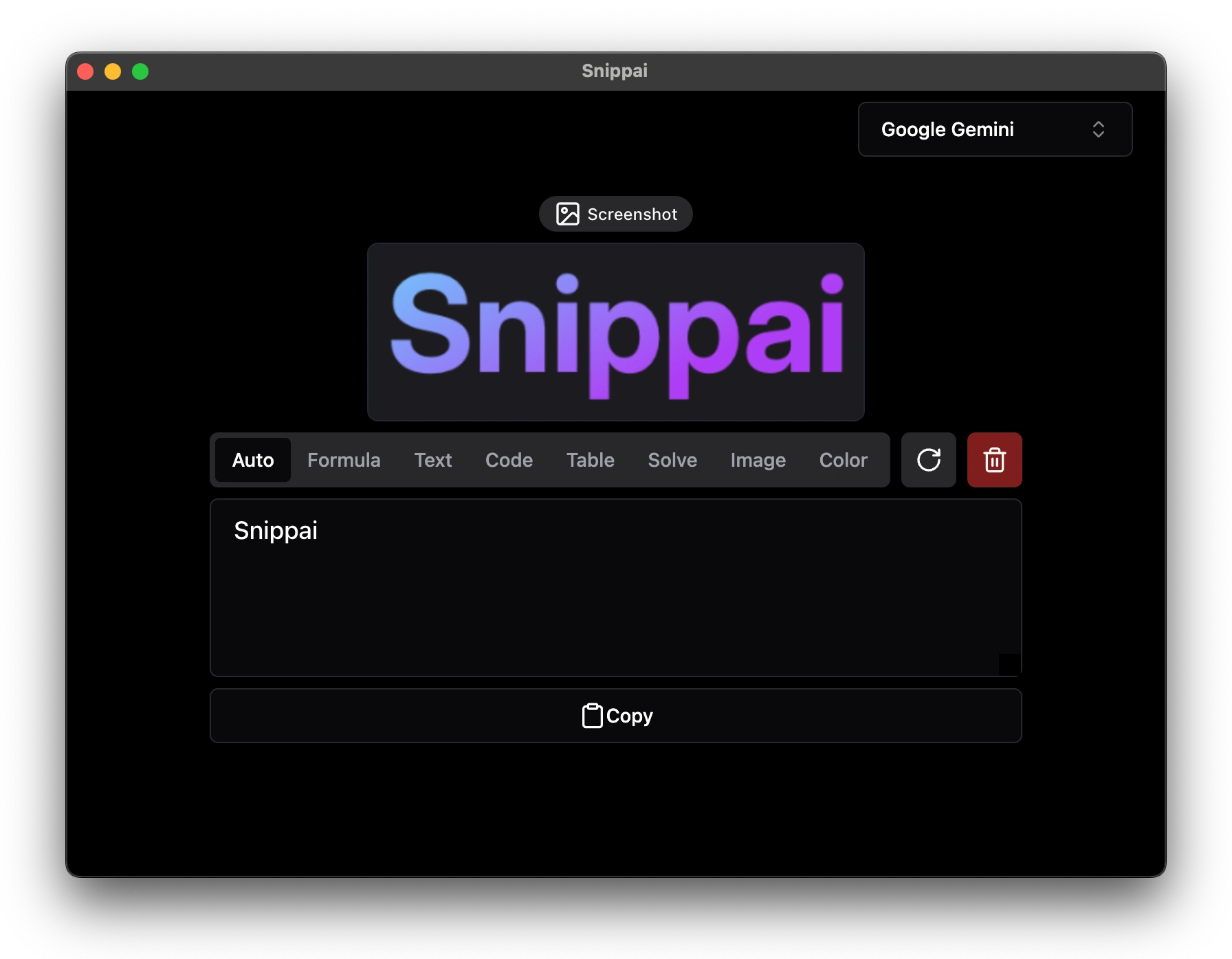
How to Use Snippai?
1. Download & Install
🔗 Go to GitHub to download the latest version (supports Windows, macOS, Linux)
Windows: Download the .exe file and double-click to install.
macOS: Download the .dmg file and drag it to the "Applications" folder.
Linux: Download the .AppImage or .deb file and install according to your system's standard procedure.
2. Launch Snippai
After installation, open Snippai; it usually runs in the system tray (Windows) or menu bar (macOS).
3. Screenshot & Recognize
Click the Snippai icon and select "Screenshot" (supports full screen, region, and window capture).
After capturing, AI automatically analyzes and provides the following functions:
Formula → LaTeX
Text → Copyable text
Table → Markdown
Code → Function analysis
Translation → Target language
Color → Hex/RGB values
4. View & Use Results
Recognition results are displayed directly in the interface and can be copied, saved, or exported.
For example:
Formula → Copy LaTeX code into a document
Text → Paste directly into notes
Table → Copy Markdown into Excel/documents
5. Advanced Features
Custom shortcuts: Set a dedicated screenshot hotkey to launch it with one click.
Save screenshots: Can be stored locally for easy later review.
History records: Previously captured screenshots can all be retrieved.
Open-source address:https://github.com/xyTom/snippai