Script Planner Assistant▸
 AI Apps
 AI News

ExplorerTabUtility: An Open-Source Multi-Tab Super-Customization Tool for Windows 11 File Explorer
ExplorerTabUtility: An Open-Source Multi-Tab Super-Customization Tool for Windows 11 File ExplorerIntroduction
Introduction to ExplorerTabUtility
When managing files in Windows 11, every time you open a folder, a new window pops up, and your desktop becomes a mess. This is where Explorer Tab Utility, an open-source little tool, comes in handy. It converts new windows into tabs, supports shortcut operations, and makes File Explorer work as conveniently as a browser. You can also search and batch-manage tabs.
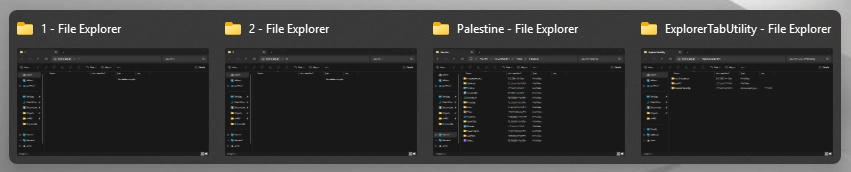
Basic Features
Auto window-to-tab conversion: When opening a new folder, a tab is generated directly instead of an independent window.
Duplicate tab: Right-click on a tab and select "Duplicate Tab" to create a new tab with identical content.
Forward and backward navigation: Use the Backspace key by default to go back, and go forward via the right-click menu or the corresponding shortcut.
Custom path navigation: Add commonly used folder or URL paths in the settings for quick jumping.
Tab search and switch: Press Ctrl+Shift+T by default, then enter keywords to quickly locate an opened folder path.
Force new window: Hold Ctrl+Shift when opening File Explorer to force an independent window.
Shortcut customization: Set dedicated shortcuts for File Explorer-related operations (such as quick path search, virtual desktop switching, etc.).
Path deduplication: When re-opening an existing folder, automatically switch to the corresponding tab to avoid duplicate creation.
Batch operations: Support opening, closing, or restoring multiple tabs at the same time.
Advantages & Highlights
Improved efficiency: Reduce window switching and simplify file management workflows.
Convenient operation: Quickly complete common actions through hotkeys and the system tray menu.
Lightweight: Consumes minimal resources at runtime without affecting system performance.
Privacy & security: Does not collect or leak sensitive user data.
Usage Steps
Download & Install
Download the version suitable for your system from the official GitHub repository.
Run the installer and follow the prompts to complete the deployment.
Basic Operations
When opening File Explorer (Win+E or launch it directly), new folders will automatically appear in tab form.
Right-click on a tab and select "Duplicate Tab" to quickly create a copy.
Use the Backspace key to go back, and go forward through the right-click menu or the corresponding shortcut.
Add commonly used paths in the settings for quick access via shortcuts or menus.
Press Ctrl+Shift+T to search opened folder paths and switch tabs.
Advanced Features
Automatically switch tabs when repeatedly opening the same folder, avoiding duplicate creation.
Batch-manage multiple tabs (open/close/restore).
Customize shortcuts in the settings and bind them to common operations (such as path search, virtual desktop switching, etc.).