Script Planner Assistant▸
 AI Apps
 AI News

NativeMind: An Open-Source Local AI Assistant Browser Extension
NativeMind: An Open-Source Local AI Assistant Browser ExtensionIntroduction
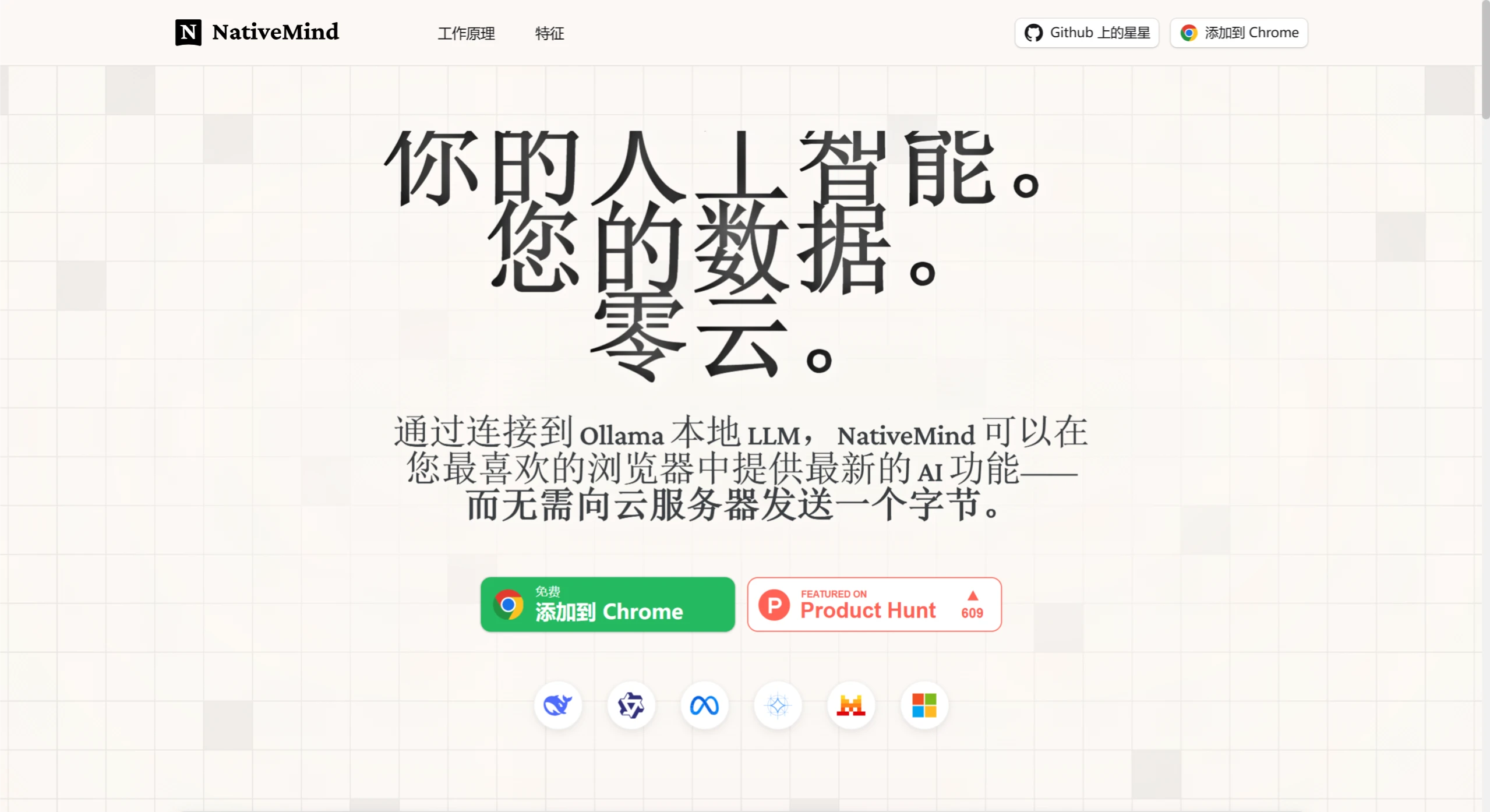
NativeMind is an open-source localized AI assistant browser extension that supports two local models, Ollama and WebLLM. All data processing is completed locally, effectively protecting user privacy.
Core Features:
Fully Localized: Data processing and AI computations are performed entirely on local devices, with no need to upload data to the cloud, ensuring privacy and security.
Open Source: The code is open source, allowing users to freely view and audit it, ensuring transparency.
High Performance: Supports multiple open-source models, such as DeepSeek, Qwen, Llama, Gemma, and Mistral.
Seamless Integration: Integrates with Ollama, allowing users to quickly load and switch between different models.
Functions:
Web Page Summary: Quickly summarizes web page content to help users understand long articles.
Document Analysis: Supports uploading PDF and Word documents to extract key clauses.
Bilingual Translation: Provides translation functionality for selected text or entire pages.
Writing Assistance: Provides writing assistance features such as email polishing and report optimization.
Multi-Tab Context: Supports simultaneous analysis of multiple web pages while maintaining contextual coherence.
Floating Toolbar: Call AI features anytime on any page.
Keyboard Shortcut Support: For example, Ctrl+Shift+L to quickly translate selected text.
Automatic History Saving: Stores conversation records locally, with optional encryption.
Technical Architecture:
Dual-Mode Operation Mechanism: Supports Ollama integration (for high-performance needs) and WebLLM support (for quick experience).
Installation Guide:
Preparations: Requires Chrome browser (latest version), a device with 8GB+ RAM, and at least 5GB of disk space.
Installation Process:
Clone the project using Git: git clone https://github.com/NativeMindBrowser/NativeMindExtension.git.
Enter the project directory: cd NativeMindExtension.
Install dependencies: pnpm install.
Start development mode: pnpm dev.
Installation for Regular Users:
Visit the Chrome Web Store, find "NativeMind", and click "Add to Chrome".
Privacy Protection:
Data Closed Loop: Input, processing, and output are all completed in memory, with no network transmission.
Zero Network Transmission: All external API calls are disabled.
No User Tracking: Does not collect usage behavior data.
Local Storage Encryption: History records are encrypted using AES-256.
Usage Steps:
Install the Extension: Open the Chrome Web Store, search for "NativeMind", and click "Install".
Configure the Model: For first-time use, you need to configure a local model, such as Ollama or WebLLM. Specify the model path or make relevant settings according to the extension's prompts.
Use the Smart Conversation Assistant: Click the extension icon, enter questions or commands, and it supports multi-tab contextual understanding.
Analyze Web Page Content: While browsing a web page, click the extension icon and select the web page content analysis feature to quickly obtain key information.
Full-Page Translation: Click the extension icon and select the full-page translation feature. You can set the target language to provide bilingual comparison.
AI Search Enhancement: When searching in the browser, the extension directly provides intelligent search results.
Writing Assistance: On pages where text is being edited, the extension automatically detects the text and provides rewriting suggestions.
Use the Floating Toolbar: Quickly call AI features on any website without frequently clicking the extension icon.
Open-Source Address:
https://github.com/NativeMindBrowser/NativeMindExtension