Script Planner Assistant▸
 AI Apps
 AI News

Awesome Screenshot: Browser Extension for Screen Recording, Screenshots & Editing
Awesome Screenshot: Browser Extension for Screen Recording, Screenshots & EditingIntroduction
Awesome Screenshot is a powerful tool that integrates screen recording, screenshotting, and editing, making it especially suitable for remote work, online learning, and content sharing. This plugin not only provides efficient screen recording and screenshot capabilities, but also supports image annotation and editing, making it one of the essential tools for remote work and learning.
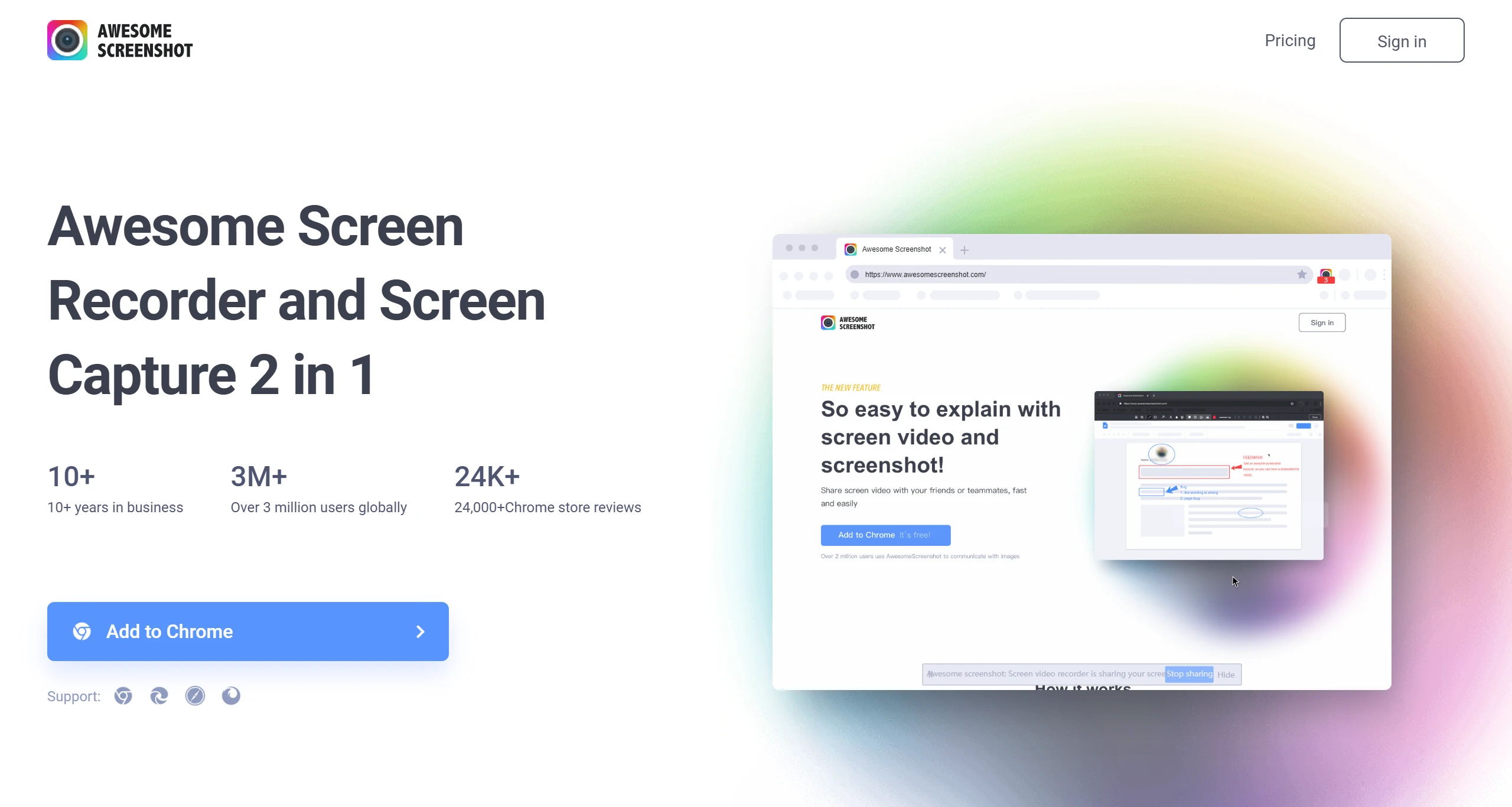
Awesome Screenshot Main Features
Screenshot Features
Full-page screenshots: Capture the full screen regardless of how long the webpage is.
Partial screenshots: Capture a specific portion of the screen.
Visible area screenshots: Capture the visible portion of the screen.
Save screenshots along with their URLs: Helps users save screenshots along with the corresponding web addresses.
Screen Recording Features
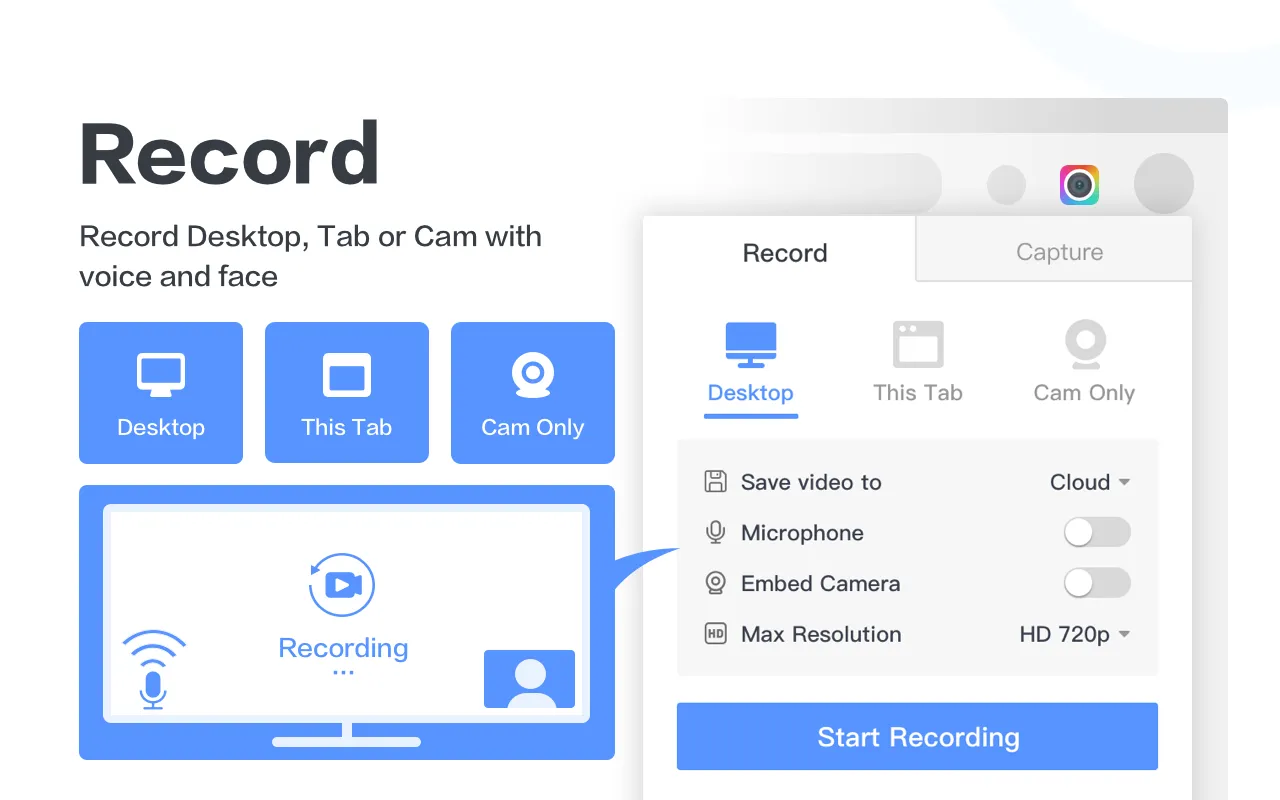
Multiple recording options: Supports recording webpage content, the entire desktop, specific applications, and webcam.
HD recording: Supports high-definition recording to ensure clear video.
Format support: Supports downloading recorded videos in MP4 format.
Cloud and local saving: Videos can be saved to the cloud or downloaded locally.
Image Editing:
Custom size selection: Choose the dimensions of the screenshot as needed.
Edit directly after taking a screenshot, including adding text, arrows, blurring, and other annotations.
Awesome Screenshot How to Use
Install the plugin: Visit the Chrome Web Store or the official Awesome Screenshot website to download and install the plugin.
Select a function: After installation, click the Awesome Screenshot icon in the upper right corner of the browser and select the screenshot or screen recording function.
Take a screenshot or record: Choose full screen, a selected area, or the currently visible area for screenshots as needed, or set recording parameters and start recording.
Edit and save: After taking a screenshot or completing the recording, use the provided editing tools to annotate or edit, then choose to save locally or share.
Awesome Screenshot Use Cases:
Remote work: Record important online meeting content or create online teaching videos.
Online learning: Create course reviews or tutorial videos.
Content sharing: Share game guides or highlight moments.
Education and training: Record screen operation videos for teaching or self-study review.
Work collaboration: Quickly convey design feedback or explain issues through annotated screenshots in team projects.
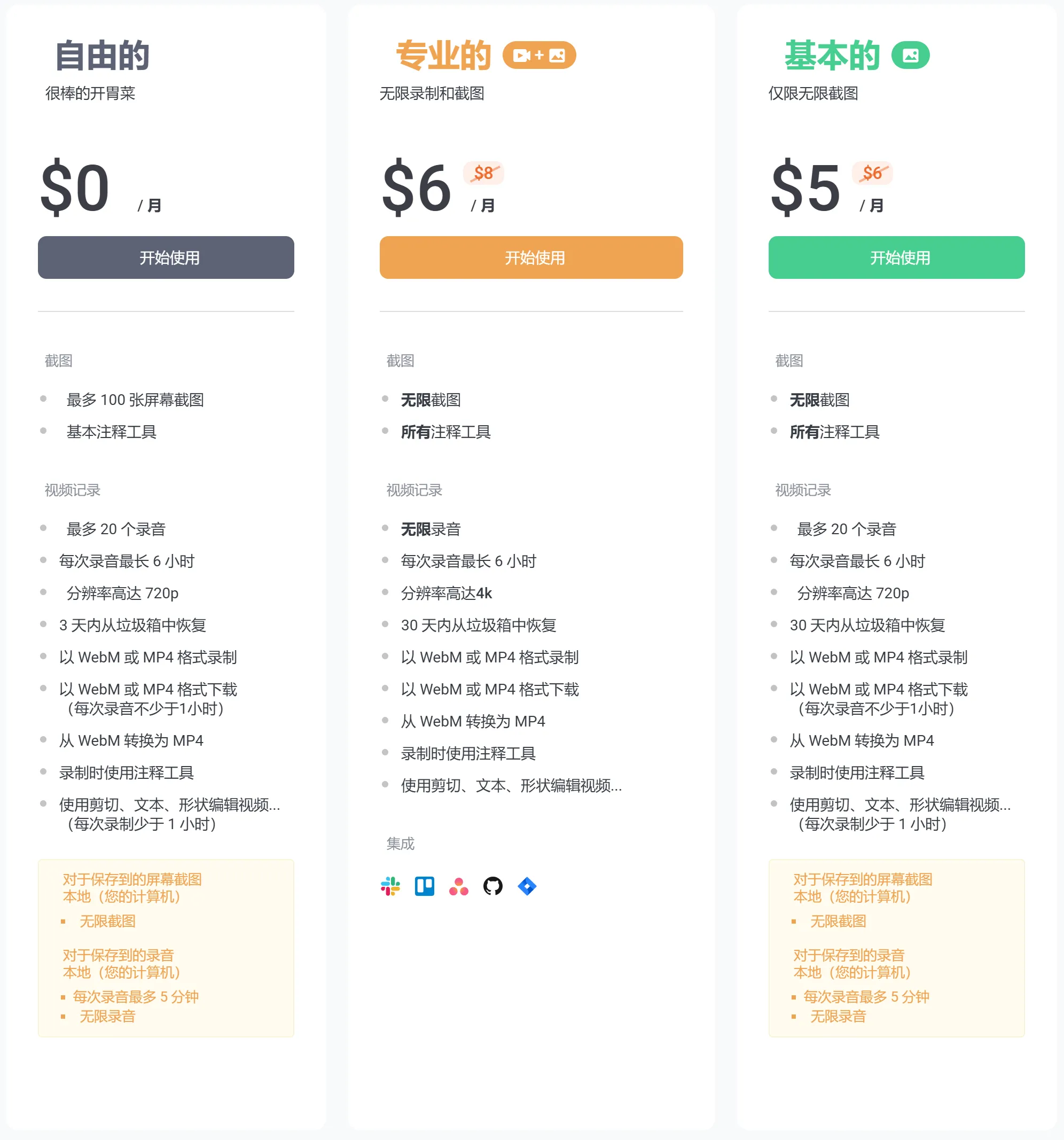
Awesome Screenshot Pricing and Permissions:
Free Version:
Up to 100 screenshots
Basic annotation tools
Video recording
Up to 20 recordings
Up to 6 hours per recording
Resolution up to 720p
Recover from trash within 3 days
Record in WebM or MP4 format
Download in WebM or MP4 format (no less than 1 hour per recording)
Convert from WebM to MP4
Use annotation tools while recording
Edit videos using cut, text, shapes, and more... (less than 1 hour per recording)
Awesome Screenshot is your capable assistant for remote work, remote learning, and entertainment sharing. It is hailed by users as a screen recording master and screen recording expert.
Related Information: