Script Planner Assistant▸
 AI Apps
 AI News

Yunge: Web-Based File Transfer Assistant
Yunge: Web-Based File Transfer AssistantIntroduction
Yunge (云鸽) is a convenient, fast, and secure file transfer assistant. It allows you to quickly, easily, and safely share files between different devices. It offers a simple and intuitive interface along with high-speed and stable transfer performance. No download or login is required—simply open Yunge on all your devices, and they will connect to the same network. Yunge supports peer-to-peer (P2P) transfers across both local area networks (LAN) and wide area networks (WAN), using advanced technology to ensure transfer stability and speed. It is ideal for sharing files in everyday life and at work.
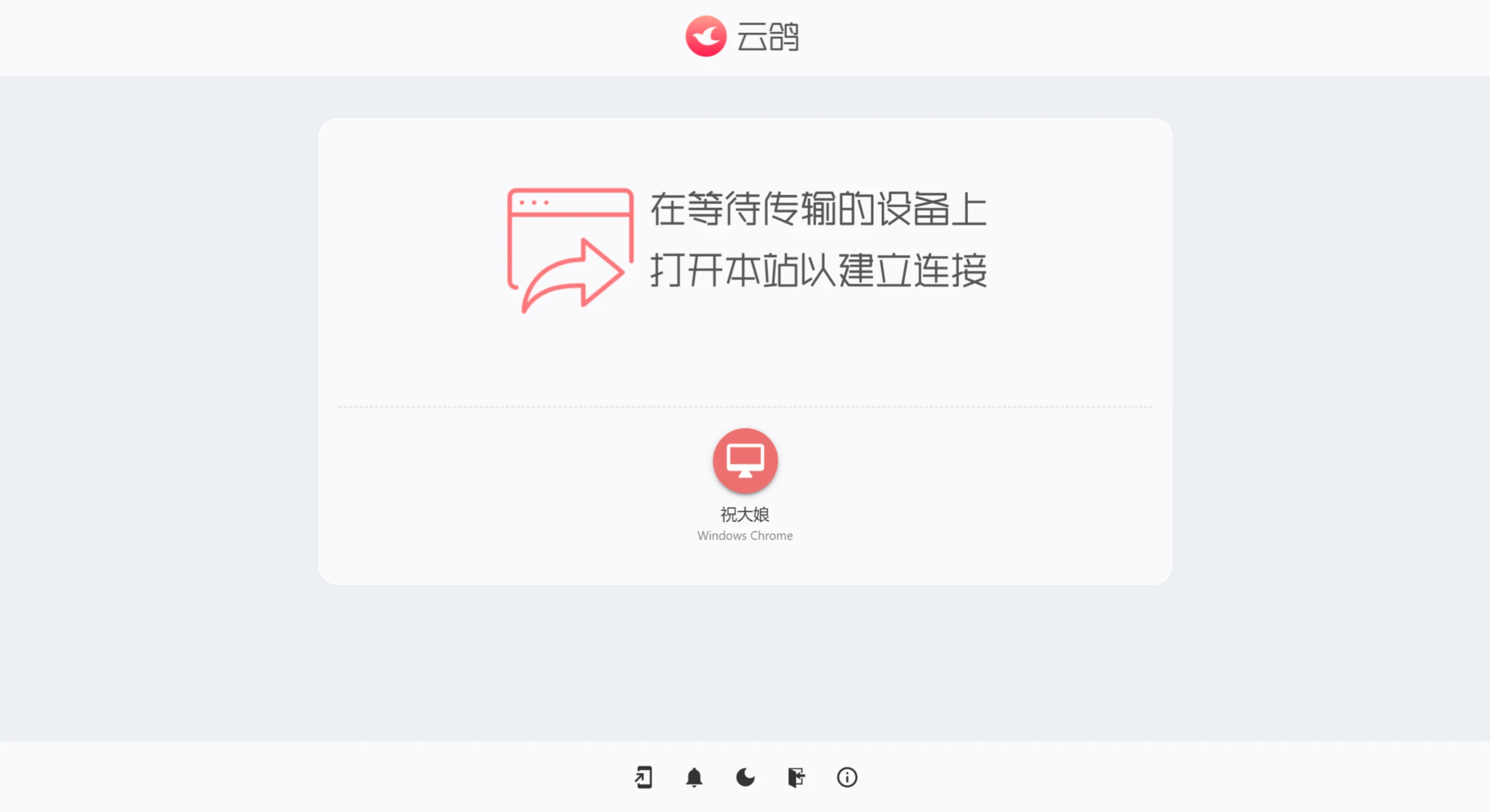
Key Features of Yunge:
Ease of use: Users do not need to register or log in; they can simply open the web page to use it. Yunge automatically detects devices on the same network, greatly simplifying the connection process.
Cross-platform support: It supports multiple operating systems including Windows, Mac, Linux, iOS, and Android. As long as you have a browser, you can access its website directly—no additional software installation is required.
Instant transfer: Using peer-to-peer (P2P) technology, file transfers happen in real time with no waiting. Senders and receivers can share files instantly.
Security: It employs end-to-end encryption. Files are transferred directly from the sender's device to the receiver, ensuring both transfer speed and privacy. End-to-end encryption protects file content without going through any third-party servers.
No file size limit: Users can transfer files of any size, whether they are documents, images, audio, or videos.
How to Use Yunge?
1. Visit the website: Open a browser on all devices involved in the file transfer and go to Yunge's official website.
2. Connect devices: If the devices are on the same local area network (LAN), Yunge will automatically detect and connect them. Otherwise, manually create or join a room by entering the same room number.
3. Select files to transfer: Choose the file(s) you want to send on the sending device, and then select the target device.
4. Confirm receipt: The receiving device will receive a file transfer request. Once confirmed, it will start receiving the file(s).
Tip: If the connection is interrupted, refresh the page or re-enter the code. During the transfer process, users can also right-click or long-press a device icon to send text messages.
With just a few simple steps, Yunge enables fast, convenient, and secure file transfer between different devices. Whether it's work documents, study materials, or entertainment media, everything can be easily shared—enjoy seamless communication without boundaries!