Script Planner Assistant▸
 AI Apps
 AI News

Canva Text To Image_云技派,专注ai人工智能!
Canva Text To Image_云技派,专注ai人工智能!Introduction
Text to Image is a new feature in Canva that allows you to generate images from simple descriptions. You can use it to create unique and original images for your designs without having to search online or use other tools. Canva Text To Image works by using artificial intelligence to understand your description and create an image that matches it. You can choose from different styles and sizes, such as photo, sketch, painting, 3D models, and more. You can also edit and customize the generated images in Canva.
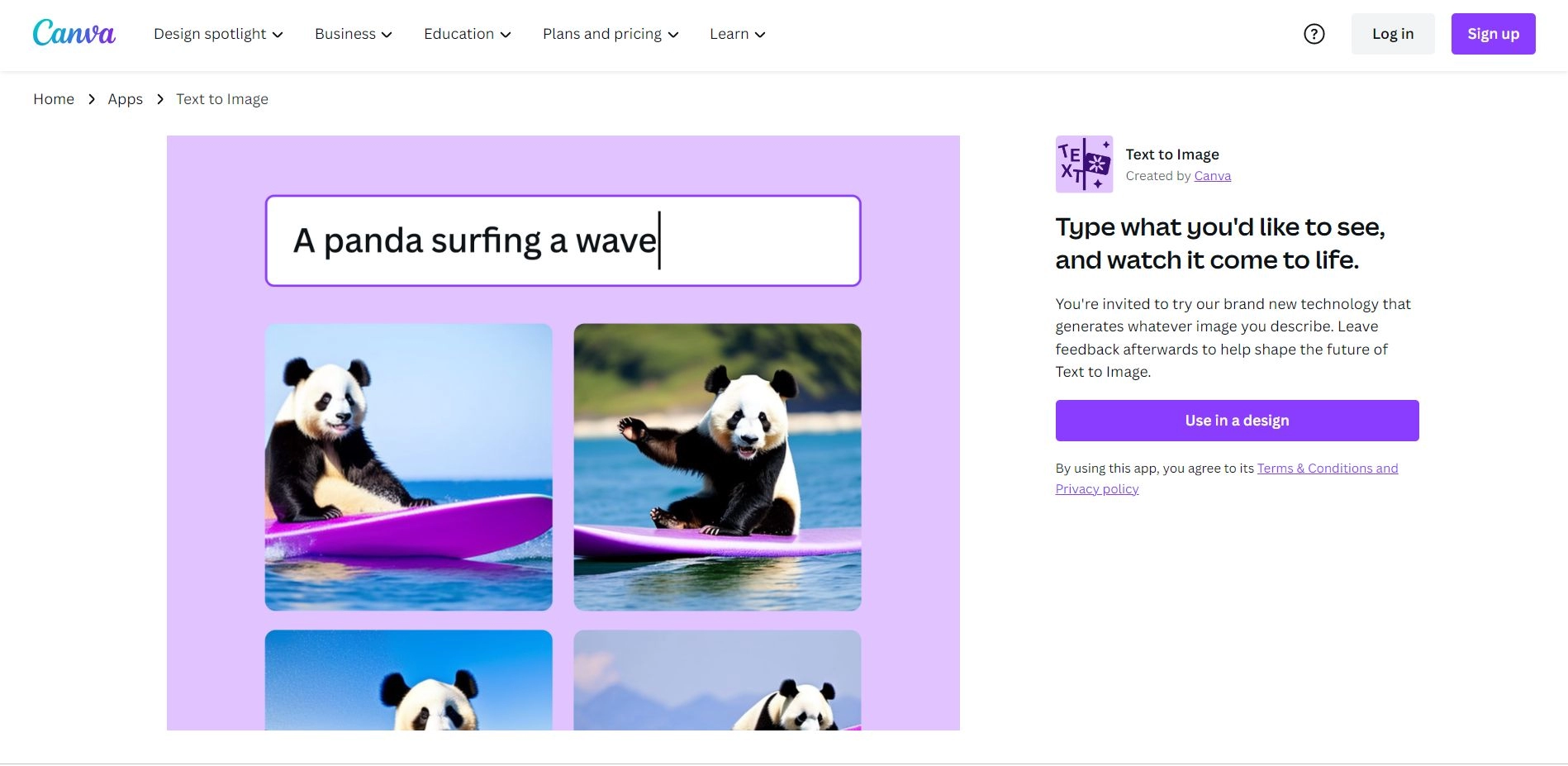
Canva Text To Image is a powerful and creative tool that can help you design anything you can imagine. You can use it to generate images that are not found anywhere else or that don't yet exist. You can also use it to quickly and easily visualize new concepts or ideas. You can use Text to Image to create unique images and marketing assets.
Text to Image is still in beta mode, and it will continue to learn and improve based on your feedback. You can help shape the future of Text to Image by leaving feedback after using it. You can also report any issues or errors you encounter while using it.
Text to Image is one of the many apps offered by Canva that can enhance your design experience. You can explore other apps, such as background remover, curved text generator, photo effects, image enhancer, add frames to photos, add text to photos, online video recorder, video trimmer, convert video to MP4, and more.
Text to Image is a fun and simple way to bring your imagination to life with Canva.
Features of Canva Text To Image:
It can create unique and original images that match your imagination
It can save time and effort by avoiding searching for stock images or drawing your own images
It can help you overcome creative blocks and inspire new ideas
It can be used for various purposes, such as social media posts, presentations, flyers, logos, and more
It integrates with Canva's design tools and templates, making it easy to edit and customize
How to use Canva Text To Image:
1. To use Text to Image, you need to have a Canva account and open any project in the editor. Then, you can click on the "Apps" tab on the left panel and select "Text to Image". You will see a text box where you can type the description of the image you want to see. For example, you can type "a cute dog wearing sunglasses" or "a logo for a bakery". The more specific and detailed you are, the better the results.
2. After typing the description, you can choose a style and aspect ratio for the image. The style determines the look and feel of the image, such as photo, vibrant, minimalist, neon, cinematic, colorful, 3D, retro wave, psychedelic, 3D model, concept art, gradient, retro anime, dreamy, anime, watercolor, colored pencil, stained glass, or ink print. The aspect ratio determines the shape and size of the image, such as square, landscape, or portrait.
3. After choosing the style and aspect ratio, you can click on "Generate Image" and wait for a few seconds. You will see four different images that match your description. You can select your favorite one and click on it to add it to your design. You can also start over if you want to create other images or change the description.