Script Planner Assistant▸
 AI Apps
 AI News

Bang PDF Super Assistant: Free Professional PDF Processing Tool
Bang PDF Super Assistant: Free Professional PDF Processing ToolIntroduction
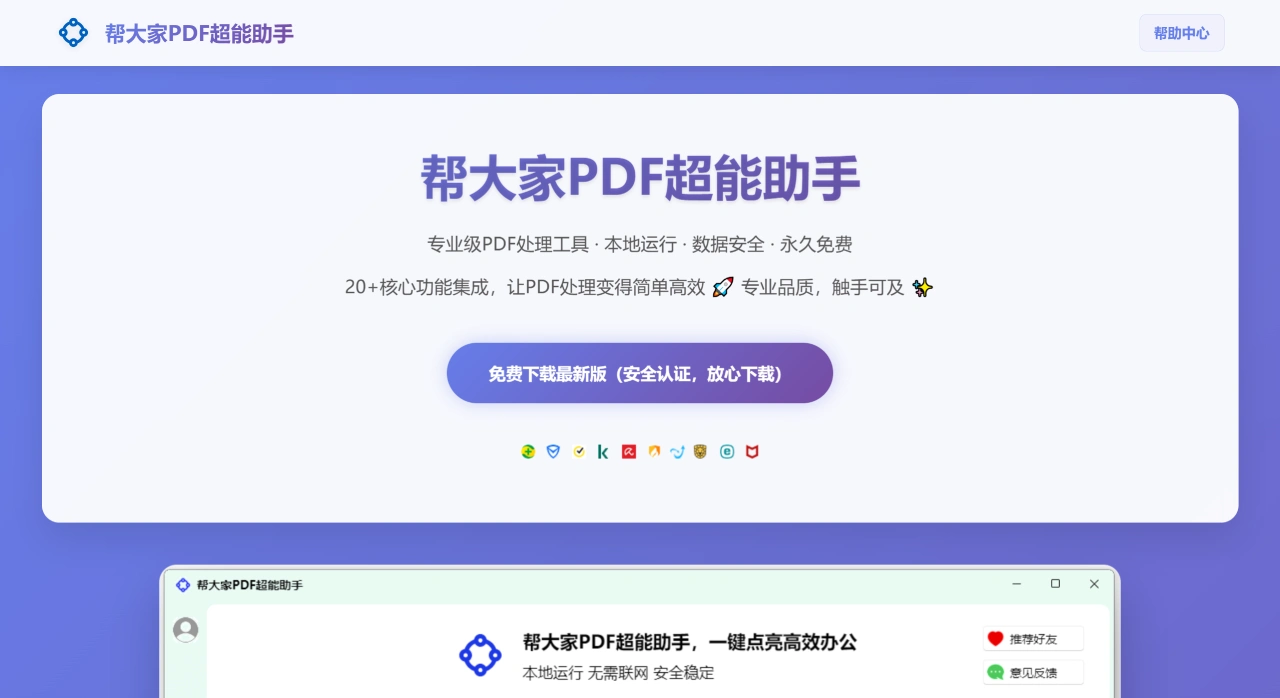
帮大家PDF超能助手 is a PDF processing software that runs directly on your computer. It works offline and is free forever. It offers over 20 practical features, covering common operations such as merging, splitting, encrypting, decrypting, compressing, format conversion, and watermark removal, and supports both Windows and macOS systems.
Main Features of 帮大家PDF超能助手
Basic Editing: Merge and split PDFs, as well as rotate, delete, and reorder pages.
Format Conversion: Convert PDFs to and from images (JPG, PNG, GIF), and combine multiple images into a single PDF.
Security Protection: Supports encrypting PDF files (set user password and owner password), and can also decrypt encrypted files.
Document Optimization: Compress PDFs (with selectable clarity), crop pages, and remove watermarks.
Annotation & Signature: Add text or image signatures, comments, and page numbers to PDFs.
Advantages of 帮大家PDF超能助手
Safe & Reliable: All operations of 帮大家PDF超能助手 are completed locally on your computer, with memory released after processing. There is no need to upload to the cloud, so you don't have to worry about privacy leaks.
Permanently Free: Core features require no subscription, with no hidden charges or usage limits. Install it once and use it forever.
Efficient & Easy to Use: Simple interface, supports dragging files directly in, and can handle batch processing. Most operations can be completed in 1 - 3 steps.
Lightweight & Green: Small software size, fast startup, low resource consumption, won't slow down your computer even with frequent use.
Use Cases for 帮大家PDF超能助手
Office Workers: Handle daily work PDFs such as contracts, reports, and proposals.
Government Officials: Manage office documents, reporting materials, invoices, etc.
Legal & Financial Personnel: Handle sensitive contracts and reports with high data security requirements.
Students & Teachers: Freely organize study materials, papers, and courseware.
How to Use 帮大家PDF超能助手
Basic Editing
Merge PDF: Open 帮大家PDF超能助手, click "Merge PDF", click "Add Files" to select the PDFs to merge (multiple files can be selected at once), drag files to adjust the order, and finally click "Merge" to choose the save location.
Split PDF: Open 帮大家PDF超能助手, click "Split PDF", click "Add Files" to select the PDF to split, choose the split method (e.g., by page range, by page count), click "Split" and choose the save location.
Rotate, Delete, and Reorder Pages: Open the software, click "Edit PDF", click "Add Files" to select the PDF to edit. Right-click on a page in the page list to select "Rotate", "Delete", "Move Up", "Move Down" and other operations. Click "Save" when done and choose the location.
Format Conversion
PDF to Image: Open 帮大家PDF超能助手, click "PDF to Image", click "Add Files" to select the PDF to convert, choose the image format (JPG, PNG, GIF, etc.) and save location, and click "Convert".
Image to PDF: Open 帮大家PDF超能助手, click "Image to PDF", click "Add Files" to select the images to convert (multiple images can be selected at once), drag to adjust the image order, and click "Convert" to choose the save location.
Security Protection
Encrypt PDF: Open 帮大家PDF超能助手, click "Encrypt PDF", click "Add Files" to select the PDF to encrypt, enter the user password and owner password (optional), click "Encrypt" and choose the save location.
Decrypt PDF: Open 帮大家PDF超能助手, click "Decrypt PDF", click "Add Files" to select the PDF to decrypt, enter the correct password, click "Decrypt" and choose the save location.
Document Optimization
Compress PDF: Open 帮大家PDF超能助手, click "Compress PDF", click "Add Files" to select the PDF to compress, choose the compression mode (standard, custom, etc.), click "Compress" and choose the save location.
Crop PDF: Open 帮大家PDF超能助手, click "Crop PDF", click "Add Files" to select the PDF to crop, drag the crop box on the page to set the range, click "Crop" and choose the save location.
Remove Watermark: Open 帮大家PDF超能助手, click "Remove Watermark", click "Add Files" to select the PDF to process, select the watermark area on the page (manual frame selection or auto-detect), click "Remove" and choose the save location.
Annotation & Signature
Add Signature: Open 帮大家PDF超能助手, click "Add Signature", click "Add Files" to select the PDF to add a signature to, click "Add Signature" to choose the signature type (text or image), drag the signature box on the page to set the position and size, click "Save" and choose the location.
Add Comments: Open the software, click "Add Comments", click "Add Files" to select the PDF to add comments to, click "Add Comments" to choose the comment type (text, highlight, underline, etc.), select the area to annotate on the page, enter the comment content, click "Save" and choose the location.
Add Page Numbers: Open the software, click "Add Page Numbers", click "Add Files" to select the PDF to add page numbers to, set the page number format (numbers, Roman numerals, etc.) and position (header, footer, etc.), click "Add" and choose the save location.
Frequently Asked Questions
Data Security & Applicable Document Types: 帮大家PDF超能助手 runs locally on your computer and requires no internet connection. Files are not uploaded to the network during processing, effectively preventing information leakage. It is suitable for handling documents with sensitive information, such as financial invoices, corporate reports, and personal ID scans, as well as daily office documents (e.g., meeting minutes, material summaries).
Features & Cost Advantages: In terms of features, 帮大家PDF超能助手 offers over 20 core functions covering page management (merge, split, rotate, etc.), format conversion (PDF and image conversion), security processing (encryption, watermark removal), and optimization (compression, page numbering), comprehensively meeting common needs and practical usage scenarios. In terms of cost, it is permanently free—you can use all core features without paying, making it more cost-effective than paid software.
Organizing Invoice Scans: First, use the "Image to PDF" feature to batch convert all invoice scans (PNG, JPG, GIF formats) into PDF files. If you want to merge multiple invoices on the same page, use the "Merge One Page" feature to combine the converted PDFs (or directly select images) into a single PDF page. In the end, you'll have a well-organized invoice document.