Script Planner Assistant▸
 AI Apps
 AI News

Waifu2x: AI Image Enhancer for Anime Art
Waifu2x: AI Image Enhancer for Anime ArtIntroduction
Waifu2x is a well-known open-source project on GitHub that uses deep convolutional neural networks to achieve lossless image upscaling. It works best on anime-style images. You can choose between illustration or photo styles, upscale 1~2x, and supports noise reduction.
Waifu2x is a powerful image enhancement and quality improvement tool tailored for anime-style artwork and photos. Waifu2x can upscale low-resolution images while preserving and enhancing visual details, making it a valuable tool for artists, designers, and anyone dealing with anime-style artwork or low-quality images.
Traditional interpolation and stretching upscaling can hardly avoid issues like jaggies, blurred lines, color blocks, and mosaic artifacts. Anime-style images are characterized by black outlines and flat color blocks, so the sharpness of lines and the purity of color blocks directly affect the viewing experience. waifu2x was developed specifically for this characteristic of anime-style images, trained on 6,000 high-resolution PNG images. Thanks to waifu2x's super-resolution imaging algorithm and noise reduction mechanism, it can upscale images without causing the interpolation stretching problems in most cases.
Waifu2x Web Version Features:
File upload: maximum size 5MB;
Images that can be denoised: maximum 3000x3000px;
Images that can be upscaled: maximum 1500x1500px;
Processing style: choose between illustration or photo style, illustration is the default; there's an Easter egg when selecting photo style;
Noise reduction level: waifu2x is used to eliminate color blocks and noise generated by lossy compression such as JPEG, making the image look cleaner. There are four levels: low, medium, high, and highest, plus an option for no noise reduction, with medium as the default (of course, noise reduction essentially cuts down on the original image information and destroys details, so this level needs to be judged manually. If the noise reduction is too strong, even the nose might be smoothed away);
Upscaling factor: waifu2x has three levels: no upscaling, 1.6x, and 2x.
How to Use Waifu2x
Web Version
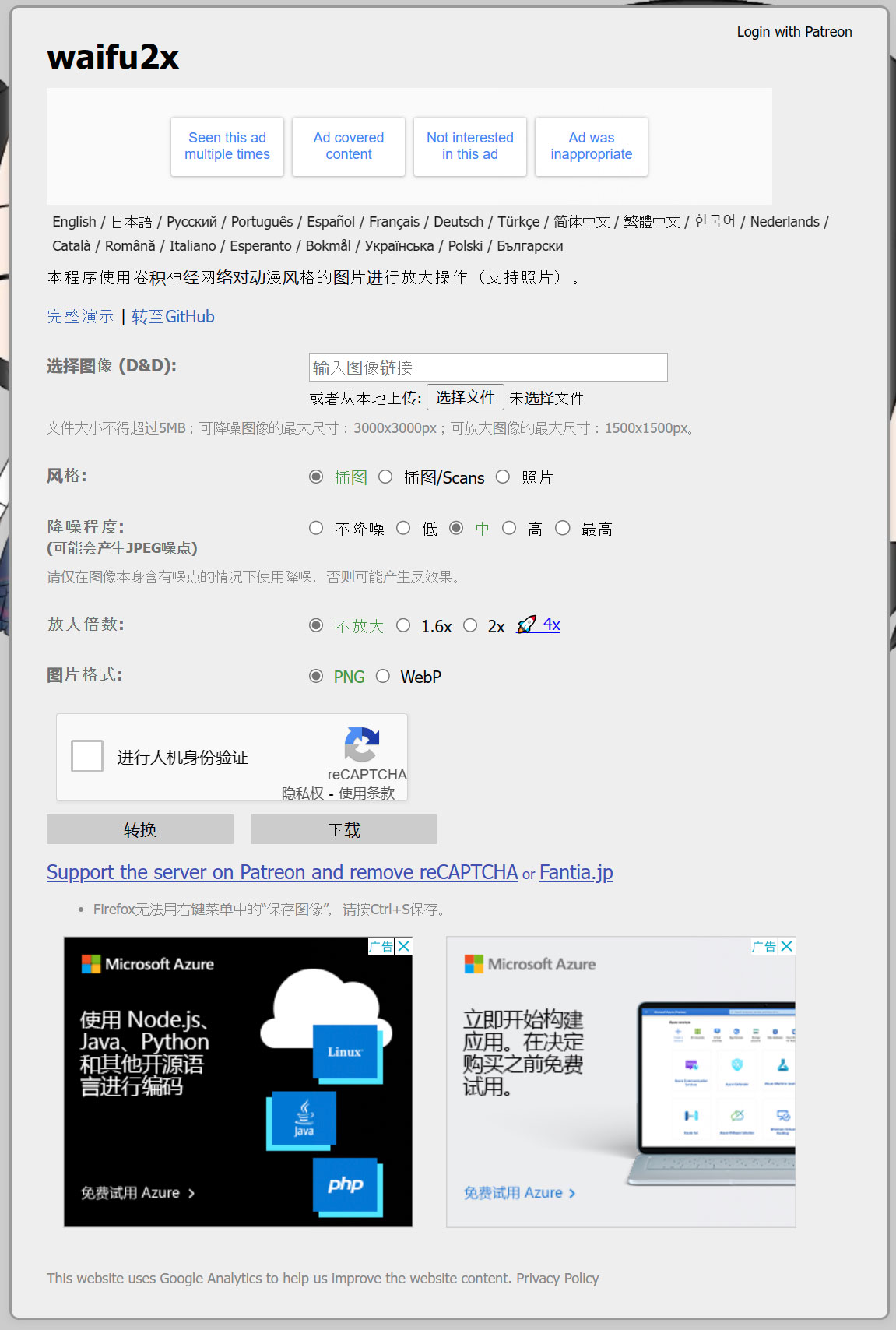
Open https://www.waifu2x.net/?lang=zh-CN
Drag the image into the dashed box (≤5 MB, max 3000×3000 for denoising, 1500×1500 for upscaling)
There are three dropdown menus:
Style: Illustration (anime/line art) or Photo
Noise reduction: from none to highest (only turn it on if the original image is noisy, otherwise it will easily blur)
Upscaling: no upscaling, 1.6×, 2×, 4×
Select output format PNG or WebP, click "Convert", then right-click and save as.
Waifu2x-Extension-GUI
Download and Installation
Go to GitHub and find "Waifu2x-Extension-GUI", find the .7z green package in Release, extract it, and run Waifu2x-Extension-GUI.exe.
Quick Use for a Single Image
On the main page, click "Add File" and select an image
In engine settings, select "Waifu2x-ncnn-vulkan" (default is fine, it will automatically use CPU if there's no NVIDIA graphics card)
Choose upscale factor 2 or 4, noise reduction level 1
Click start processing, an *_waifu2x.png file will appear in the same folder
Batch Use and Detail Adjustment
Drag a folder directly into it, and the table will list all files.
In the parameter panel:
Scale 2-4×, noise reduction 0-3
If the image has transparent parts, check "Keep Transparency"
In advanced settings, set the thread count to the physical core count of your computer. If VRAM is insufficient, change "Tile Size" to 200 or smaller to prevent running out of VRAM.
Animated Images/Videos
GIF: Don't upscale beyond 2×, otherwise the file will be very large. Check "GIF Optimize" to compress the bitrate.
Video: First set the target resolution, such as 1920×1080 or 3840×2160, then choose the frame interpolation algorithm. RIFE is fast, DAIN has better quality. You can directly convert 360p30 frames to 1440p60 frames.
Related News: