Script Planner Assistant▸
 AI Apps
 AI News
bilibiliCut: Free Online Video Extraction and Clipping Tool
bilibiliCut: Free Online Video Extraction and Clipping ToolIntroduction
What is 剪哔biliCut?
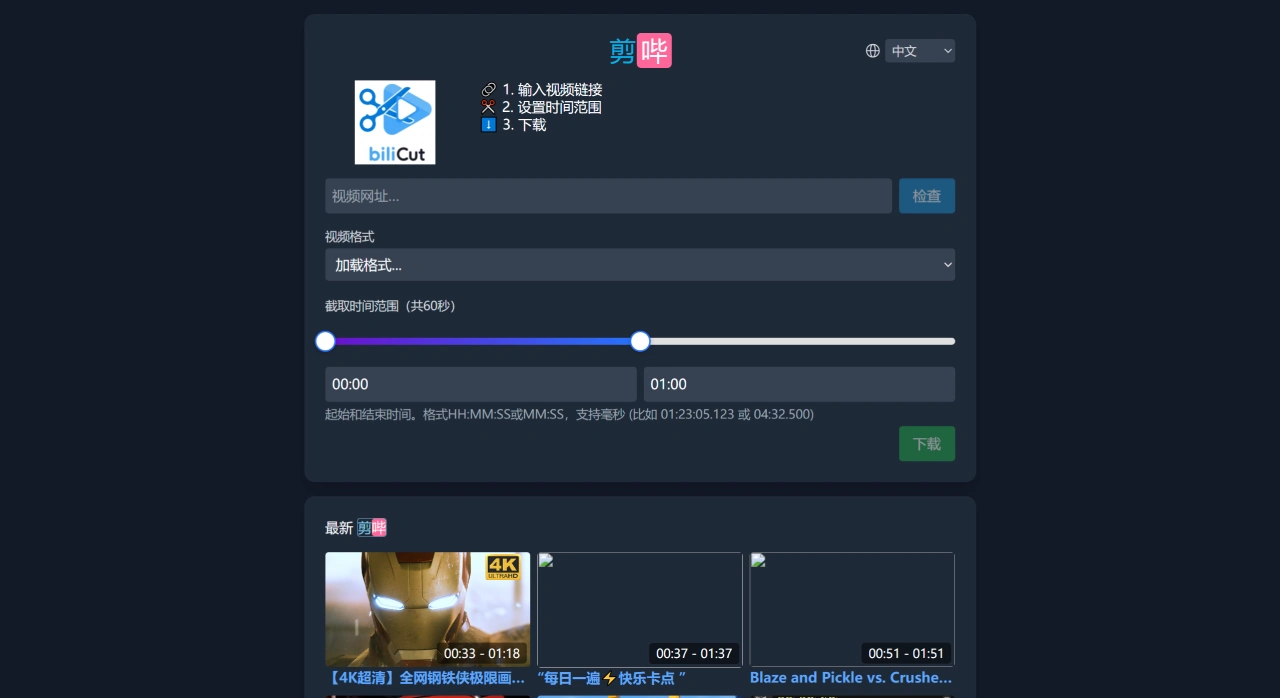
剪哔biliCut is a free online video extraction and editing tool that lets you cut out the parts you want from mainstream video sites like Bilibili and YouTube. There's no need to download the entire original video — just pick your time range and cut. You can also choose different resolutions for download, such as 240p to 720p, while 1080P requires a membership. It supports video and audio formats, and can be used for clipping segments, extracting audio, previewing edits, or further processing, making video production faster.
剪哔biliCut Core Features
Pure web-based, no software installation required. Just open bilicut.com, paste in a BV number, YouTube or Twitter link, and you're good to go. Works on both computer and mobile browsers.
Only cuts 60 seconds at most, no need to download the entire video. Enter the start and end times (precise to milliseconds), pick a resolution, edit online, then download — saving both disk space and data.
Choose any format: audio-only (MP3) or keep the video (MP4). 240p to 720p is free, and 1080P requires "Premium."
Supported platforms include Bilibili, YouTube, and Twitter; TikTok and Instagram also work in some cases. However, DRM-protected content, paid anime, and members-only content cannot be cut.
剪哔biliCut Feature Highlights
Accurately select any segment to cut, just by setting the start and end times.
No need to download the entire original video, saving time and space.
Output as video or audio, with multiple resolution options.
Edit online first, then download — save only when you're satisfied.
How to Use 剪哔biliCut
Paste a Bilibili video link into the "Video URL" box on the homepage and click Parse.
Enter the start and end times in the "Clip Time Range" field. You can use HH:MM:SS or MM:SS format (e.g., 01:23:05 or 04:32).
Select the desired format and resolution (depending on the source video, typically 720P or 1080P is available).
Click the green "Download" button in the bottom-right corner. The file will download automatically once the server finishes processing.
A "Recent Clip History" list is kept below the page for easy access later.
Use Cases for 剪哔biliCut
Creating short content: such as memes, capturing highlight moments, or clipping iconic lines.
Sharing on platforms: ideal for posting on short-video platforms without storing lots of files, saving data.
Frequently Asked Questions
Q: Which platforms does biliCut support, and which ones can't be cut?
A: It supports mainstream video sites like Bilibili, YouTube, and Twitter. Content that cannot be cut includes copyright-protected material and videos that require payment to view.
Q: What's the difference in resolution between free users and members?
A: Free users can go up to 720p, while members get an additional 1080P option. Everyone can choose 240p, 360p, 480p, etc. The maximum available depends on the source video's own resolution.
Q: What are the advantages of biliCut, and what is it best suited for?
A: The advantage is that you don't have to download the entire original video. You can accurately cut up to 60 seconds, saving time, space, and data. It also supports multiple formats and resolutions. It's well-suited for short-form content creation and sharing, such as memes, highlight moments, iconic lines, and short videos for social platforms.
Q: Can the clipped video be used commercially?
A: biliCut does not handle copyright matters — users must determine legality themselves. It's best to obtain authorization from the original creator first.
Q: How clear is the clipped video?
A: You can choose from 240p, 360p, 480p, 720p, etc., from the dropdown menu. The maximum depends on the source video's resolution. Members can output 1080P, while free users are capped at 720P.
Q: How long can the clip be?
A: Currently, the maximum is 60 seconds. Such short clips are perfect for memes, highlights, iconic lines, or short videos — especially convenient for sharing on platforms. Without downloading the original video, you just cut and go, so your phone or computer won't be cluttered with files, saving data and keeping things tidy.
If you want to edit, record screen, and upload directly to Bilibili on your computer, you can use 必剪 (B-cut). It offers full-track editing, frame-by-frame adjustments, HD screen recording (up to 1080P), speech-to-subtitle, along with plenty of resources, and allows direct uploading with your Bilibili account. It supports Windows 7/8/10/11, is made by Bilibili, and is ideal for users who need systematic editing and uploading.
Related News:
AniSora: Bilibili's Open-Source Anime Video Generation Model