Script Planner Assistant▸
 AI Apps
 AI News

AI Vector: A Free AI Tool to Convert Raster Images to Vector
AI Vector: A Free AI Tool to Convert Raster Images to VectorIntroduction
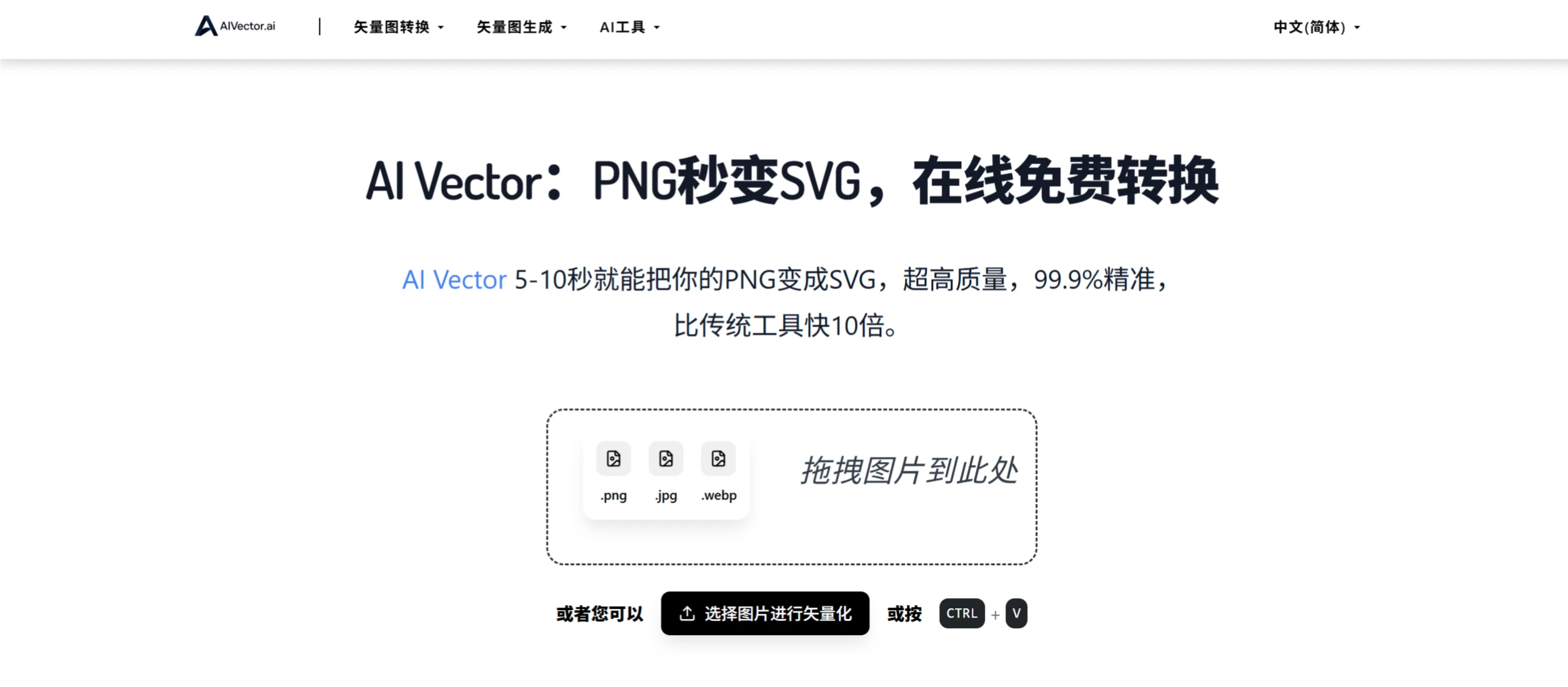
ai Vector is a free online bitmap-to-vector AI tool that quickly converts PNG (also supports JPG, WEBP) into high-quality SVG files. No registration is required, watermark-free files can be downloaded directly, and it supports unlimited conversions.
📚 AI Vector Main Features
Vector Conversion (Bitmap to Vector)
Common Bitmap to Vector Conversion (PNG/JPG, etc. → SVG/AI/EPS/PDF)
Supported input image formats: PNG, JPG, BMP, GIF — all commonly used image formats can be uploaded.
Supported output vector formats: SVG (freely scalable), AI (compatible with Adobe Illustrator), EPS (a vector format commonly used for printing), PDF (vector PDF).
AI Vector conversion principle: Uses AI-powered auto-tracing technology to recognize image edges and generate vector paths, with the ability to manually adjust details such as nodes and colors.
Suitable scenarios: Convert low-resolution logos, icons, and illustrations into high-definition scalable SVGs for web display or printing; primarily serves designers, corporate brand teams, and the printing industry.
Additional features: AI Vector can also extract UI elements (such as buttons and icons) from web pages and convert them into SVG vector graphics, making it convenient for web designers to optimize and use them.
AI-Generated Vector Graphics
Text-to-Vector Graphic Generation
Function: Enter a text description, such as "a blue tech-style logo," and AI will automatically generate the corresponding SVG vector graphic.
Technical support: Based on AI drawing models (such as Diffusion or GAN) to generate graphics.
Suitable scenarios: Quickly create icons, illustrations, and logos without manual drawing; ideal for designers, marketers, and entrepreneurs.
Text to Vector Graphic
Function: Input text such as a company name, and customize the font, color, and layout to generate a vector text graphic (SVG).
Suitable scenarios: Creating text logos and decorative typography for T-shirts, posters, and other print designs.
2. AI Image Editor
AI Vector provides automatic background removal, intelligent color adjustment, image enhancement, vector optimization, and other features. You can quickly edit images online and then convert them into vector graphics.
3. Multi-language Support
AI Vector supports Chinese (Simplified), English, Japanese, Korean, German, French, Spanish, Italian, Russian, Turkish, Portuguese, and other languages, making it convenient for users worldwide — especially suitable for designers, developers, and small to medium-sized enterprises.
📚 AI Vector Target Users
Designers: Convert logos in PNG/JPG format into SVGs for web or print use.
Developers: Extract UI elements (such as icons) from web pages and convert them into vector format.
Enterprises/Brands: Produce high-definition logos and icons that adapt to different size requirements.
General users: Convert photos and illustrations into scalable vector graphics.
Marketers: Quickly generate promotional graphics and text logos.
📚 How to Use AI Vector
Standard Conversion (Using PNG to SVG as an Example)
Open the AI Vector official website
Select the function: click "Bitmap to Vector" or "AI Vector Generation."
Upload an image: drag and drop directly, or click to upload bitmap files such as PNG/JPG/BMP.
Optional adjustments: Choose the output format (SVG/AI/EPS/PDF); some features also allow you to adjust colors, optimize nodes, and set stroke thickness.
Click "Convert" or "Generate."
Once converted, download the SVG file, which can be scaled freely.
AI-Generated Vector Graphics (Based on Text Description)
Select the "AI Vector Generator" function.
Enter a description, such as "a red apple logo, minimalist style."
AI automatically draws and outputs the graphic as an SVG vector file.
You can further refine it or use it directly.
Text to Vector Graphic (Creating a Text Logo)
Select the "Text to Vector" function.
Enter the text, such as "MyBrand".
Customize the font, color, and layout.
Generate and download the SVG file.
AI Image Editing (e.g., Background Removal)
Upload a photo with a background.
Use AI for automatic background removal.
Optionally convert it into a vector graphic.
Download the optimized image or vector graphic.