Script Planner Assistant▸
 AI Apps
 AI News

PixPin: A Completely Free Screenshot & Pin-to-Screen Tool
PixPin: A Completely Free Screenshot & Pin-to-Screen ToolIntroduction
What is PixPin
PixPin is a powerful and completely free screenshot and image pinning tool. It offers efficient screenshot capture, image annotation, screen pinning, text recognition, screen recording, long screenshot, and more. It is available on Windows and macOS systems and can meet the needs of office and other scenarios.
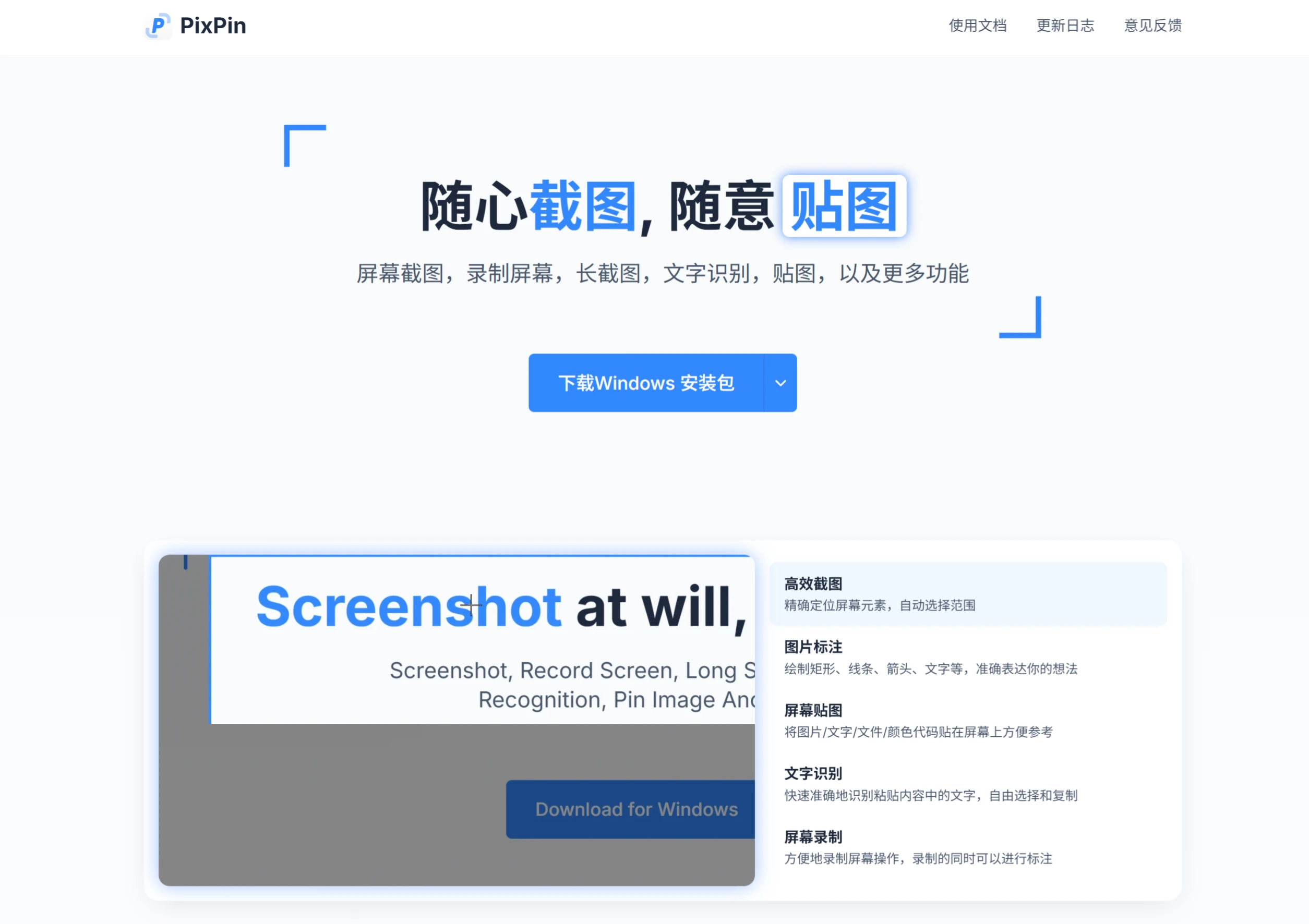
PixPin Features
Screenshot function: Supports multiple screenshot modes including full screen, region, window, and free shape, and also offers delayed screenshot and scrolling screenshot options. The long screenshot feature can intelligently stitch scrolling pages, making it suitable for capturing web pages, documents, and other ultra-long content.
Pinning function: Allows you to pin images, text, files, and color codes to the screen like sticky notes for quick reference at any time. Pinned images support rotation, scaling, and text recognition operations.
Text Recognition (OCR): Uses a powerful OCR algorithm to quickly and accurately recognize text in images, supports offline recognition, and protects user privacy.
Screen Recording: Records on-screen operations as dynamic GIFs, with annotation available during recording.
Annotation Tools: Provides a variety of annotation tools including rectangles, lines, arrows, and text, making it easy for users to mark up screenshots.
Other Features: Supports custom shortcut keys and save path settings, and also provides a color picker and file management function.
PixPin Use Cases
Office Scenarios: Makes it easy to quickly capture meeting minutes and annotate document revisions.
Design and Development: Designers can pin materials, drafts, and other images to the screen for reference; developers can capture code interfaces and annotate bug locations.
Education and Learning: Teachers can capture textbooks, courseware, and other teaching resources for display; students can stitch long articles and recognize text from textbooks.
Marketing: Can capture web content, advertising materials, etc. for annotation and analysis.
PixPin Tutorial
Basic Screenshot: The default shortcut is Ctrl + 1. Press it and select the area you want to capture. The captured image will be automatically saved to the default save location and copied to the clipboard. You can also start the screenshot function by double-clicking the PixPin icon in the tray. You can also click the icon in the taskbar and select "Screenshot".
Pinning: Press the Ctrl + 2 shortcut to pin the captured image to the screen. To close a pinned image, just double-click it; to restore a closed pinned image, press Ctrl + 3.
Annotation: Use the built-in tools to annotate on the screenshot or pinned image. Press the spacebar in the pinning window to quickly bring up the annotation toolbar.
Text Recognition: After taking a screenshot, place the mouse over the text in the image, and the text will be automatically recognized, allowing you to select and copy it directly. You can also click the "OCR" button in the screenshot editing interface to automatically recognize the text content in the image.
Long Screenshot: Press the screenshot shortcut to enter the screenshot interface. After framing the area, click the long screenshot button in the lower right corner of the annotation bar, or press L to enter the long screenshot mode. You can then use the mouse wheel or control the scrollbar to scroll and select content, and choose horizontal or vertical scrolling.
GIF Recording: When taking a screenshot, select GIF or press G to enter GIF screenshot mode. There are start and stop buttons, and real-time editing is available during recording.
PixPin Membership
PixPin offers a free version and a membership version. The free version includes core features such as screenshot, pinning, and OCR recognition. The membership version adds advanced features such as screenshot text translation and cloud configuration sync.
Related Information: