Script Planner Assistant▸
 AI Apps
 AI News

SlideHero AI: Create Engaging, Curriculum-Aligned Courseware for Teachers
SlideHero AI: Create Engaging, Curriculum-Aligned Courseware for TeachersIntroduction
What is SlideHero ai?
SlideHero is an AI-powered online teaching tool designed for teachers, enabling rapid generation of slide-based courseware for students. After teachers input a topic and grade level, it automatically generates slides containing text, images, and interactive activities, and supports editing, embedding videos, and more. Its content aligns with curriculum standards, supports multiple languages, and can be shared with students for online viewing—making it ideal for quick lesson preparation and teaching interaction.
SlideHero AI Core Features
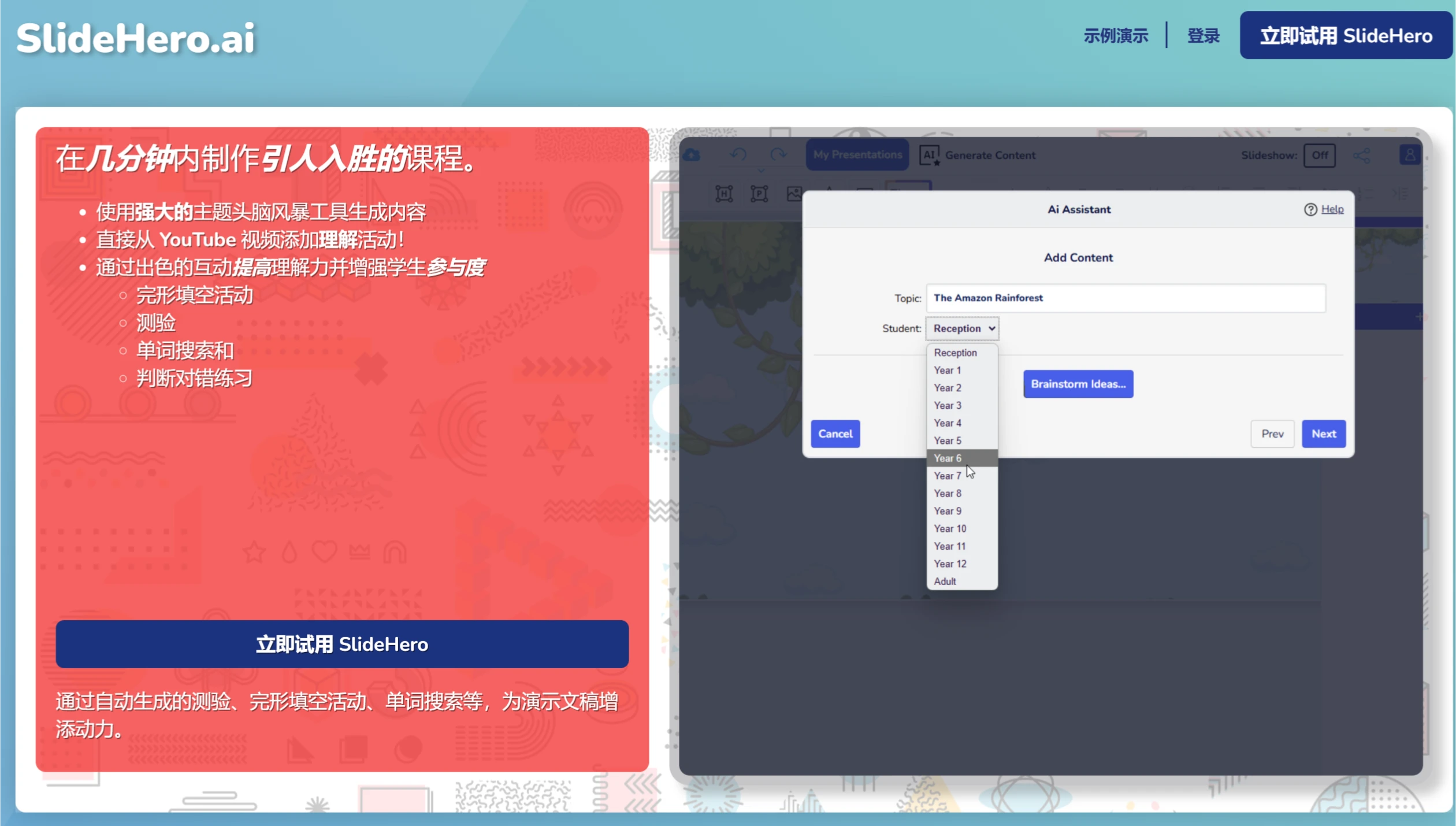
Automatic Courseware Generation: Teachers only need to input a topic and student grade, and SlideHero uses AI technology to automatically generate slides containing text, images, and interactive activities. For example, entering "Amazon Rainforest" will cause the system to automatically generate relevant slides.
Curriculum Standards Alignment: Specifically designed for Australian teachers, the courseware content aligns with Australian curriculum standards to ensure it meets teaching objectives.
Interactive Activities:
True/False Questions: Each slide comes with quick true/false questions to help students understand key points.
Cloze Activities: Automatically generated fill-in-the-blank questions help students consolidate vocabulary and knowledge, with instant feedback.
Word Search: Generates topic-related word search games paired with true/false questions to enhance student engagement.
Quizzes: Quizzes are automatically generated based on courseware content, and teachers can freely edit them.
Customization & Editability: Provides a variety of templates; teachers can freely adjust text, images, and layout to meet personalized needs.
Video Integration: Supports embedding YouTube videos and automatically generates related comprehension questions, making it easy for teachers to leverage video resources.
Sharing Function: Slides can be displayed directly on SlideHero, or a link can be generated and shared with students. The link is hosted on edslides for distraction-free viewing by students.
SlideHero AI Key Advantages
Curriculum Standards Alignment: Content can be aligned with Australian curriculum standards, ensuring courseware meets teaching requirements.
Multilingual Support: The interface and generated content support multiple languages, including Chinese.
Sharing Function: Generated slides can be viewed online by students via share links or codes.
SlideHero AI Use Cases
Classroom Teaching: Quickly generate topic-specific courseware for classroom use; students can participate in interactive activities for deeper understanding.
Distance Education: Through share links, students can view courseware and complete exercises from home.
Group Discussions: Generate slides with questions and distribute them to student groups for discussion.
SlideHero AI Usage Tutorial
1. Access and Register
Click the "Try SlideHero Now" button on the homepage to enter the main interface.
If this is your first time using it, it is recommended to register an account (enter your email and password). After registration, you can save your courseware for future editing.
2. Create Slides
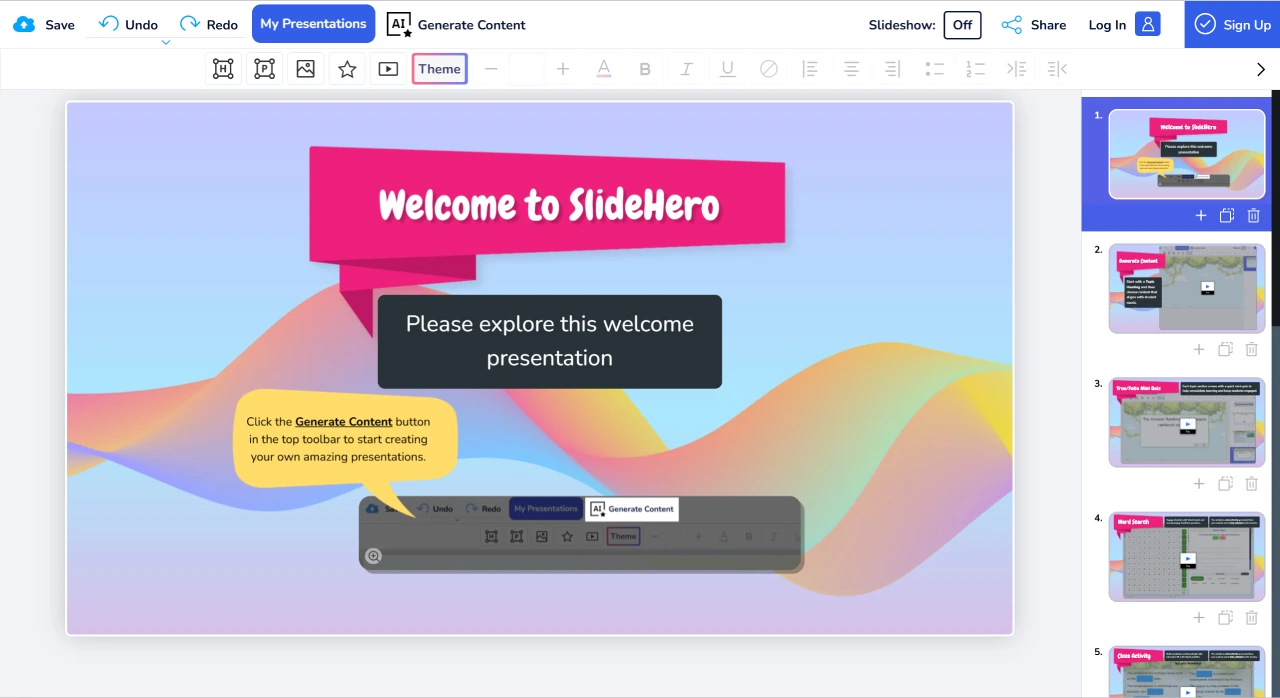
After logging in, click the "Generate Content" button at the top of the interface.
Enter a topic in the "Topic" input field, such as "Amazon Rainforest" or "Quadratic Equations".
Select the student grade level from the "Student" dropdown menu, such as "Year 5" or "Grade 8".
Click "Generate", and the system will automatically generate slides containing titles, body text, images, and interactive activities.
3. Edit Slides
Adjust Text: Click the text box to edit the content directly, or click "Auto Size Text" in the lower right corner to automatically adjust the font size.
Replace Images: Click "My Images" in the upper left corner of the image to upload a local image, or click "Swap" to use a new image from Google Image Search.
Add Video: Click "Add Video URL" and paste the YouTube video link; the video will be embedded in the slide.
Adjust Layout: Click the three dots next to the text box or image to copy, cut, or adjust the order.
4. Add Interactive Activities
Automatically generated interactive activities include true/false questions, fill-in-the-blank questions, and word searches.
Click on the activity area to manually edit the questions or answers.
5. Preview and Publish
After editing, click the preview button in the upper right corner to check the slide content and order.
Click the share icon, and the system will generate an EdSlides link and code that you can send to students for online viewing of the courseware.
Usage Tips
If the slide title is not centered, select the title text box and adjust it manually.
Select the "Australian Curriculum" option when generating content to make the courseware more aligned with the local curriculum.
It is recommended to start with a simple topic (such as "Water Cycle") to familiarize yourself with the operation before creating more complex content.