Script Planner Assistant▸
 AI Apps
 AI News

Teleprompter Online: Free & Easy-to-Use Online Teleprompter
Teleprompter Online: Free & Easy-to-Use Online TeleprompterIntroduction
Teleprompter Online is a free online teleprompter web application that can be used in any modern web browser on a PC or Mac, with no additional restrictions. It provides text prompting services for scenarios such as speeches, theater performances, and videos, and offers a variety of customizable features including text size adjustment, speed and duration control, recording, mirroring and reversing, and color management.
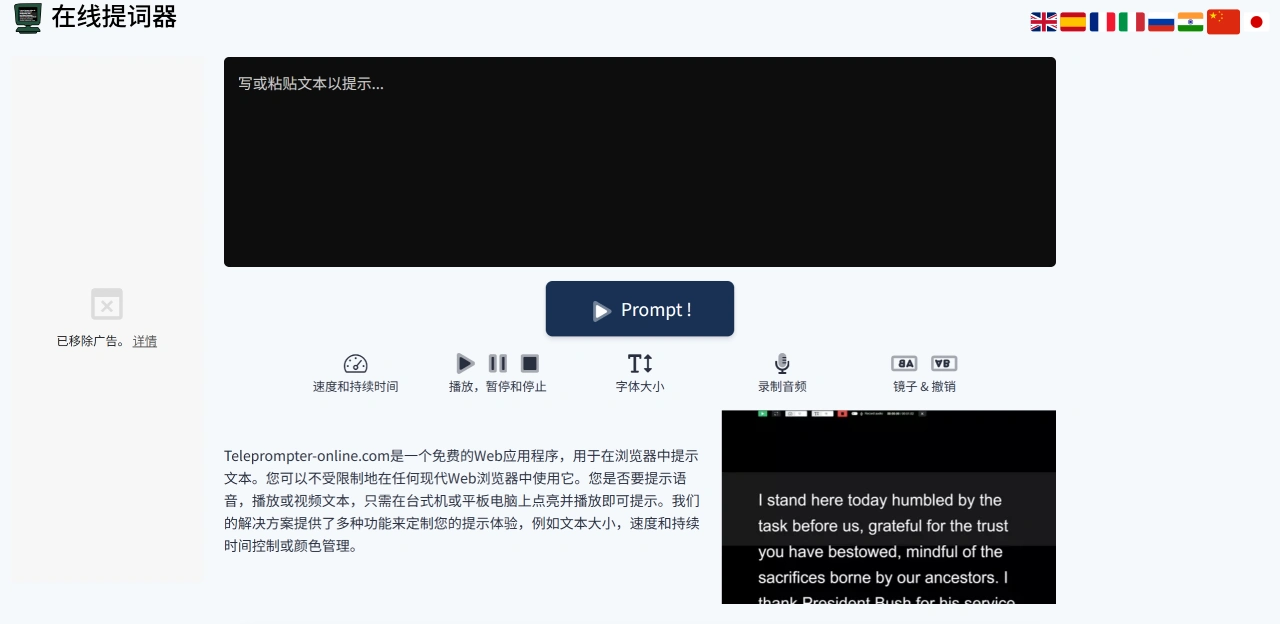
Teleprompter Online Features
Text Adjustment
Text size control: Teleprompter Online allows you to adjust the size of the prompted text according to your viewing comfort, ensuring it is clear and easy on the eyes.
Color management: Teleprompter Online lets you choose your own text and background color combinations to adapt to different lighting environments.
Playback Control
Speed and duration control: Teleprompter Online allows you to adjust the text scrolling speed so that it matches your speaking rhythm, such as during speeches or video recording; it also lets you set the total duration the text is displayed, so you can control the pace of your content.
Basic operation buttons: There are three buttons — play, pause, and stop — that allow flexible operation based on actual situations, helping you respond promptly to unexpected situations such as forgetting your lines or needing to adjust your state.
Special Auxiliary Functions
Recording function: You can directly record the screen and audio while prompting, eliminating the need to look for other screen recording tools when recording video resumes or talking-head videos.
Mirroring and reversing function: The text can be displayed in mirror or reversed mode, suitable for special filming scenarios — for example, when filming with a camera facing the opposite direction, it ensures the text in the camera view appears normal.
Teleprompter Online Use Cases
Speech prompting: Teleprompter Online is suitable for conference presentations, academic reports, TED-style talks, and other occasions, helping users avoid forgetting their lines, speak more fluently, and avoid frequently lowering their head to check notes.
Video recording prompting: Used when recording talking-head videos, product introduction videos, and knowledge science videos, it allows users to speak while looking at the camera, making their performance more natural and avoiding the need to frequently switch camera angles during post-production editing.
Theatrical performance prompting: Used backstage during stage plays and dramas, it helps actors remember their lines and avoid show interruptions, especially for roles with many or complex lines.
School projects and presentations: Students can use it when preparing classroom presentations, group project reports, and graduation defenses. With the help of a teleprompter, content logic remains clear and important points are not missed due to nervousness.
Book content display: Used during book sharing sessions and reading clubs, key chapters and famous quotes from the book can be imported into the teleprompter, eliminating the need to frequently flip through the book and allowing accurate presentation of the book's highlights.
Video resume recording: When looking for a job, use the teleprompter to organize your experience and strengths and record a logically clear and confidently spoken video resume.
How to Use Teleprompter Online
Open the official website: https://cn.teleprompter-online.com/, and go directly to the online teleprompter interface — no registration or download required.
Import/Enter text: Enter the content to be prompted in the text editing area on the Teleprompter Online official website, such as a speech script or video script. You can also upload an already prepared text file (such as TXT or DOC format, depending on platform support).
Custom Function Settings
Adjust text display: Adjust the font size using the "Text Size" slider or button; in "Color Management," choose a suitable combination of text and background colors.
Set playback parameters: According to your speaking speed, drag the "Speed Control" slider to adjust the text scrolling speed; if you want precise time control, use "Duration Control" to set the total time from start to finish for the text.
Start Prompting and Operations
Click the "Play" button, and the text will scroll at the set speed. Simply read along with the text.
If you want to pause during the process, click "Pause"; to restart or end, click "Stop."
To record, click the "Record" button, and the platform will simultaneously record the screen and audio (before recording, make sure the camera and microphone are working properly and the browser has the appropriate permissions).
Special scenario settings: In cases such as filming with the camera facing the opposite direction, click the "Mirror" or "Reverse" button to change how the text is displayed, ensuring the text in the camera view can be read normally.
Teleprompter Online FAQ
Q: Does Teleprompter Online need to be downloaded and installed? Which devices does it support?
A: No download or installation is required — it is a web application that can be opened directly in a browser. It currently supports both PC and Mac computers. It is not mentioned whether it supports phones or tablets.
Q: Does Teleprompter Online cost anything? Are there any features that can't be used?
A: Basic prompting features (such as text size adjustment, playback control, recording, and mirror/reverse) are all free, and it is clearly stated that "it works properly in any modern browser without restrictions."
Q: What permissions need to be enabled to use the recording function? Where are the recorded files saved?
A: Before using the recording function, you need to allow the browser to access the camera and microphone (otherwise screen and audio cannot be recorded); generally, the recorded files are automatically saved to a local folder on your computer (such as the "Downloads" folder). The specific save location will be indicated when saving after recording.
Q: The text scrolling speed is not right — how can I adjust it to match my speaking speed exactly?
A: You can first click "Play" to test the scrolling effect. If it is too fast, drag the "Speed Control" slider to the left (to slow down); if it is too slow, drag it to the right (to speed up). It is recommended to test with a short section of text first and make several adjustments until it fully matches your normal speaking speed before using it formally.
Q: After enabling the "Mirror" function, the text appears reversed — is this normal?
A: This is normal. The "Mirror" function is used when filming with the camera facing the opposite direction. The camera points at the teleprompter screen, and the mirrored text will appear normal in the camera view. Seeing reversed text on your screen is meant to meet filming needs and is not a malfunction.
Q: What is the purpose of color management? How do I choose a suitable color combination?
A: Color management is mainly for visual comfort, reducing eye fatigue from looking at the screen for extended periods. When choosing a color combination, you can refer to the ambient lighting. In bright locations (such as outdoors or a classroom with strong light), you can choose "dark text + light background" (such as black text on a white background), which provides clear contrast and readability; in dim locations (such as recording video in a room with the lights off), you can choose "light text + dark background" (such as white text on a black background) to avoid the screen being too bright and straining your eyes.