Script Planner Assistant▸
 AI Apps
 AI News

STranslate: Free, Open-Source Translation + OCR Productivity Tool
STranslate: Free, Open-Source Translation + OCR Productivity ToolIntroduction
What is STranslate
STranslate is a Windows translation + OCR tool developed by developer zggsong using WPF and .NET as an open-source project. Just unzip and use it—no installation required. Its design philosophy is "open it and use it, close it when you're done," aiming to provide Windows users with a smooth translation experience similar to Bob on macOS. It integrates multi-source translation, offline OCR, AI assistant, and text-to-speech all in one, completely free, and constantly being updated.
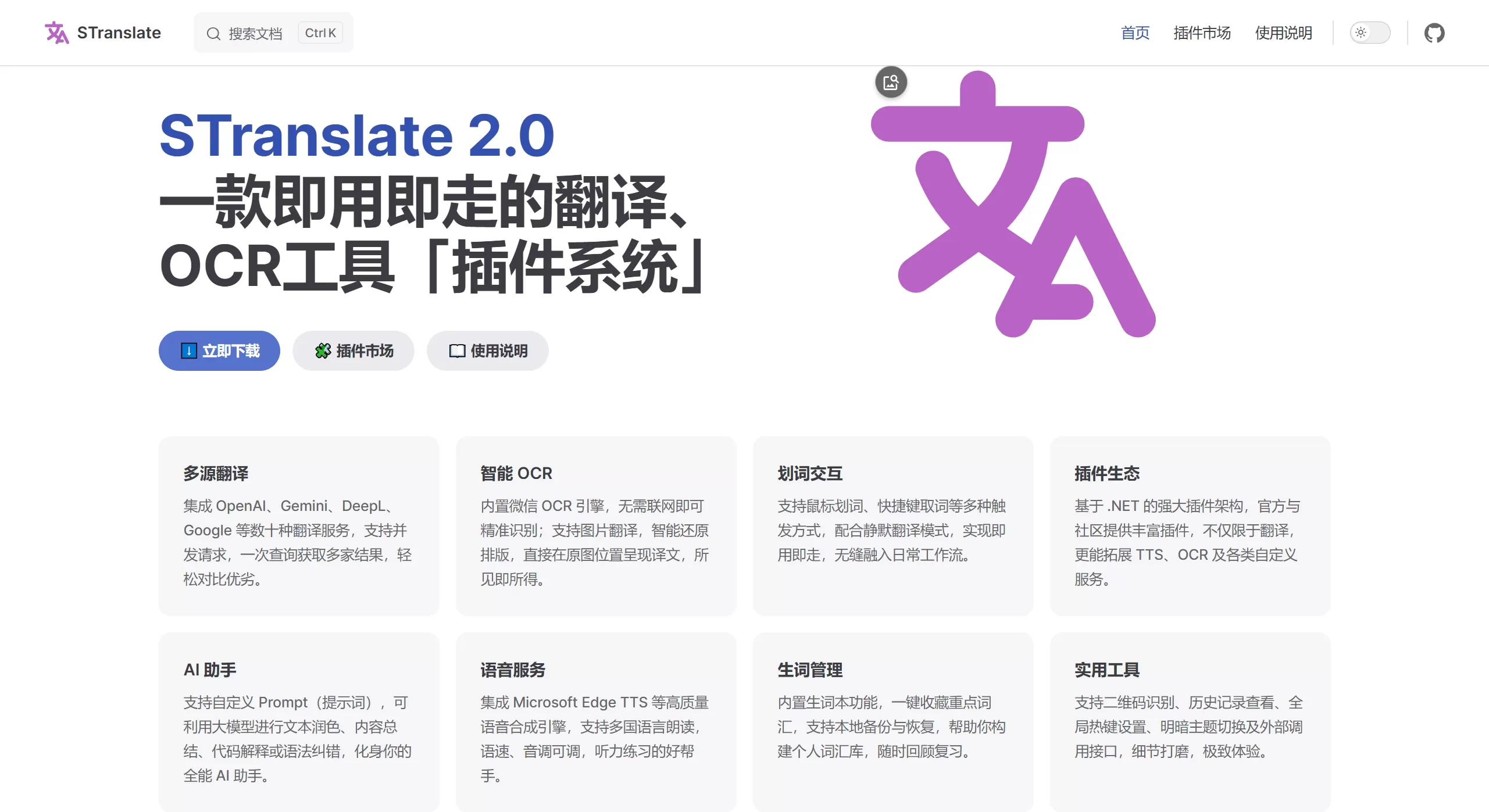
STranslate official website screenshot
Features
Concurrent multi-source translation: Integrates dozens of translation services including OpenAI, Gemini, DeepL, Google, Baidu, Microsoft, Tencent, Youdao, Alibaba, DeepSeek, Kimi, etc., supporting simultaneous requests so you can compare translation results from different platforms horizontally with a single query.
Smart OCR recognition: Built-in WeChat OCR engine that works without internet; also supports PaddleOCR for offline recognition of Chinese, English, Japanese, and Korean text. OCR from screenshots, clipboard, and files are all supported, and it can restore the original layout, displaying translation results directly at the position in the original image.
Diverse trigger methods: Supports text selection, hotkeys, screenshots, clipboard monitoring, silent translation, and more, seamlessly integrating into daily workflows.
AI assistant and custom prompts: Can call large language models for text polishing, summarization, code explanation, and grammar correction; also allows users to customize prompts to meet personalized translation and writing needs.
Text-to-speech (TTS): Integrates speech synthesis engines such as Microsoft Edge TTS, supporting multi-language reading with adjustable speed and pitch, suitable for listening practice.
Vocabulary management: One-click word collection, supports local backup and restoration, convenient for building personal vocabulary libraries.
Plugin and extension ecosystem: Based on the .NET architecture with plugin support, extensible for TTS, OCR, and other custom services.
Practical auxiliary tools: Supports QR code recognition, translation history records, customizable global hotkeys, light/dark theme switching, external API calls, back-translation (bidirectional verification of translation accuracy), and more.
Use Cases
Reading foreign materials: When reading foreign websites, papers, or technical documents, you can quickly translate with text selection or screenshots, and compare results from multiple translation engines to avoid misunderstandings.
Cross-language writing and polishing: When writing emails, blogs, or copy, use custom prompts and multi-source translation results to optimize expression, and replace original text directly after translation.
Image text extraction and translation: When processing text in PDFs, images, or PPT files, use offline OCR for quick recognition and translation, which protects privacy while improving efficiency.
Language learning and listening training: Combined with TTS reading and vocabulary collection for learning words, fixing pronunciation, and training listening.
Programming assistance: Translate code comments and technical documentation, or have AI explain code logic.
STranslate Pros and Cons
Pros:
Completely free and open-source, green and portable, no installation required
Very rich translation engines, can compare multiple results simultaneously
Strong offline OCR capabilities, WeChat OCR works directly, PaddleOCR supports Chinese, English, Japanese, and Korean
Flexible custom prompts, can serve as an AI writing assistant
Highly customizable global hotkeys, operations don't interrupt workflow
Cons:
Currently only supports Windows, macOS and Linux are not supported
Some advanced translation/AI services require applying for your own API Key, which has a learning curve for configuration
Depends on .NET 8.0 runtime, some computers need additional setup
How to Use STranslate
Download and launch: Go to the official website or GitHub Release page to download the corresponding version's compressed package, extract it, and run the executable directly (requires .NET 8.0 runtime; if not installed, it will prompt automatically).
Configure services: Enter the settings interface and add translation engine API Keys as needed (such as OpenAI, DeepL, etc.), or directly use the built-in free services like Bing Dictionary and Kingsoft Dictionary.
Set hotkeys: Customize global hotkeys (such as the default Alt+G to open the main interface) to avoid conflicts with other software shortcuts.
Start using: Trigger translation through text selection, screenshot (Alt+S), input box, clipboard monitoring, etc.; OCR can directly recognize text in screenshots.
Advanced usage: Configure custom prompts for text polishing and code explanation; use the vocabulary feature to collect key terms; use the back-translation feature to verify translation accuracy.
FAQ
Is an internet connection required? Basic translation features require internet, but OCR can be used offline (WeChat OCR, PaddleOCR), and dictionary queries can also be offline.
How do I add my own API Key? In Settings > Service Configuration, select the corresponding translation engine and fill in the API Key and interface address. Theoretically, it supports all platforms compatible with the OpenAI API format.
What if there's a hotkey conflict? Go to settings to modify the global hotkey combination to avoid duplication with system or other software shortcuts; if the conflict warning still appears after changing, try restarting the software.
Why isn't the history displayed? Earlier versions don't auto-refresh; right-click the history area to manually refresh.
Does it support automatic updates? Yes, but downloading updates from GitHub may be slow, so using a proxy is recommended; you can also download the offline package marked as self-contained.
Review
STranslate is considered by some to be a "super cheat" level efficiency tool among Windows translation tools. Its biggest highlight is the smooth integration of multi-source translation, offline OCR, and AI assistant, with a clean interface and no ads. As a personal open-source project, the author responds actively to feedback, updates often, and the features are already quite mature, with considerable attention and positive reviews on GitHub.