Script Planner Assistant▸
 AI Apps
 AI News

Channels Assistant Web: Desktop Backend for Video Account Creators
Channels Assistant Web: Desktop Backend for Video Account CreatorsIntroduction
The WeChat Video Account Assistant is the official WeChat desktop backend for creators. It lets you upload videos, manage live streams, view analytics, and reply to followers — all on your computer. It's more convenient than the mobile version and is especially suited for uploading large high-definition files and team collaboration.
📌 Official Web Login Entrance for Video Account Assistant
Desktop web version: https://channels.weixin.qq.com
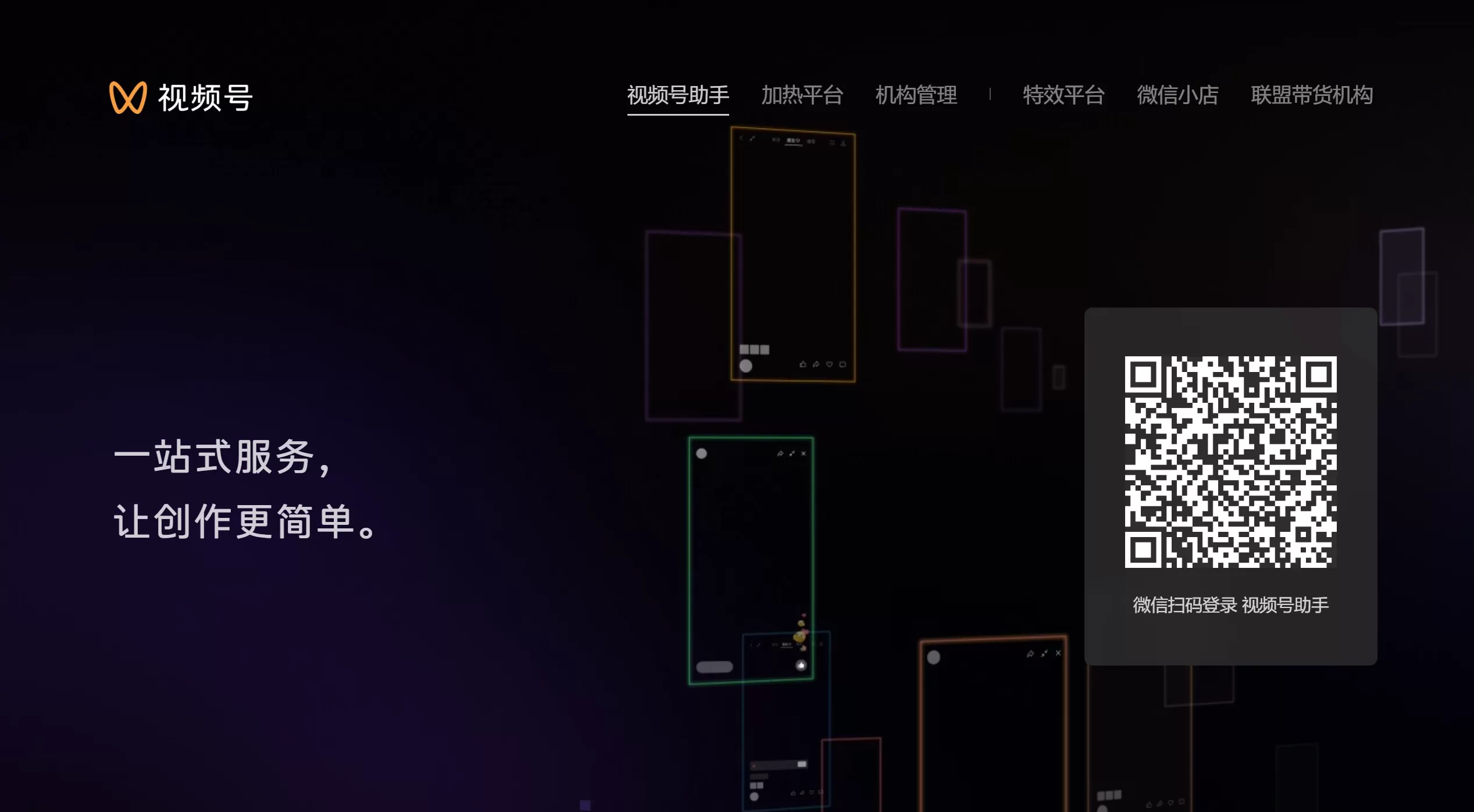
Login method: Scan the QR code with a WeChat account that has already activated the Video Account feature, then confirm on your phone to enter. Only the administrator or a bound operator can log in.
Differences Between the Video Account Assistant Web Version and the Mobile Version
| Scenario | Recommended Method |
|---|---|
| Quick spontaneous shooting / instant live streaming | Mobile WeChat → Discover → Video Account |
| Refined content publishing, data analysis, live stream push | Video Account Assistant PC version |
🛠️ Features of the Video Account Assistant Web Version
Content management: Upload videos up to 1GB with better quality than mobile, support scheduled publishing, edit titles and covers, and create collections
Interaction management: Centrally view and reply to comments, bullet comments (danmaku), and direct messages
Data center: View detailed information on video plays, likes, follower growth, and live stream data
Personnel settings: Verified accounts can add up to 4 operators, supporting multi-person collaboration
Live stream management: Set up OBS push streaming, manage live stream products, and create live rooms
🏢 Use Cases for the Video Account Assistant Web Version
Individual creators: Use a computer to upload high-definition videos, write long copy, and schedule posts
Brand accounts: Multi-person collaboration management, linking to official websites or WeChat official accounts
E-commerce selling: Attach product links, manage live stream selling, and pin guiding comments
Professional live streaming: Use OBS push streaming, multi-camera live, and pop-up product displays
Data operations: Analyze follower profiles, completion rates, and test publishing times
🎬 Guide to Using the Video Account Assistant Web Version
I. Login and Access
Open the official web version: https://channels.weixin.qq.com
QR code login: A QR code appears on the page. Scan it with a WeChat account that has activated Video Account, then tap confirm on your phone to enter
Permission description
Administrator: The account creator, with full permissions
Operator: Up to 4 can be bound; can post content, view data, and reply to comments
A WeChat account that hasn't activated Video Account cannot log in
II. Publishing Videos
Step 1: Upload materials
Click 【Content Management】 → "Publish Video", then drag in or select a local video file
File limits: Maximum 1GB, supports common formats like MP4
Quality advantage: PC uploads have less compression and clearer quality
Step 2: Edit information
Title: Up to 1000 characters, but only the first two lines are shown in full screen — put the key info upfront
Topic tags: Add #topic to boost exposure, e.g. #CareerTips #FoodTutorial
Cover: Can be auto-captured or uploaded; 9:16 vertical is recommended, with key elements centered
Location: Adding a location helps attract local traffic
Step 3: Add extension links
You can insert WeChat Official Account articles or product links to drive traffic and conversions
Step 4: Set publishing method
Publish immediately: Goes live right after review approval
Scheduled publishing: Choose any time within the next 7 days to auto-publish
Mobile preview: Scan to preview before publishing; confirm then publish
Step 5: Click Publish
After submission, it enters review — typically completes within minutes to half an hour
III. Content Management
Go to 【Content Management】 → 【Videos】:
View data: Plays, likes, comments, shares, and favorites for each video
Editing permissions: Published videos cannot have their files replaced, but title, description, and cover can be edited
Delete/Hide: Underperforming content can be taken down
Create collections: Group videos by topic for easy sequential viewing by followers
IV. Interaction Management
Go to 【Interaction Management】:
Comments: View all comments, support reply, pin, and delete
Bullet comments (danmaku): Manage danmaku in videos or live streams
Direct messages: Reply to follower DMs to build connections
Tip: Replying to the first few comments promptly helps boost recommendation weight
V. Data Center
Video data
View completion rate, like rate, and share rate for each video
Key metric: Completion rate matters more than likes — a high completion rate means solid content
Follower data
View follower growth trends, gender, age, and geographic distribution
Adjust content direction based on demographics
Live stream data
View viewer count, average session duration, interaction rate, and selling conversion
VI. Team Management
Administrator goes to 【Settings】 → 【Personnel Settings】
Click 【Bind Operator】 and enter their WeChat ID
After they confirm on their phone, they can scan their own WeChat to log in
Operator permissions: Can post content, view data, and reply to comments, but cannot change the account owner information
VII. Live Stream Management
Start a live stream: Set up the title, cover, and category in the Assistant
Push settings: For professional live streaming, use OBS push and obtain the address and key
Product management: List products before the live stream; they can be displayed as pop-ups during the stream
Quick Start Steps
Publish an HD video: Content Management → Publish Video → Upload → Fill in info → Publish
See which video is hottest: Data Center → Video Data → Sort by play count
Reply to follower comments: Interaction Management → Comments → Reply
Have a colleague help operate: Settings → Personnel Settings → Bind Operator
Auto-publish at night: Select 【Scheduled Publishing】 when posting → Set time
Attached: 《WeChat Video Account Operations Guidelines》
Last updated: June 08, 2026