Script Planner Assistant▸
 AI Apps
 AI News

MoeWalls: A Website for Free Animated Wallpapers
MoeWalls: A Website for Free Animated WallpapersIntroduction
MoeWalls is a website that offers free animated wallpapers, primarily designed for desktop computers. The site features a large selection of anime-style wallpapers, along with other categories such as sci-fi, natural scenery, movies, and games.
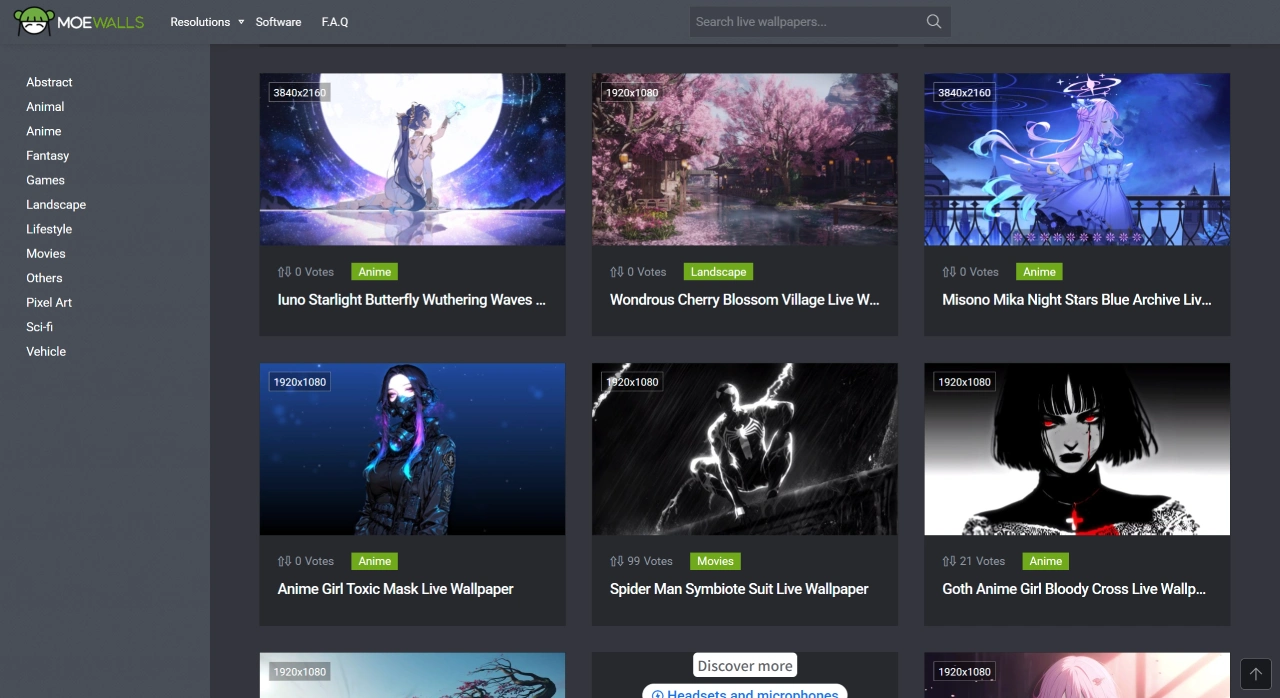
MoeWalls Features
High-definition quality: Wallpapers typically come in high resolution, up to 4K, delivering a clear viewing experience.
Smooth animation: Motion effects play smoothly without stuttering or flickering.
Free to use: No login required—you can download and use them directly from the website.
Online preview: You can preview how video wallpapers look online, but only video files can be downloaded—individual wallpaper images cannot be downloaded separately.
Software support: MoeWalls offers its own animated desktop wallpaper software. This software allows you to download wallpapers and create new projects to import animated wallpapers. Additionally, on Windows, you can add video links to use online videos as animated wallpapers.
How to Set MoeWalls Downloads as Wallpapers
Downloading Animated Wallpapers
Visit the website: Open MoeWalls' official site.
Choose a wallpaper: Use the navigation bar on the page to browse themes you're interested in (such as "Anime" or "Games"), or search for keywords directly using the search box.
Preview and download: Click the thumbnail of a wallpaper to preview it first. If you like it, click the "Download" button, select an appropriate resolution (4K or lower is recommended depending on your computer's specs), and save the video file to your computer.
Importing Animated Wallpapers
Install the software: MoeWalls offers its own animated desktop wallpaper software. Click the "Software" option in the top navigation of the MoeWalls website to view software information and download it for installation. If you'd rather not use this, you can use other third-party animated wallpaper software, such as Wallpaper Engine (requires purchase on Steam) or Lively Wallpaper (free).
Import the wallpaper: Open the installed animated wallpaper software, find the import function, and import the video file you just downloaded.
Set as desktop background: In the software, select the imported animated wallpaper and set it as your desktop background.

Steps for Setting Up MoeWalls Animated Wallpapers
Preparation and Finding Resources
Software classification: According to the documentation, MoeWalls falls under the "wallpaper and screensaver software" category, primarily used to add animated backgrounds to your desktop. Similar software includes Wallpaper Engine and Lively Wallpaper.
Finding wallpaper resources: It's best to download animated wallpaper projects (usually videos or special formats) from the software's built-in store or reputable platforms. Once downloaded, simply click "Apply/Set as Wallpaper" within the software.
Basic checks: Set aside some memory and CPU/GPU resources—avoid running them during high-load situations to prevent stuttering. If using video wallpapers, pay attention to how resolution and frame rate affect your computer's battery life and performance.
General Settings for Windows and macOS
Windows setup: Right-click on an empty area of the desktop, select "Personalize," then click "Background." If the software can integrate with the system, select the corresponding source within "Background." If integration isn't available, use third-party software that supports video wallpapers (such as Wallpaper Engine) to set up a video desktop.
macOS setup: Open System Settings, click "Wallpaper," then click "Add or select new wallpaper." Choose what you want from categories like "Dynamic/Live" and apply it. Menu names may vary slightly depending on your macOS version.
Note: Operating systems generally don't natively support setting videos directly as desktop wallpapers—dedicated software is typically required for setup and management.
Key Points for Mobile Setup
Android: Open Settings, tap "Wallpaper/Wallpaper & theme," then tap "Wallpaper." Choose the wallpaper source (system-provided, from your album, or from installed wallpaper software), preview it, and set it as your home screen, lock screen, or both. If downloading third-party animated wallpapers from the web, make sure the source is reliable, and pay attention to permissions and battery consumption.
iOS: Open Settings, tap "Wallpaper," select "Choose New Wallpaper," then tap the "Dynamic" category. Preview it and set it as your lock screen, home screen, or both. If using third-party software, follow the "Set as Wallpaper" instructions within the app.
Common Issues and Optimization Methods
Performance and battery life: Animated wallpapers consume CPU/GPU resources and battery power. On laptops or low-performance devices, lowering the resolution or frame rate is recommended, or using lighter wallpapers.
Sound issues: Most systems have no sound by default. If the wallpaper or software has an "audio mode," enable it in the software, and ensure your system's media volume and permissions are configured to play sound normally.
Settings not taking effect/preview issues: Try restarting the software or device. If using multiple desktops or spaces, confirm the wallpaper has been set on the current desktop. If issues persist, reconfigure the wallpaper or clear the cache and try again.