Script Planner Assistant▸
 AI Apps
 AI News

GameCreator: A Game-Making Tool with Visual Programming and TypeScript
GameCreator: A Game-Making Tool with Visual Programming and TypeScriptIntroduction
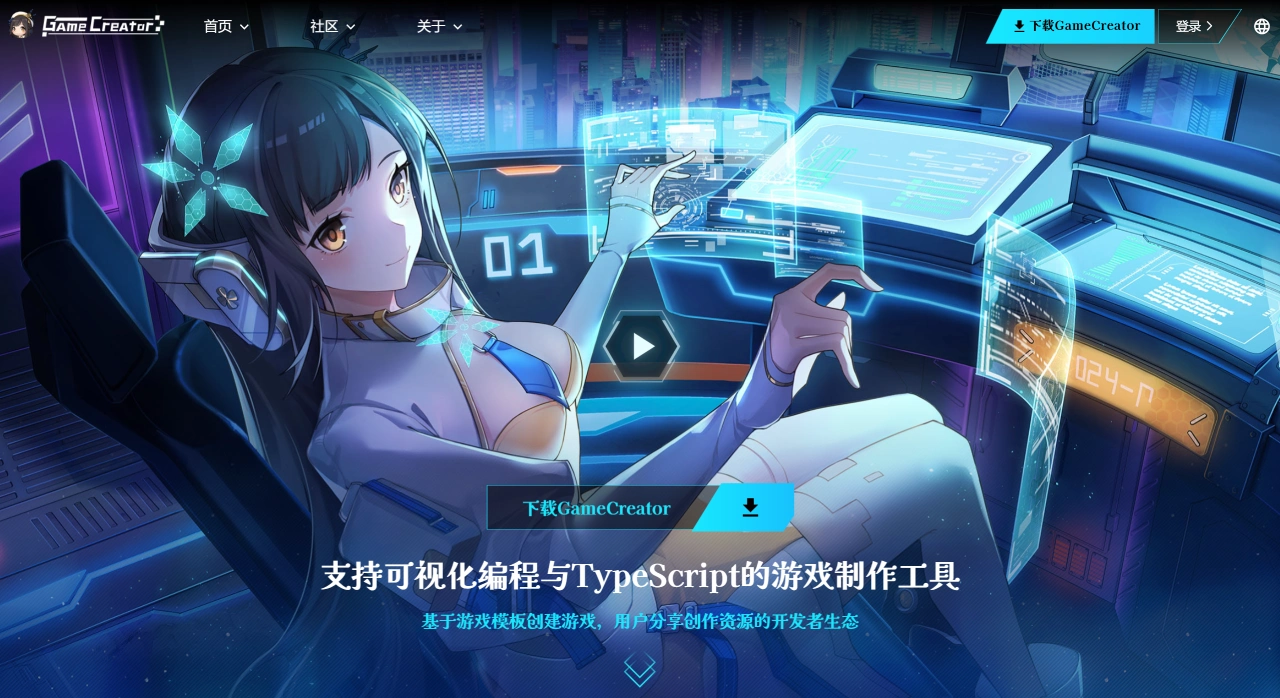
GameCreator is a game engine developed by Catsoft Studios that caters to both professionals and hobbyists. Its biggest highlight is that you can create complete games without writing any code. Games can run on PC, mobile, and the web, and you can share or trade templates, plugins, and creations. The games you make belong to you, and you can buy individual paid templates or plugins. The Professional edition has no restrictions on packaging or export platforms.
Features
Visual programming: Comes with an intuitive visual editor and an advanced visual scripting system. Set up various in-game events through triggers, actions, and conditions to create complex game logic without writing code. Some commands even let you see results in real time.
Visual editor: Includes complete editing tools for scenes, character sprites, animations, interfaces, materials, and shaders, making it easy to create game content.
Modular design: Built on a module system with core elements like cameras, characters, and variables. Functions can be extended through different modules, such as character, UI, quest, dialogue, and melee modules, to meet the needs of different games.
Character and animation control: Built-in character system that supports character control, movement, AI, and animation. Use preset templates to quickly generate character behaviors and easily set up character animations. Create complex AI behaviors without writing code.
Dialogue and quest management: The dialogue system supports rich branching dialogue trees with conditional logic, variables, and dynamic dialogue adjustments. The quest management tool makes it easy to create quests, objectives, and quest chains, supporting conditional quest completion, rewards, and quest status tracking.
Multi-platform support: Export games for PC, mobile, or as standalone HTML games. Steam Deck is already supported.
Script support: Write game scripts in TypeScript or JavaScript, either in the built-in editor or in VSCode.
Assets and community: Includes a template marketplace, plugin marketplace, and asset workshop. Official or third-party game templates and plugins can be shared or sold. The asset workshop supports multiple licensing options for selling resources. You can also upload games to the cloud and share your work via a web link.
GameCreator Use Cases
Game prototyping: Quickly build game prototypes to validate ideas and mechanics.
Indie game development: An intuitive workflow with powerful features, ideal for indie developers.
Education and training: For learning or teaching game development
Suitable Users and Usage Recommendations
GameCreator is suitable for indie developers or small teams who want a low barrier to quickly create playable prototypes or complete 2D works; creators who need visual logic and extensible scripting; and teams looking to speed up production through the template and plugin ecosystem.
Usage recommendations: Start with official templates (such as RPG or AVG) to familiarize yourself with event flow and visual editing, then gradually add custom scripts and plugins. Before publishing, use QR code scanning for multi-device synchronization testing to verify interactions and performance, and finally package and release to your target platform.
GameCreator Tutorial Steps
Making a game with GameCreator follows the "prepare → create → optimize → publish" workflow. No programming skills are required, and beginners can get started quickly.
Preparation: Installation and Basic Setup
Download and install: Go to the GameCreator official website (https://www.gamecreator.com.cn/), choose the free or professional edition to download, then open the software after installation.
Get familiar with the interface: The main software interface is divided into these areas — the left side is the scene editor for building game scenes; the right side is the properties panel for adjusting object parameters; the bottom is the event editor for setting game logic; the top is the resource manager for handling assets, templates, and other items.
Get resources: First, go to the official "Template Marketplace" and "Asset Workshop" to download basic templates such as 2D adventure templates, or assets like character sprites and scene elements. Using them directly can save a lot of preliminary work.
Core Creation: From Scenes to Logic
Building Game Scenes
Create a new scene: Click "Scene → New Scene" in the top menu bar. You can choose a preset scene type (such as "Indoor" or "Village") or create a blank scene.
Add elements: Drag scene elements (such as floors, buildings, decorations, and obstacles) from the resource manager into the scene editor, then adjust position, size, and layer in the right-side properties panel (for example, place the "mask" layer above the character layer).
Preload resources: In the scene settings, check "Preload map resources" and "Scene object resources". You can also add extra resources yourself (such as character portraits and dialogue audio) to prevent lag during gameplay.
Creating Characters and Animations
Add a character: In the resource manager, select a character template (such as "Sandy Girl") and drag it into the scene. A basic character object will be generated automatically.
Configure walking and animation: Adjust parameters in the character properties panel:
Walking sprite: Select the corresponding reference walking sprite, set the playback frame rate (recommended 12) and scale ratio (such as 166%).
Direction mode: Check "8 directions" so the character can move in all directions.
Animation frames: Customize the contents of frames 1–4 to adjust the character's standing and walking animations.
Set up AI (optional): No code required. In "Character → AI Behavior", select a preset template (such as "Follow Player" or "Patrol"), then set trigger conditions (for example, start following when within 5 meters of the player).
Designing Game Logic with Visual Programming
This is the key step. No code is needed — combine "events → conditions → actions" to implement logic:
Create a new event: Click "Event Editor → New Event" at the bottom and select a trigger scene (such as "Enter Scene 001 - Indoor").
Add conditions (optional): Set conditions that trigger the event, such as "Player level ≥ 5" or "Has key in inventory".
Add actions: Select what to do when the event is triggered, for example:
Display content: "Show image (path.png)", "Show portrait (wolf girl normal)", "Show dialogue (Are you the legendary hero!?)".
Character interaction: "Move character to coordinates (100,200)", "Play character attack animation".
Quest related: "Trigger quest (Find 3 herbs)", "Complete quest and give 100 gold coins".
Real-time preview: Click the "Preview" button in the event editor to see the logic effect directly, no need to package the game.
Creating Dialogue and Quests (Optional)
Dialogue system: In "Tools → Dialogue Editor", create branching dialogue trees. You can add conditions (such as "If player selects option A, trigger subsequent dialogue B") and variables (such as "Dialogue count ≥ 2, unlock hidden content").
Quest system: Create a new quest through "Tools → Quest Manager", set:
Quest objectives: For example, "Collect 5 pieces of wood" or "Defeat 1 BOSS".
Completion conditions: Check "Auto-submit when objective is achieved" or "Must be submitted to an NPC".
Rewards: Set rewards such as gold coins, items, and experience.
Optimization and Testing
Functional testing: Separately test scene switching, character movement, event triggering, dialogue branching, and other functions. Use real-time preview to find logic issues (such as dialogue not displaying or quests not completing).
Multi-device adaptation:
Mobile: Click "Export → Mobile" at the top to generate a QR code, scan it with your phone to preview, and test touch controls and screen adaptation.
Game controller: Plug in a controller and test button response directly in the software (such as direction keys to control the character and the X key to trigger dialogue).
Performance optimization: Review the resource preload list and delete unused resources; reduce the number of elements in large scenes to avoid lag.
Exporting and Sharing
Choose the export platform: Select the export type based on your needs:
PC (Windows): Click "Export → PC" to generate an .exe file that runs with a double-click.
Mobile: After exporting, an installation package or test QR code is generated, which can be used to test on a phone or submit to app stores.
HTML5: Export as an HTML file. After setting up an HTTP server, share via a web link.
GC-Steam-SDK, configure achievements, check these features, and then export the compatible version.
Share your work: Upload the exported game to the official cloud drive, generate a web link, and send it directly to others for testing or showcase.
FAQ
Q: As a visual game engine, what are the core designs of GameCreator that lower the development barrier?
A: Mainly two designs: First, a visual programming system with built-in event mechanisms that lets you define game logic without writing code—for example, triggering image display, character art, or dialogue when entering a scene. Some commands also support real-time previews for easier debugging. Second, a complete visual editor and resource ecosystem, with full-process editing tools for scenes, walking sprites, animations, etc., along with a template marketplace and plugin marketplace. Beginners can quickly get started using existing resources without worrying about underlying technical details.
Q: GameCreator supports multi-platform export. What are the differences in export characteristics and usage conditions across different platforms?
A: The characteristics and usage conditions for each platform are as follows: ① PC: Only supports Windows system, and runs directly after export with no additional configuration needed; ② Mobile: Scan a QR code after export for real-time preview testing, convenient for verifying mobile adaptation; ③ HTML5: Exported as a single HTML file, requiring you to set up your own HTTP server to run, suitable for web game distribution; ④ Steam Deck: Adapts to the device's controls by default and requires the official GC-Steam-SDK to implement achievements, checks, and other Steam-platform-exclusive features, suitable for publishing works to console players.
Q: In the resource management and content creation aspects of game development, what tools does GameCreator provide to improve efficiency?
A: Mainly three types of tools: ① Resource preloading and scene management tools: Support preloading maps, scene objects, event-related resources, and additional resource lists to avoid runtime loading stutters. There are also multiple types of preset scenes, such as indoor, village, ancient throne, and scene elements, which reduce basic scene setup time; ② Quick configuration tools for characters and animations: Support 8-directional movement, customizable walking sprite playback frame rate (e.g., 12) and scaling ratio, and direct editing of 1-4 frame animations, enabling basic character effects without professional animation software; ③ Custom editor and resource trading ecosystem: Build dedicated editors based on your requirements—for example, an equipment editor tailored to specific projects. The template marketplace and asset workshop provide ready-to-use resources, significantly shortening the development cycle.
Additionally, here's a small game website builder tool FaFaFa.AI.