Script Planner Assistant▸
 AI Apps
 AI News

eSearch: An Open-Source Screenshot & Search Tool
eSearch: An Open-Source Screenshot & Search ToolIntroduction
eSearch is an open-source cross-platform tool that can take screenshots, perform OCR recognition, search, translate, pin images to the screen, search by image, and record the screen. It supports Windows, macOS, and Linux systems. The desktop version is built with Electron, and offline OCR is powered by PaddleOCR, making it well-suited for information extraction, translation, and side-by-side comparison work on a computer.
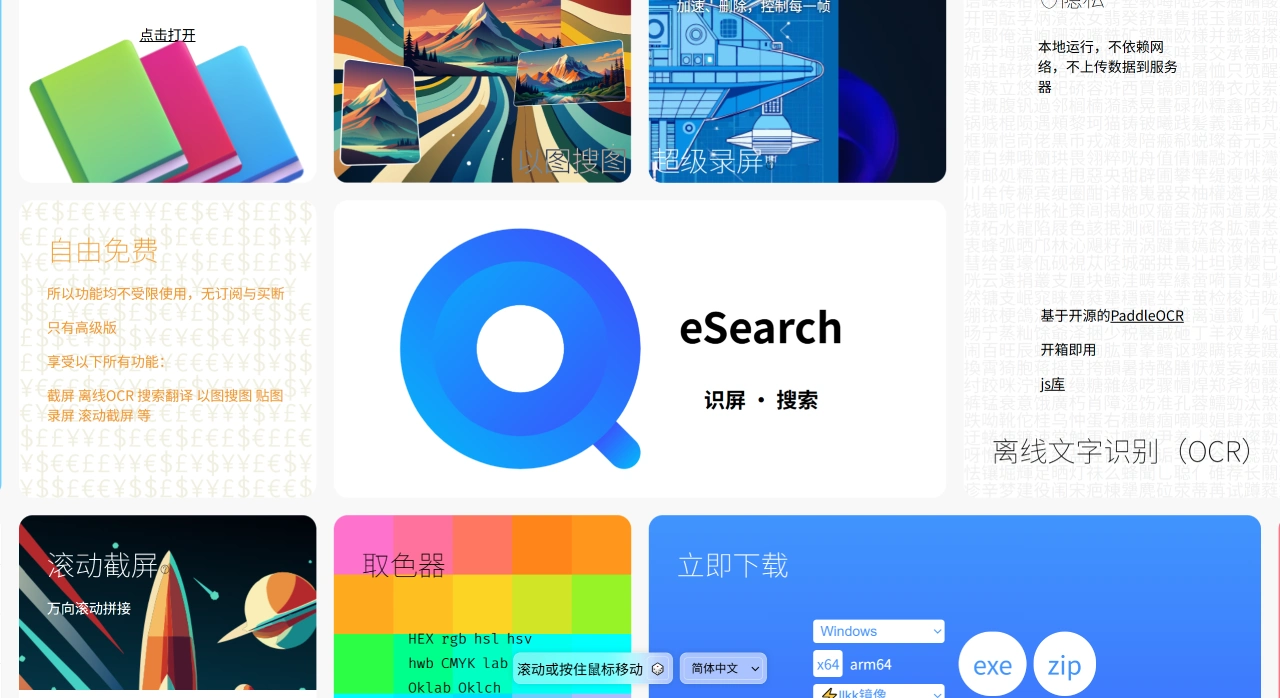
Main Features of eSearch
Screenshot and editing: Supports frame selection and cropping, selecting windows or controls, long screenshots (scrolling screenshots), multi-screen individual screenshots, as well as a color picker, magnifier, pen, and geometric shape tools. You can apply local mosaic effects or adjust colors. It has a history feature and can quickly save screenshots to the clipboard or a specified directory.
OCR recognition: Uses local PaddleOCR by default, with the option to choose online OCR (such as Baidu OCR, which requires an API Key and Secret Key). Supports table and formula recognition, and can use online or offline custom models and dictionaries.
Search and translation: Can perform searches on selected text or OCR results. Multiple search and translation engines can be configured, with support for automatic translation and result aggregation.
Search by image: Upload a screenshot to find similar images.
Pin image and screen pinning: Pin a screenshot to the screen, with adjustable transparency, always-on-top, and mouse click-through options.
Screen recording: Can record in full-screen or a selected region, with support for displaying keystrokes and cursor highlights. Supports segmented recording, as well as audio and webcam capture.
Other: Supports QR code recognition, runs in the system tray, allows custom shortcut keys, and supports Wayland desktops.
Installation and Getting eSearch
Official channels: Go to GitHub Releases to download the installer for your system, or visit the official website to find the latest version.
Package managers:
Windows: Install via winget using the command winget install esearch.
Arch Linux: Search for e-search or e-search-git in the AUR to install.
Building from source:
First clone the repository and install dependencies: git clone https://github.com/xushengfeng/eSearch.git && cd eSearch && npm install.
Then compile and package: npm run dist. The output will be in the build directory.
Run or debug: npm run start or npm run dev.
Linux note: On the GNOME desktop, you may need to install the appindicator extension for the tray icon to display properly.
Common Operations in eSearch
Launch and system tray: After opening for the first time, it will stay in the system tray. You can change the language, font (such as FiraCode), and shortcuts in Settings.
Common shortcuts (:
Alt + C: Auto-recognition, performs OCR and other actions after selecting an area.
Alt + S: Search selection.
Alt + B: Search clipboard.
Alt + Q: Quick screenshot.
OCR and translation: After taking a screenshot, you can directly use offline OCR. To use online OCR, enter your Baidu OCR API Key and Secret Key, then enable it in Settings. Recognized results can be searched or translated with a single click.
Pinning and screen pinning: Pin a screenshot to a corner of the screen, with adjustable transparency and size, making it convenient for side-by-side editing or presentations.
Screen recording: Select a region or record the full screen, enable keystroke and cursor highlights, and supports audio and webcam capture.
Command line:
esearch - c: Screenshot and search.
esearch - s: Search selection.
esearch - b: Search clipboard.
esearch - a: Auto-recognition.
esearch - q: Quick screenshot.
(If you can't find the command, try e-search)
How to Use eSearch
First, go to the eSearch official website or GitHub repository to download the installer and follow the instructions to install. After opening, find it in the launcher, and it will display a tray icon. The default shortcut is Alt + C, which can also be customized in Settings. To take a screenshot, press the shortcut, then select the screenshot area to perform cropping, annotation, and other operations. After taking a screenshot, click the OCR recognition button to recognize the text in the image. Once the text is recognized, click the Search or Translate button to perform the corresponding actions. After taking a screenshot or selecting an image, click the Pin Image button to pin it to the screen.
Key Questions
Q: What are the core advantages of eSearch's OCR feature in terms of privacy and recognition capability, and which user scenarios is it suitable for?
eSearch's OCR feature has advantages in two main areas. In terms of privacy, it runs locally without requiring an internet connection and does not send data to servers, preventing sensitive text such as work documents or personal information from being leaked. This makes it suitable for users who handle confidential or private text. In terms of recognition capability, it uses the PaddleOCR v4 model by default, and you can also download the v5 model. It can recognize over 15,000 characters and covers multiple languages. It also offers layout recognition, ai-assisted proofreading, and synchronized selection proofreading, ensuring accurate recognition and reasonable layout. It is suitable for cross-border office workers handling multilingual documents, students or researchers needing offline recognition of paper documents, legal or financial professionals needing to protect client information, and learners using OCR for language study—for example, recognizing foreign language materials and importing them into Anki.
Q: Compared with ordinary tools, what unique design features does eSearch's screen recording and screenshot functionality offer in terms of editing flexibility?
Compared with ordinary tools, eSearch offers three unique design features in editing flexibility. First, screen recording provides fine-grained frame-level control, where individual frames can be sped up, deleted, or adjusted, and the recording can be exported to multiple formats such as mp4, gif, and webm, meeting needs from video demonstrations to animated image sharing. Ordinary tools mostly offer only basic editing (such as trimming duration) without frame-level control. Second, screenshots cover all scenarios with extensive advanced editing features. Screenshot types include scrolling stitching, free-form, and standard screenshots, covering virtually all screenshot needs. During editing, you can not only quickly annotate but also add rounded corners, shadows, and backgrounds to images, and apply filters such as mosaic and blur. Ordinary tools mostly only offer basic annotation, lacking advanced beautification and information-hiding features. Third, cross-feature collaborative editing: screenshots can be linked with OCR and translation features. After taking a screenshot, you can directly perform OCR recognition or translation, and recognized text can be proofread via synchronized selection and compared with the original image. Ordinary tools mostly require opening separate OCR or translation software, resulting in lower efficiency.
Q: Which core needs can the free version of eSearch already meet?
The free version of eSearch can meet quite a few core needs. For basic OCR, it supports offline text recognition, offers online trials at 0 yuan / 10,000 characters with no usage limits, and includes spell-checking and automatic layout features to meet everyday text recognition needs. For standard screen operations, it supports regular screenshots, basic screen recording, and screen translation, with translation results that can be copied or saved to a file / Anki. For basic personalization settings, it allows customizing 63 shortcuts, adjusting interface fonts and colors, and enabling dark mode, improving operational efficiency and visual experience. For basic auxiliary features, it offers image pinning and error feedback, meeting the additional needs of daily use.