Script Planner Assistant▸
 AI Apps
 AI News

AiPose: All-in-One AI Image & Video Creation Platform
AiPose: All-in-One AI Image & Video Creation PlatformIntroduction
aiAiPose AI is an all-in-one AI image and video creation platform that supports core features such as text-to-image, text-to-video, and image-to-video generation. AiPose AI offers more than 14 professional image editing tools and over 437 artistic styles. It can achieve effects such as changing clothes, changing hairstyles, and restoring photos, and can be operated without mastering any design skills.
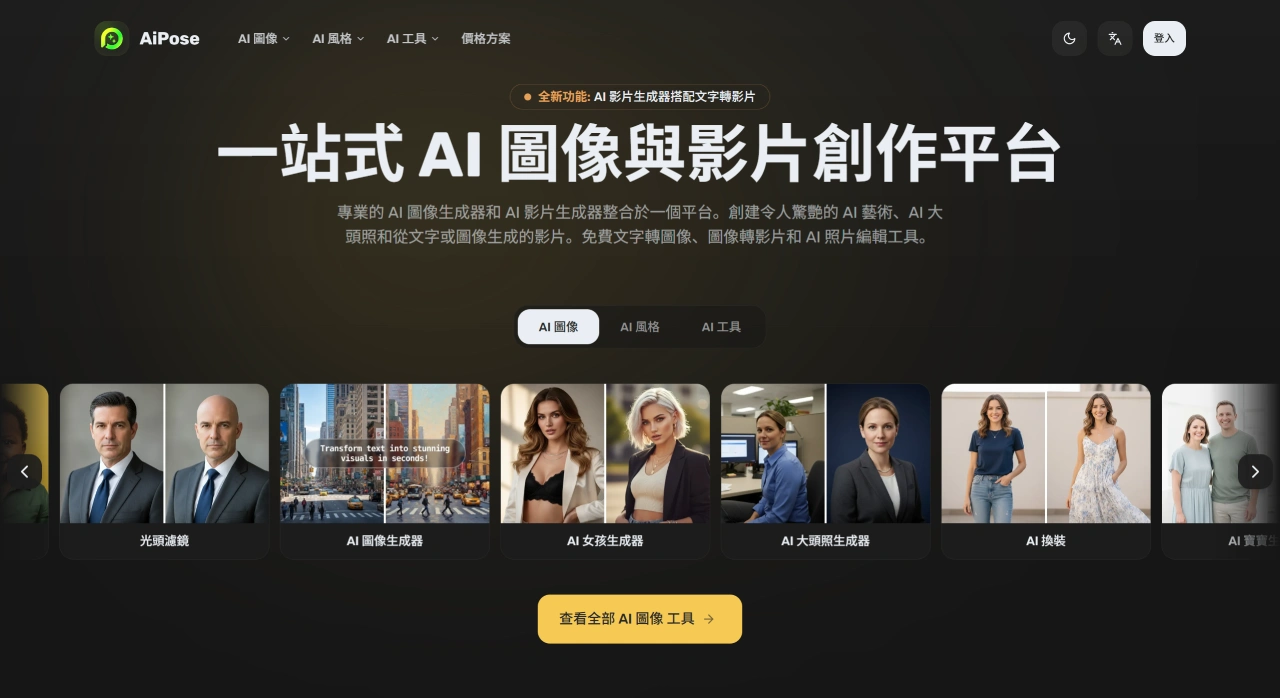
AiPose AI Features
Image Creation Tools
AI Image Generator: Generate images through text descriptions.
AI Style Transfer: Transform photos into different artistic styles, such as Van Gogh style, pixel style, cartoon style, etc.
Specific Character & Scene Generation: Includes girl generator, avatar generator, outfit changer, baby generator, bikini generator, etc.
Special Effect Tools: Includes clothing removal, hairstyle transformation, pregnancy filter, baby filter, bald filter, etc.
Editing & Optimization Tools: Includes background removal, watermark removal, object removal, image recoloring, image outpainting, old photo restoration, colorizing black and white photos, AI outfit change, AI hairstyle transformation, AI expression transformation, age preview, gender swap, AI virtual makeup, ID photo creation.
Artistic Style Filters: Can convert any photo into various artistic styles, such as Van Gogh style, pixel art, Pixar 3D, comic line art, neo-expressionism, etc. It also allows real-time preview of different style effects for selection.
Video Creation Tools
Text to Video: Input text descriptions, and AI automatically generates corresponding videos.
Image to Video: Upload reference images to generate dynamic videos.
Text-Image-Video Workflow: First generate multi-frame images through text, then select the best frames to create videos.
Other Features: Includes 4K video enhancement capability, flexible adjustment of frame rate, size, and motion trajectory to adapt to different social platforms, as well as advanced features like face swapping, filter adjustment, and animation effects.
Other Tools
Image Outpainting: Use AI-generated content to expand image boundaries.
Watermark and Object Removal: Remove watermarks, logos, and unwanted objects from images.
Color Adjustment: Change image colors.
3D Model Conversion: Convert images into 3D models.
Magic Eraser: Likely used for erasing specific parts of images.
PNG Creation: Generate images in PNG format.
Remove emojis from photos.
AiPose AI Use Cases
Individual Users
Content Creation: Easily create engaging videos and beautiful thumbnails to meet content sharing needs on social media and other platforms.
Artistic Creation: Transform photos into various artistic styles to unleash personal creativity.
Photo Processing: Perform operations such as creating ID photos, restoring photos, coloring, changing outfits, hairstyles, and expressions to beautify personal photos.
Creators and Designers
Content Creation: Quickly generate high-quality visual content, such as videos and images, to improve creation efficiency for use in self-media, advertising, marketing, and other fields.
Design Assistance: Graphic designers can accelerate creative workflows with mockup design, object removal, and image enhancement; character designers can use AI tools to create consistent, detailed characters; logo designers can create professional logos and brand assets.
Enterprise Users
Brand Promotion: Create professional promotional videos, images, and other materials to enhance brand image and promotional effectiveness.
Product Display: Better showcase product features and advantages by generating high-quality product images and videos.
How to Use AiPose AI
Register for a free account to start using the AiPose AI platform. No technical skills are required, making it very easy to get started.
Using Features
Select a Tool: Choose the desired tool from AiPose AI's rich creative features, such as image generation, video generation, image editing, and other tools.
Input Information: Follow the requirements of the selected tool to input text descriptions (such as for text-to-image and text-to-video generation) or upload reference images (such as for image-to-video generation).
Generation & Adjustment: AiPose AI uses AI technology to generate corresponding images or videos. Users can adjust and optimize the generated content as needed, such as selecting the best frames and adjusting video parameters.
Pricing
Lite: $10 per month, basic features.
Pro: $14.5 per month, provides more advanced features, such as 800 credits per month, 80 videos, 800 images, 3 parallel tasks, full multi-model support, etc.
Frequently Asked Questions
Q: As an "all-in-one AI creation platform," what are the core advantages of AiPose compared to similar tools?
A: AiPose's advantages are reflected in three aspects: "full-process coverage + highly practical tool combination + high adaptability." First, it covers the entire creation workflow of "text → image → video," supporting coherent features such as text-to-video and image-to-video generation without switching between multiple platforms. Second, it integrates 14 commonly used image editing tools (such as clothing change, hairstyle change, watermark removal) and over 437 artistic styles. All tools require no design skills and can be operated with one click, meeting various needs from basic editing to creative design. Third, it adapts to multiple scenarios, capable of generating practical content such as professional avatars and ID photos, as well as creating professional content like 4K videos and brand assets. It has earned the trust of enterprises such as Microsoft and Versace, serving both personal and commercial purposes.
Q: For ordinary users with no design background who want to use AiPose to create a short video for social media, what are the specific operation steps?
A: Ordinary users can follow these steps:
1. Register an Account: First register for a free AiPose account and enter the AiPose AI main interface; 2. Choose a Video Creation Method: Based on your needs, choose "Text to Video" to directly use text descriptions, "Image to Video" to use existing photos, or "Text to Image to Video." Beginners are recommended to use "Text to Video"; 3. Input Creativity & Settings: If you choose "Text to Video," enter a description of the short video, such as "A corgi chasing butterflies on the lawn in sunny weather." You can also adjust frame size, style, etc.; 4. Generation & Optimization: Click the generate button to quickly get a video. If adjustments are needed, you can use the platform's built-in editing tools, such as enhancing image quality and adding filters; 5. Export & Use: Confirm the effect and export the video.