Script Planner Assistant▸
 AI Apps
 AI News
Adobe Express: Adobe's All-in-One Design Tool
Adobe Express: Adobe's All-in-One Design ToolIntroduction
Adobe Express is an all-in-one design tool launched by Adobe, integrating image, video, document/PDF, animation, and social content features. It comes with built-in Adobe Firefly generative AI, supporting one-click generation of images and text effects, quick application of templates and assets, and cross-device, cross-app collaborative creation. It meets the needs of individuals for rapid graphic creation while also supporting teams and enterprises in brand-consistent large-scale production and workflow integration.
Latest Features of Adobe Express
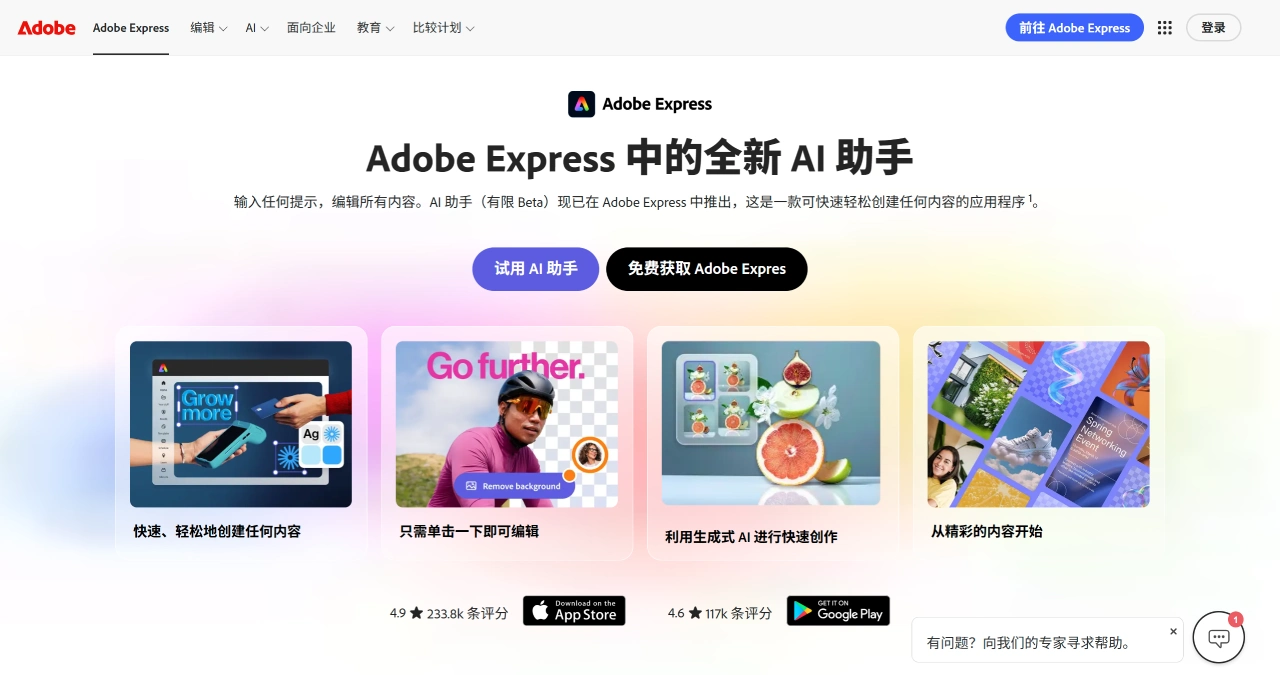
AI Layout: Automatically generates beautiful image-text layouts based on the input text content, suitable for lightweight design scenarios such as social media posters and brochures.
Music Recommendations: When adding or editing videos, you can get real-time music recommendations from a library of over 2,000 tracks. Recommendations will update and adjust synchronously in the audio panel as the content changes.
Image Resolution Adjustment: Adjust the resolution with a simple slider before export to balance clarity, file size, and dimensions, ensuring the design looks its best in different scenarios.
Animation Effects: New looping Breeze animations, Circle, and Barndoor animations are added, allowing you to apply dynamic entry or exit effects to photos, videos, and other elements.
Social Media Mentions: Directly tag relevant individuals, businesses, or clients on Instagram, LinkedIn, Facebook, or X accounts in the post titles within Adobe Express Scheduler to expand content reach.
Safe Area Settings: Provides layout guides aware of the formats for Instagram, TikTok, Facebook, and LinkedIn, preventing important text, visual elements, or logos from being cropped out.
Contextual Recommendations: While editing a design, receive real-time suggestions for Adobe Stock photos, assets, backgrounds, and icons that can be added, boosting creative efficiency.
Target Users of Adobe Express
Small business owners and entrepreneurs: Create marketing materials and brand assets.
Content creators and social media managers: Design engaging posts.
Educators and students: Develop learning materials and presentations.
Freelancers and creative professionals: Handle client projects.
Hobbyists and individual users: Create invitations, photo collages, and other social content.
Adobe Express Pricing
Free Plan: Provides essential creation tools and limited AI credits.
Premium Plan: $9.99 per month or $99.99 per year (save 16% with annual billing), includes millions of premium templates, advanced AI credits, and time-saving features.
Team Plan: $4.99 per seat per month or $49.99 per year (first year; $7.99 per seat per month or $79.99 per seat per year thereafter), offers advanced collaboration and security features, with a minimum of 2 seats required.
Enterprise Plan: Custom pricing, contact sales, suited for large organizations, provides advanced collaboration, security, and administration features.
How to Use Adobe Express
Sign Up & Log In: Visit the official website, click "Get Started," and follow the prompts to enter your email and set a password to complete registration.
Create a Design
Select Project Type: After logging in, click "Create a Design" and choose a type from the left menu (such as social media post, poster, video, etc.).
Choose Template or Size: Start designing with a preset template, or select a custom size to create a unique design.
Edit the Design
Add Elements: Select images, icons, text, and more from the "Elements" panel to add to your design.
Adjust Layout: Use drag-and-drop to adjust the position and size of elements, and choose different layouts or collage structures via "Layout."
Apply Animation: Add animations to text and backgrounds to enhance dynamism.
Import Brand Assets: Click the "Brand" option to quickly import logos, color schemes, etc. to maintain brand consistency.
Adjust Size: Change the project size as needed or select a preset size option.
Edit Images
Basic Editing: Use tools like brightness and contrast to adjust image effects via sliders.
Apply Filters: Choose filters such as black-and-white or vintage to quickly change the image's appearance.
Add Text and Stickers: Add text and stickers to the image to enhance expressiveness.
Crop and Rotate: Crop the image's size and proportions or rotate its direction.
Beautify Features: Remove blemishes and smooth skin tone.
Edit Videos
Upload Video: Launch Adobe Express, select a video type or upload MP4 media to create a project from scratch.
Choose Template: Select from thousands of customizable free templates, and add elements such as icons and text.
Continue Editing: Crop, trim, or split the video, add Adobe Stock soundtracks, upload your own music, or continue editing.
Adjust Size: Adjust the video size to match other platform specifications, and save as an MP4 file for easy sharing.
Use AI Features
Text-to-Image: On the web version, use the txt2img feature. Enter a description (such as "filled with sand"), and the system will generate corresponding images for you to choose from.
Text Effects: Use the txt effect feature to add creative effects to text.
Save & Share: When finished, click the "Save" button to store it in your Adobe Express account. Click the "Share" button to choose how to share (such as saving as an image/video file or sharing directly to social platforms).
Use Add-ons
Add Plugins: Select "Plugins" from the left panel on the home page to add multiple plugins to your design.
Publish Plugins: Developers can share plugins via a private link, or submit them publicly to the Adobe Express Plugin Marketplace.