Script Planner Assistant▸
 AI Apps
 AI News

VideoToPrompt: Free Image & Video to Prompt Tool
VideoToPrompt: Free Image & Video to Prompt ToolIntroduction
VideoToPrompt is a tool that can reverse-parse videos or images into AI-ready prompts. You upload a video or an image, and the AI automatically analyzes the scene composition, lighting, color, camera movement, and subject details, then generates a structured prompt.
VideoToPrompt supports both video and image input. The generated prompts can be used with mainstream text-to-video and text-to-image models such as Seedance, Veo, Kling, Wan, Midjourney, GPT Image, Nano Banana, Seedream, and FLUX.
VideoToPrompt is completely free and requires no sign-up.
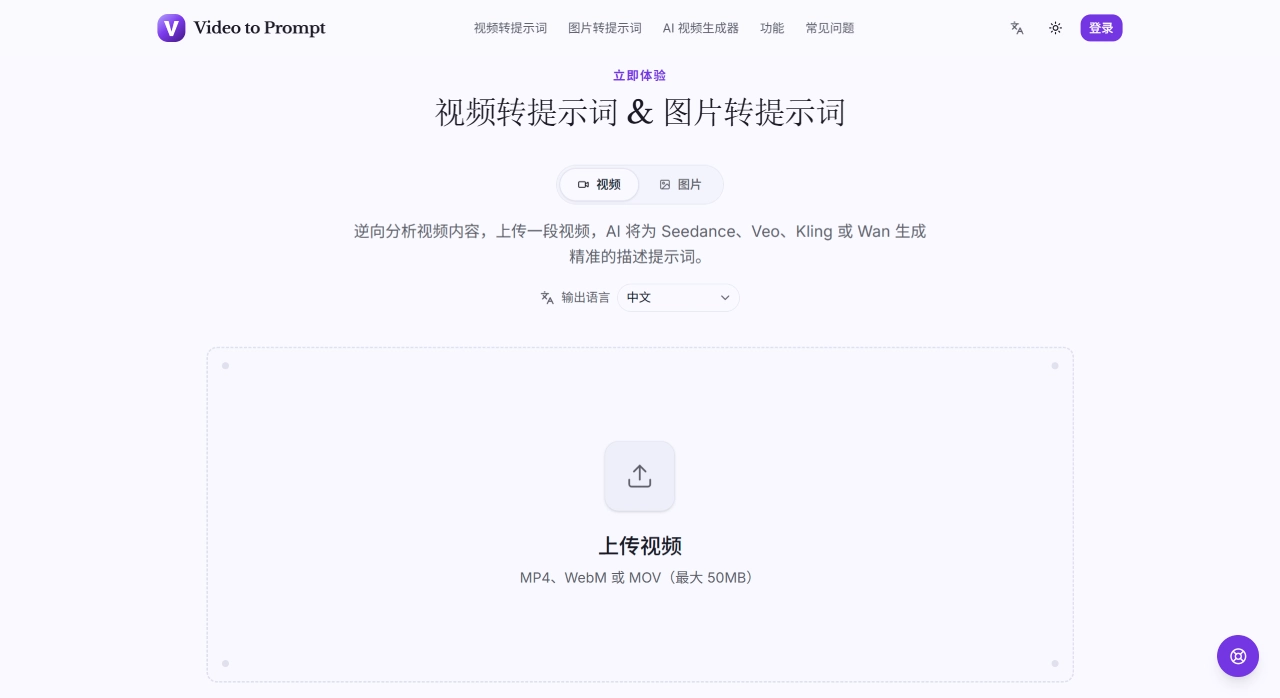
VideoToPrompt Core Features
Video to Prompt: Supports MP4, MOV, AVI, MKV, and WebM formats, with files up to 50MB. The AI analyzes frame by frame, extracting subjects, scenes, lighting, color, composition, camera movement, and overall style.
Image to Prompt: Supports JPG, PNG, WEBP, and GIF formats, up to 10MB. It analyzes details such as lighting direction, texture, and brush strokes region by region.
Keyframe Extraction: Evenly samples keyframes at fixed time intervals in the browser before submitting them for analysis, so you don't need to upload the entire original file.
Style and Mood Recognition: Beyond objects and actions, it can also identify color tones, emotional tone, artistic style references, camera language, and pacing.
Multilingual Output: Generates English by default, and can be switched to Chinese or Japanese.
History: Each generated result is automatically saved locally, and can be browsed and searched, making it easy to build your own prompt library.
Privacy Handling: Only the necessary keyframes are sent to the AI; the entire file is not uploaded, and user content is not stored permanently.
VideoToPrompt Use Cases
When creating videos with AI and you see a style you like but can't write the prompt for, just upload it and take the result directly to feed into tools like Seedance or Kling.
When creating AI images, generate prompts from reference images and use them in Midjourney or FLUX.
Learn how to write prompts: Study the structures AI generates, and imitate how it describes elements like pose, camera, background, and lighting.
Conduct visual reference research and quickly extract the stylistic features of a particular video or image.
Convert existing video素材 into prompts, making it easy to migrate and iterate across different AI platforms.
VideoToPrompt Pros and Cons
Pros:
Completely free, no sign-up required, no usage limits.
Simple to use—just upload and go, with results typically delivered within 60 seconds.
Much faster than writing prompts manually (writing one by hand can take over ten minutes).
Supports both video and image input, with broader applicability.
Compatible with mainstream AI models, so you don't need to write separate prompts for each tool.
Local history is automatically saved for easy revisiting.
Supports multilingual output including Chinese and English.
Cons:
Videos can only be up to 50MB and images up to 10MB; long videos or high-resolution images cannot be processed.
Generation quality depends on the clarity and content of the input file.
In professional scenarios, the generated prompts may still require manual fine-tuning.
No API available, so it cannot be integrated into automated workflows.
Processing speed is slightly slower compared to some competing tools.
How to Use VideoToPrompt
Open the official site: videotoprompt.com/zh, first select either "Video" or "Image" mode. Then upload the file—video supports MP4, WebM, and MOV (up to 50MB), and image supports JPG, PNG, and WEBP (up to 10MB). You can click to upload or drag and drop the file in.
After uploading, the AI begins analyzing; just wait a few dozen seconds. In video mode, the page will display the extracted keyframes for reference.
Once analysis is complete, the page will display the full generated prompt. You can click "One-Click Copy" to copy the text, or click "Save TXT" to download it as a file. Each generated result is automatically saved to your local history, so you can revisit or re-copy it anytime later.
Once you have the prompt, just paste it directly into tools like Seedance, Midjourney, or Kling to use it.
VideoToPrompt vs. Competitors
| Comparison Item | Video to Prompt | PromptGenerators |
|---|---|---|
| Core Features | Video/Image → Prompt | Video/Image → Prompt + AI Generation |
| Video Support | MP4/MOV/AVI/MKV/WebM | Supported |
| Image Support | JPG/PNG/WEBP/GIF | Supported |
| Free to Use | Completely free, no sign-up required | Image-to-prompt is free |
| Multilingual | Chinese/English/Japanese, etc. | 11 languages |
| Local History | Yes | Insufficient information |
| AI Generation Feature | No (prompt generation only) | Yes (integrated generation and creation) |
| API | None | Insufficient information |
| Use Cases | General-purpose prompt generation | Integrated creation workflow |
Additional notes: PromptGenerators integrates image/video-to-prompt with AI generation, but some features may be paid. Writeon Saga is more focused on screenwriting and storyboarding, so it is not a direct competitor to Video to Prompt.
Why Choose VideoToPrompt
You frequently use AI to generate images or videos and see a style you like but don't know how to describe—just use it to generate the prompt directly.
You're a beginner and want to master how to describe visuals by studying AI-generated prompts.
You need to iterate quickly and want to save the time spent repeatedly writing prompts.
You need to switch between multiple AI platforms and use the same prompt to adapt to different tools.
VideoToPrompt FAQ
Q: Is it free?
It's free, no sign-up required, and has no limits.
Q: What formats are supported?
Video: MP4, MOV, AVI, MKV, WebM (up to 50MB). Image: JPG, PNG, WEBP, GIF (up to 10MB).
Q: Which models can the generated prompts be used with?
Video models: Seedance, Veo, Kling, Wan; Image models: Midjourney, GPT Image, Nano Banana, Seedream, FLUX.
Q: Will uploaded content be saved?
理,不保存完整文件。
Q: Can the results be saved?
Yes, they are automatically saved in the local history, and can also be copied or downloaded as TXT.
Q: Does it support Chinese prompts?
Yes, it can be switched to Chinese.
Q: How long does processing take?
Usually no more than 60 seconds.