Script Planner Assistant▸
 AI Apps
 AI News

Cuto.Video: A Commercial-Grade AI Smart Video Editor
Cuto.Video: A Commercial-Grade AI Smart Video EditorIntroduction
What is Cuto.Video
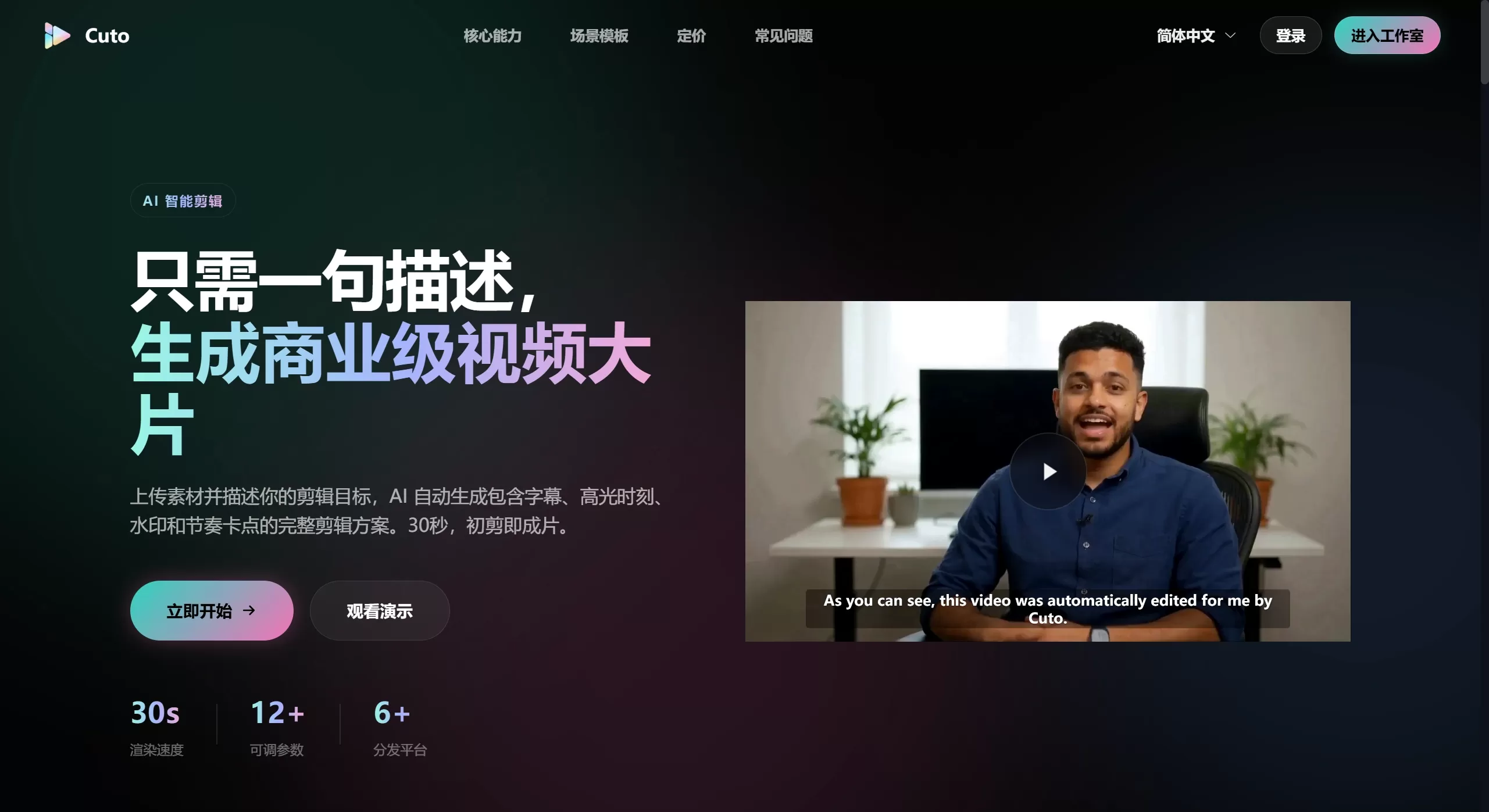
Cuto.video is a commercial-grade AI intelligent editing tool that helps users quickly turn filmed footage into finished clips ready for publishing. Just upload your footage and describe in plain language how you'd like it edited, and the AI will deliver a complete plan in around 30 seconds, including captions, highlights, watermarks, and rhythm points—saving you the hassle of dragging clips around on a timeline yourself.
Cuto.Video supports speech-to-caption conversion, caption-to-video sync, emphasis text highlighting, and brand watermark settings. It's a good fit for content such as talking-head videos, unboxing reviews, store visits, and livestream replays. Depending on the type of content, it adjusts pacing and visual structure—for example, cutting out pauses and repeated parts, moving key information to the front, and picking out segments with high engagement. Once it's done, you can export high-definition video, and it also generates titles, descriptions, and hashtags suited for Douyin, Xiaohongshu, TikTok, YouTube Shorts, and Instagram Reels, so you can publish right away.
Key Features of Cuto.Video
AI Editing: Describe the editing goal in everyday language, and the AI will analyze pacing, pick out expressive segments, handle multiple clips at once, remove duplicates, and add the right transitions.
Captions, Highlights, and Watermarks, All in One Place: There are 4 caption styles and AI-powered auto-segmentation, 6 highlight effects, and fully customizable watermark content and position—all editable from the same panel.
Multi-Platform Copy: On export, it automatically generates titles, descriptions, and tags for each social platform, with bilingual support.
Three Editing Modes: You can use a visual timeline, a form-based parameter panel, or edit JSON directly—pick whichever feels most comfortable.
Scene Templates: Built-in templates for talking-head, unboxing, knowledge sharing, livestream clipping, store visits, course editing, event recaps, and more—apply them with one click, or save your own.
Asset Compatibility: Upload up to 12 videos at once, import .srt / .vtt subtitle files, and media info is detected automatically.
Use Cases for Cuto.Video
Talking-Head Videos: Pull the most engaging segments out of a long video and trim out unnecessary pauses.
Unboxing: Pacing gets tightened, with emphasis on product close-ups.
Knowledge Sharing / Courses: Break long content into knowledge points and pair them with chapter captions and prompts.
Livestream Clipping: Pick out the high-engagement moments from a livestream and turn them into vertical short videos.
Store Visits: Key elements like environment, food shots, and prices are emphasized, with intro and outro arranged automatically.
Event Recaps / Promos: Multi-camera footage is assembled into a fast-paced video, with beat-sync alignment done automatically.
Pros and Cons of Cuto.Video
Pros:
Fast output—a rough cut in 30 seconds.
From upload to publishing, everything happens in one place, no tool-switching needed.
Results are editable via timeline, parameters, or JSON.
Plenty of templates, so beginners can get going without pressure.
Generates platform-specific copy and formats directly.
Cons:
It's paid, billed by credits, priced at $19–$79 per month—occasional users may find it pricey.
Maximum of 12 videos per run.
For complex or highly creative editing, AI still can't fully handle it on its own.
Fine-tuned Chinese-language optimization isn't as polished as some local tools.
How to Use Cuto.Video
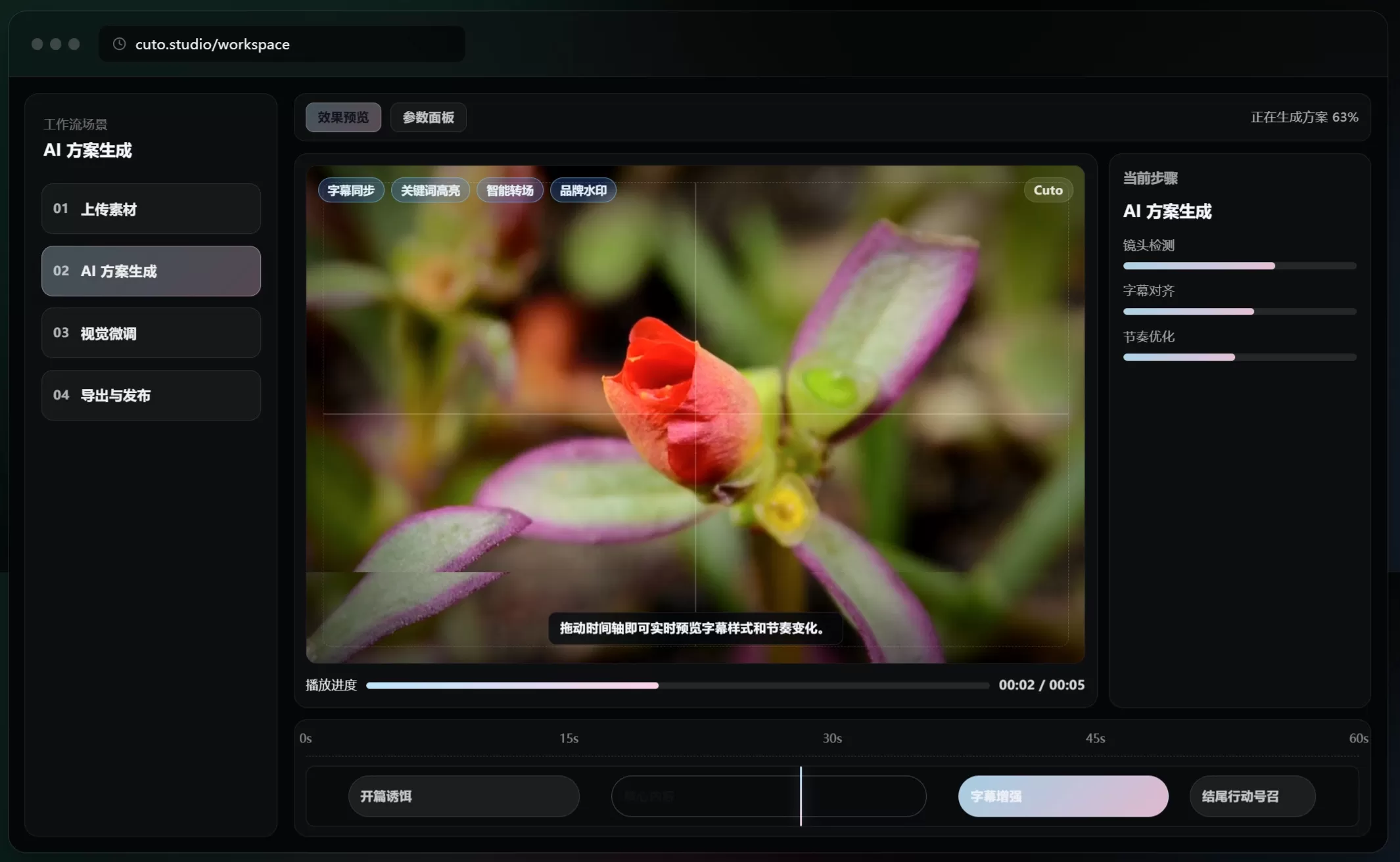
Upload Footage: Drag in up to 12 video clips; subtitle files (.srt/.vtt) can be uploaded alongside.
Let the AI Plan It: Describe the editing requirements in plain language—for example, "a 30-second product highlight, with an intro up front and a call-to-action at the end"—and the AI will analyze it and deliver clips, transitions, and pacing.
Fine-Tune: Move clips around on the timeline, change caption styles, key-word highlights, and watermark position.
Export and Distribute: Render the final cut directly and receive matching titles, descriptions, and tags for each platform.
FAQ
1. How is Cuto.Video different from traditional editing software?
Cuto relies on AI to produce the first cut—just say what you want, no need to build from an empty timeline yourself.
2. Can I edit the AI's output?
Yes, you can use the timeline, the form panel, or edit JSON directly.
3. Does it support external subtitle files?
Yes, it supports .srt/.vtt, as well as AI speech-to-caption conversion.
4. Can I add a brand watermark?
Yes—content, position, and style are all configurable.
5. How are credits charged?
Uploads are billed by original file size, exports carry a flat rate, and planning and analysis are free.
6. Are there any upload limits?
A maximum of 12 videos per run.
7. Does Cuto.Video have a Chinese interface?
Yes, it switches between Chinese and English, and copy can be generated in either language.