Script Planner Assistant▸
 AI Apps
 AI News

CursorLens: Free Open-Screen Recording and Video Editing Tool
CursorLens: Free Open-Screen Recording and Video Editing ToolIntroduction
What is CursorLens
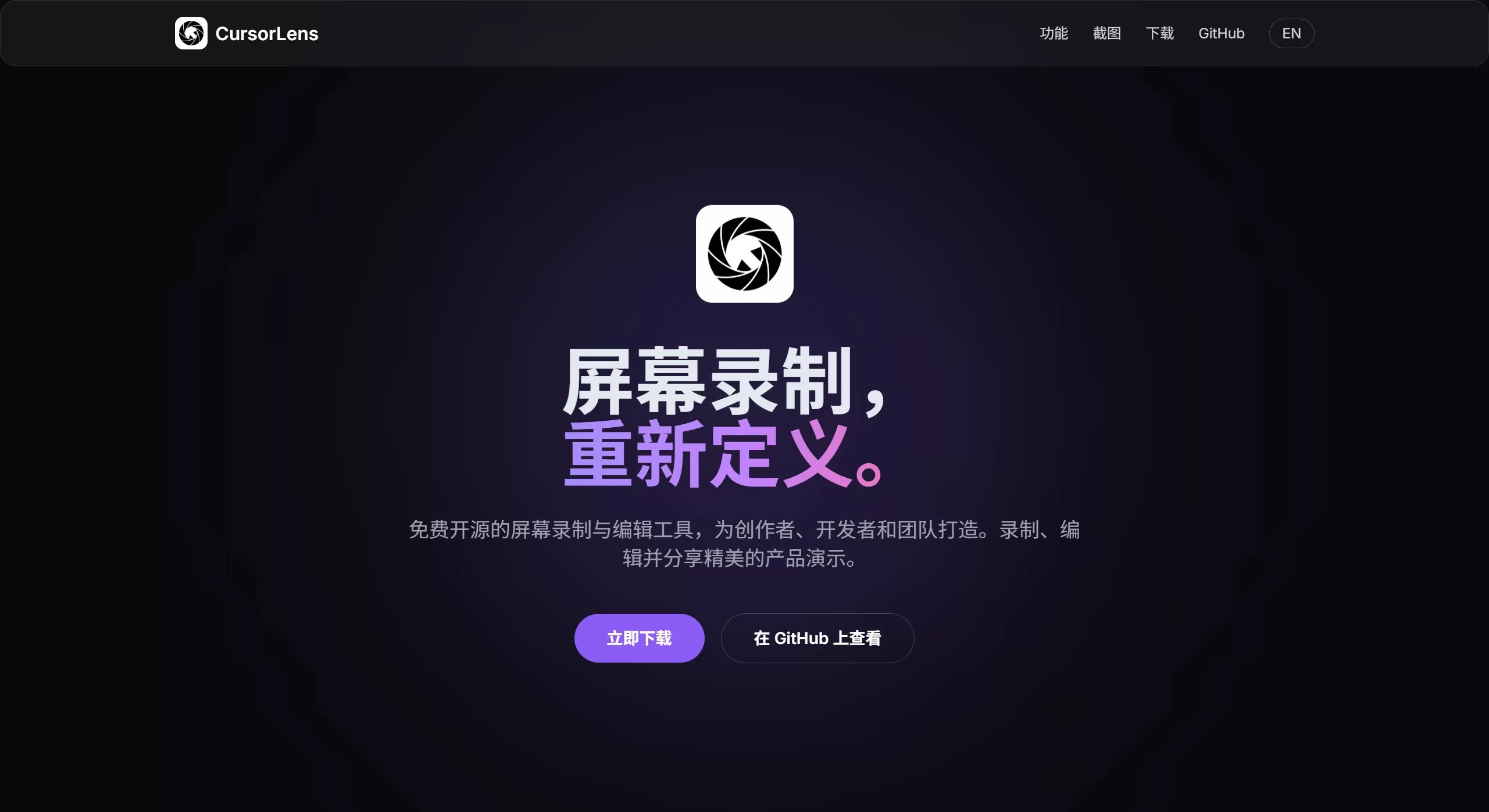
CursorLens is a free, open-source screen recording and video editing all-in-one tool for macOS. It's positioned as an alternative to Screen Studio, essentially a zero-cost substitute. This project was forked from OpenScreen and received quite a few enhancements, with the main selling point being the smooth "record, edit, and publish" experience—making it particularly handy for creating product demo videos.
Core positioning: screen recording + timeline editing + cursor effects, a single workflow to handle Demo videos end to end.
CursorLens Features
🎥 Recording Capabilities
Recording scope: choose fullscreen or a specific window, avoiding the clutter on your desktop
Native cursor capture: uses macOS native Helper interfaces to grab cursor data, achieving an effect close to system-level
Picture-in-Picture: overlay your webcam feed, convenient for showing your face during tutorials
Audio recording: record system audio and microphone simultaneously
🖱️ Cursor Effects
Click highlight: automatically highlights wherever the mouse clicks, so viewers can easily follow your actions
🖱️ Cursor Effects
Click highlight: automatically highlights wherever the mouse clicks, so viewers can easily follow your actions
Smooth trajectory: makes cursor movement look more fluid and less jerky
Show/Hide control: toggle the cursor on or off with one click during post-production, no need to frantically hide the mouse while recording
✂️ Built-in Editing
Timeline editing: jump straight into editing after recording, no need to switch to PR or JianYing
Clip trimming: delete unwanted footage and adjust the pacing
Frame cropping: crop out irrelevant content to highlight what matters
Annotation tools: add text, arrows, images to clearly indicate workflow steps
🎨 Visual Enhancement
Background replacement: solid colors, gradients, wallpapers, or custom images—all supported, solving the messy background problem
Camera control: manually add zoom focus, adjust depth, duration, and movement path
Motion blur: adds some blur during zoom transitions for a more natural feel
📤 Export Options
Multiple aspect ratios: 16:9 (YouTube/Bilibili), 9:16 (TikTok/Shorts)—all common ratios are available
Multiple resolutions: accommodates the resolution requirements of different platforms
CursorLens Use Cases
Product feature demos: indie developers can quickly produce demos, with cursor highlights guiding viewers' attention to the actions
Tutorial/educational recording: annotation features are sufficient, with clear workflow, making it great for knowledge sharing
UI/Interaction showcase: manual zoom combined with motion blur makes showing interface details a breeze
Multi-platform distribution: one piece of footage exported in multiple aspect ratios, publishable on Bilibili, Douyin, and YouTube
Technical team documentation: record bug reproductions, operational SOPs, or release notes, saving repetitive communication
CursorLens Pros and Cons
✅ Pros
Completely free and open-source: MIT license, commercial use and modifications allowed, no cost at all
Record-and-edit integration: edit directly after recording, no need to switch software, saving a lot of hassle
Professional cursor effects: native capture, click highlights, smooth trajectories—holds its own against Screen Studio
Lightweight and controllable: significantly lighter than commercial software, and developers can further customize it
Multi-aspect-ratio export: record once, publish on multiple platforms
❌ Cons
macOS only: Windows and Linux users can't use it
Beta version: still iterating rapidly, stability not as solid as mature commercial software
Long video risk: for videos over 30 minutes, test first to avoid crashes
No Apple notarization: first-time installation requires manually running a command to remove the quarantine flag, not very friendly for beginners
Feature limits: complex post-production effects still require Final Cut or PR
How to Use CursorLens
1. Download and Install
Official site: https://openscreen.vercel.app/
GitHub: based on the OpenScreen project (https://github.com/siddharthvaddem/openscreen)
2. Installation Pitfalls (Don't Skip This Step)
No Apple notarization, so on first launch you need to run this command in Terminal:
xattr -rd com.apple.quarantine /Applications/CursorLens.app
3. Permission Configuration
The first time you use it, you must grant these permissions (System Settings → Privacy & Security):
✅ Screen Recording (without it, you'll get a black screen)
✅ Accessibility (for cursor capture)
✅ Microphone (for audio recording)
4. Recording Workflow
Choose the recording scope (fullscreen or window)
Enable the webcam picture-in-picture if needed
Click record, demonstrate your actions normally
After stopping, automatically enter the timeline editor
Trim, add annotations, adjust cursor effects
Select the desired aspect ratio and export
Frequently Asked Questions
Q1: Why is the recording a black screen?
The most common cause is not granting Screen Recording permission. Go to System Settings → Privacy & Security → Screen Recording, check CursorLens, then restart the app.
Q2: What's the biggest difference compared to Screen Studio?
CursorLens is an open-source, free "record-and-edit all-in-one alternative," while Screen Studio is a more mature commercial product. If you're on a budget and want to edit right after recording, choose CursorLens; if you seek ultimate stability and official support, choose Screen Studio.
Q3: Can it record long videos?
It's still in Beta, so try the workflow first with 5–10 minute clips. For videos over 30 minutes, it's strongly recommended to test stability first, or have OBS running as a backup to avoid losing footage to crashes.
Q4: Why is it called "CursorLens"?
Because the cursor handling is genuinely refined—it uses native Helper capture rather than post-production overlay, achieving a more system-level effect, which is also what sets it apart from ordinary screen recording tools.
Q5: Can it be used commercially?
MIT license, so theoretically yes. However, since it's still in Beta, remember to back up your data before using it in a production environment, and evaluate the stability risks yourself.
Q6: Is there a Windows version?
Not currently, macOS only. Windows users can check out OBS Studio or ShareX.
Related News: