Script Planner Assistant▸
 AI Apps
 AI News

Gigapixel AI: AI Image Upscaler and Enhancer by Topaz Labs
Gigapixel AI: AI Image Upscaler and Enhancer by Topaz LabsIntroduction
Gigapixel ai is an image upscaling and enhancement tool developed by Topaz Labs. What makes it powerful is that it leverages deep learning to achieve lossless upscaling up to 16x, while intelligently filling in details and suppressing noise, making it suitable for portraits, anime, and many other scenarios. Instead of using traditional interpolation methods, it relies on deep neural networks to "imagine" the missing details. So during 2x to 16x upscaling, it can simultaneously restore textures, sharpen edges, and suppress noise, earning it the nickname "pixel rebirth magic" among many users.
Gigapixel AI Features
Multi-fold Lossless Upscaling: Supports up to 16x pixel upscaling or 600% edge-length upscaling, with output images reaching up to 100MP.
Scene-Adaptive Models: Automatically recognizes different subjects such as landscapes, portraits, architecture, anime, low-resolution, or highly compressed images, then activates specialized algorithms to minimize the hassle of manual parameter adjustments.
Next-Generation Face Recovery: The Gen2 face model can reconstruct eyelashes, pupils, and skin texture, delivering natural-looking results even when upscaling selfies.
Batch & Cloud Processing: Drag in more than 10 images at once and render them simultaneously on a local GPU or in the cloud, doubling processing efficiency.
Plugin Integration: Available as a standalone version or as Photoshop and Lightroom plugins, allowing lossless round-tripping of layers and seamless integration with studio workflows.
Additional Value-Added Features: Provides background removal, style transfer, AI image generation, Logo creation, and other functions, offering a one-stop solution for "upscaling + creativity" needs.
Gigapixel AI Application Scenarios
Photography Post-Processing: Cropped drone shots or small telephoto images can be directly upscaled to exhibition print sizes.
Old Photo Restoration: Scanned yellowed film negatives and family photos can have noise removed while details are added, bringing precious memories "back to life."
E-commerce Product Images: Low-resolution product photos can be transformed into high-resolution versions, supporting HD zoom on web pages and helping improve product conversion rates.
Anime & Illustration: 720p anime images downloaded from the web can be upscaled 4 - 8x while keeping lines sharp and colors rich.
Film & Advertising: Generates meter-scale ultra-large materials for posters, light boxes, and outdoor billboards without the need for reshooting.
Content Creation: Self-media covers, short video thumbnails, podcast illustrations, etc., can be batch-upscaled to 4K to meet platform HD requirements.
Gigapixel AI Quick Start Guide
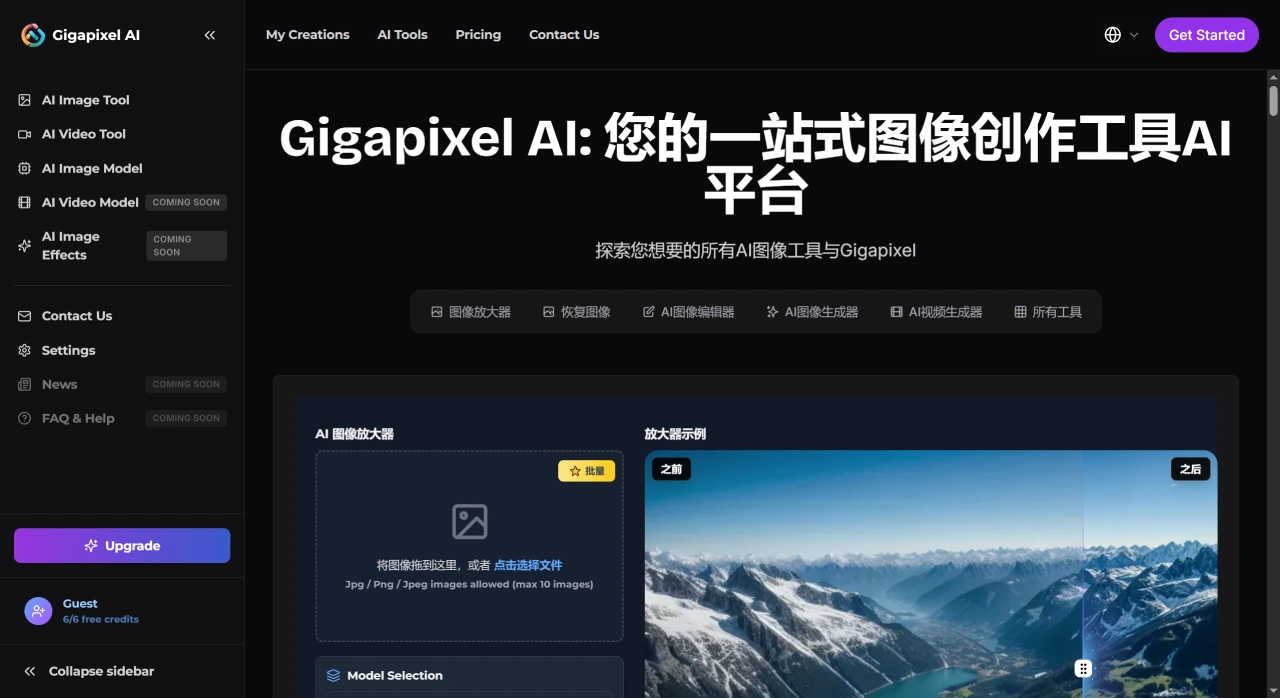
Open the Gigapixel AI official website Chinese page: https://gigapixelai.com/zh.
Drag in images, or click "Browse images," to select multiple images at once.
In the Resize area on the right, select the upscaling factor (2x to 16x), or manually input the width and height.
Choose the appropriate AI model based on the image content type, such as Standard, Lines, Art & CG, Low Resolution, Face Recovery, etc.
Fine-tune three sliders: Suppress Noise, Remove Blur, and Face Refinement. The differences can be seen in the real-time preview window.
Set the output format (JPEG, PNG, TIFF), color space, and save path, then click "Export" to batch output images.
Tips and Notes for Use
Prioritize Model Selection: Use the High Fidelity model for high-resolution images, the Low Res model for low-resolution or compressed images, and the Anime model for anime or illustrations. This avoids poor results from generic models. This is also Topaz Labs' recommendation.
Adapt Upscaling Factors: 2 - 4x upscaling typically delivers the best results. For upscaling beyond 6x, it is recommended to fine-tune with noise reduction and sharpening, as over-enhancement may lead to artifacts.
Hardware Acceleration: Enable GPU acceleration on the desktop (NVIDIA/AMD). If local hardware is insufficient, using the cloud is a good option to balance processing speed and privacy protection.
Format Selection: Use TIFF format for output to preserve lossless details. For web distribution, convert to JPG afterward to retain the best image quality.
FAQ
Artifacts appear after upscaling: Reduce the sharpening intensity, switch to a more suitable model, or preprocess noise with Topaz Denoise AI.
Face enhancement looks unnatural: Turn off Face Recovery, reduce the enhancement intensity, or manually adjust the skin smoothing parameters.
Batch processing lags: Reduce the number of images processed simultaneously, lower the upscaling factor, or switch to cloud rendering.
In short, Gigapixel AI makes "AI super-resolution" simple. With a single click, low-resolution materials can be transformed into print-grade high-definition images, making it a "pixel savior" for photographers, designers, e-commerce operators, and self-media creators.
Related News: