Script Planner Assistant▸
 AI Apps
 AI News
Torii Image Translator: AI Manga Translation Tool
Torii Image Translator: AI Manga Translation ToolIntroduction
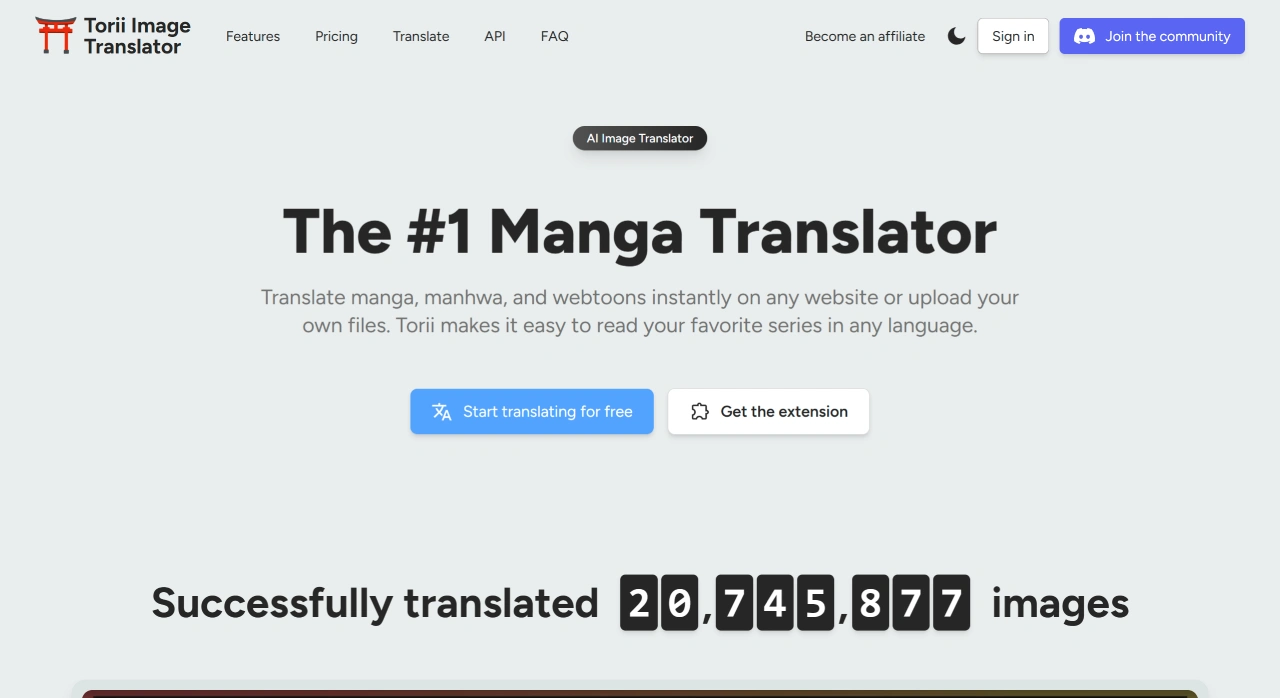
Torii Image Translator is an AI comic tool used to translate text inside images, suitable for comics, infographics, menus, web images, and more. It can directly translate text on images on any website, instantly converting it into over 120 languages. It uses models such as GPT-4 and DeepL, delivering solid translation quality, and also supports automatic full-page translation, cropping, text replacement, AI text removal and repainting, as well as batch translation and packaged downloads. It works just like changing the text directly on the image — translate whatever you can see.
Main Features of Torii Image Translator
In-place translation: Hover your mouse over an image, click the Torii icon, and the text gets directly replaced with the translation — no need to screenshot or copy.
Area cropping: You can freely draw a box to translate part of the screen; video subtitles, game interfaces, and pop-up windows can also be translated.
Multi-model switching: GPT-4, Gemini, Claude, and Deepseek are available — pick the one that suits your content.
Rich text editing: You can change font, size, color, rotation, plus use brush, eraser, and AI repair tools to adjust layout.
Batch & PDF: Upload an entire manga or scanned PDF at once, and it will automatically translate page by page, packaged into a ZIP for download.
Cross-platform: Works on Chrome, Edge, Firefox, and Opera; on Android use Kiwi or Firefox, and on iOS install the extension via the Orion browser.
Applications of Torii Image Translator
Raw Japanese, Korean, and American comics instantly become readable, no waiting for fan-translation groups.
Social media memes, viral images, and multilingual infographics — quickly understand where the joke is.
Cross-border e-commerce translates product images and manuals into multiple languages for Amazon listings or standalone site detail pages.
Students and researchers translate foreign-language academic charts, slides, and experimental workflow diagrams.
Travelers identify foreign menus, road signs, and screenshots of station timetables.
How to Use Torii Image Translator
Install the Extension
Go to the Chrome Web Store, Firefox Add-ons, or Edge Add-ons, search for Torii Image Translator, install it, and grant permissions.
Pin the extension to the toolbar. The first time you use it, follow the prompts to log in or register, and select your target language, model, and font.
Usage Workflow
Direct translation of web images (comics, memes, illustrations)
Open a webpage with images, hover your mouse over the image, and click the Torii icon that appears.
Wait for recognition and translation to complete — the translation will overlay the original text. To modify, use the editor to adjust font, size, color, position, or use AI repair to remove old text.
Once done, download a single image or a batch ZIP.
Screen box selection translation (video subtitles, game UI, pop-ups)
Click the Torii icon in the toolbar, select "Screen Crop", or press a shortcut (such as Alt+Shift+C) to start box selection.
Draw a box around the area you want to translate, release to automatically recognize and translate.
Edit and save or copy the translation, and you can also export the image.
Local image / PDF batch translation (local comics, manuals)
Go to Torii's official site or the extension's "Upload" page, upload images (single, multiple, or ZIP) or a PDF.
Select the source language, target language, model, and font, then click Start; PDFs will be processed page by page.
Review each page, adjust the layout, and finally batch export as a ZIP.
Common Settings
Language: The source text can be auto-detected; set the target language to your preference. For manga, Japanese → your target language is typical.
Model: For formal translation, GPT-4 offers high quality; for batch translation, use a more stable model.
Font/Style: Try to match the original image and avoid blocking the visuals; sometimes use AI repair first to clear old text before placing new text.
Permissions: Make sure the extension is enabled on the sites you use, or the icon won't appear on hover; for cross-domain or hotlink-protected images, screenshot first then use box selection to translate.
Frequently Asked Questions about Torii Image Translator
No icon appears on hover: Check whether the extension is enabled and site permissions are granted; try box selection or screenshot and upload instead.
Slow or failed translation: Switch to a more stable model, or change your network; split batch translations into smaller chunks.
Font is crooked or blocks the image: Make the text smaller, reposition it, or use AI repair to clear and re-layout.
PDF won't upload or pages split incorrectly: Check that the PDF is complete, split large files, or convert to images first before batch translating.
Tips
Beginners should start with direct translation of web images to practice, and once comfortable move on to box selection for subtitles or interfaces. For batch translation of comics or PDFs, do one test page first to settle on font and style before processing in bulk — it's faster that way.