Script Planner Assistant▸
 AI Apps
 AI News

BabyTrack: A Blob Tracking & Visual Effects Tool
BabyTrack: A Blob Tracking & Visual Effects ToolIntroduction
BabyTrack - by deadrabbit is a tool for creating blob tracking effects in video and images. Its main purpose is to track moving elements in a video or camera feed—such as moving bodies, light points, and other "blobs"—and then add various visual effects to the footage.
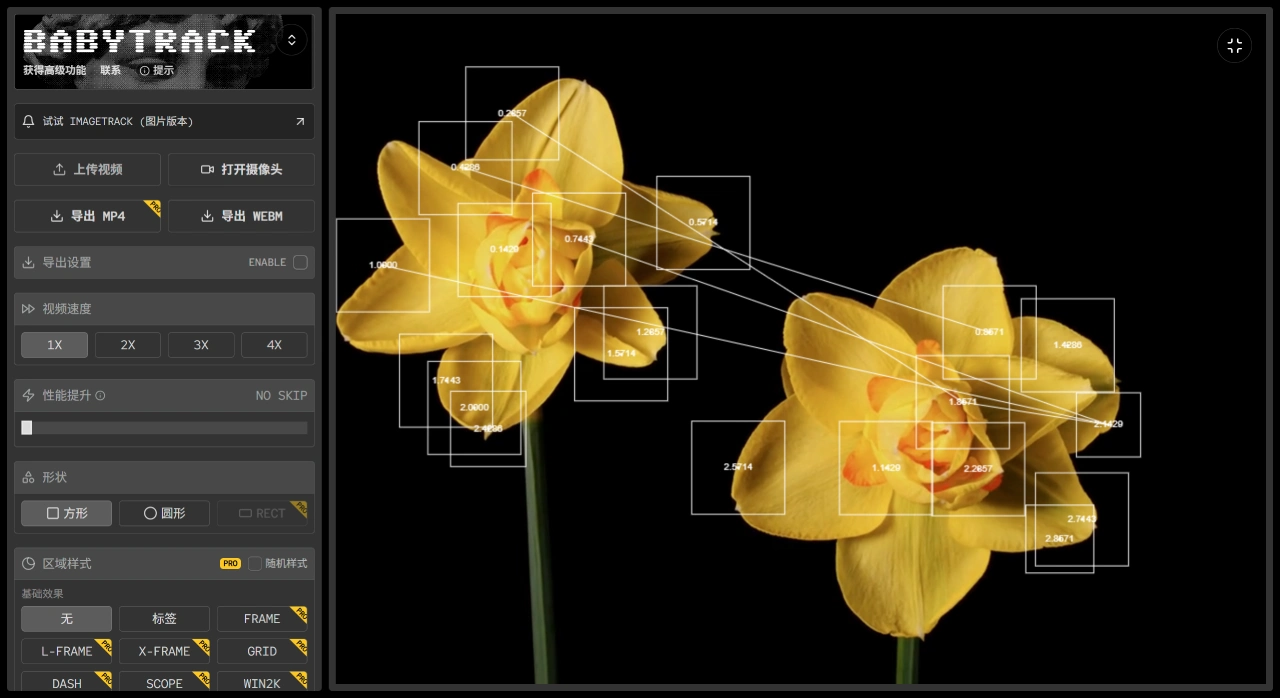
BabyTrack Core Features
Basic capabilities: Upload a video or turn on the camera, and the system will automatically detect and follow the moving blobs in the frame, such as moving objects, bright spots, and color patches.
Use cases: Great for creative videos, visual effects, interactive media, or art projects—using blob tracking to give your footage dynamic visual effects.
BabyTrack Advanced Features
Some features are marked as PRO and require upgrading to the professional version or paying to unlock. They mainly include the following:
Export formats: Export to MP4 and WebM for easy sharing or further editing. You can also adjust export settings and tweak certain parameters.
Video speed: Adjust playback speed—1X is the original speed, with 2X, 3X, and 4X also available for speeding up or slowing down.
Performance optimization: There's a "No Skip" option, likely designed to keep tracking smooth without dropped frames or missed detections.
Shape: Choose the appearance of the blobs, such as square or circle. The PRO version adds more customizable shapes, like rect.
Region style and effects: In the PRO version, region styles can be randomized to make blob areas look more varied. Basic effects include options such as None, Frame, L-Frame, X-Frame, Grid, Dash, Scope, Win2K, and Label 2, which enhance the look of blob regions. There are also plenty of filters, including Invert, Reverse Color, Glitch, Thermal, Pixel, Tone, Blur, Dither, Kaleido, X-Ray, Water, Mask, CRT (old-school monitor look), and Edge. The PRO version includes additional filters.
Connection effects: Add connections between blobs, as if they're linked or networked. Line styles include dashed, straight, and curved, with the PRO version adding snake and lightning variations. Connection rate is adjustable—for example, 0.25, 0.5, 0.75, 1—where higher numbers create denser connections. Boundary size sets line thickness, with options like 0, 50, 100, 150, 200. The PRO version lets you filter blobs by quantity, such as keeping only 5, 10, 20, 50, or 100. Stroke width is also adjustable—for example, 1px—to change the edge thickness of blobs or connection lines.
Audio (PRO): Add background audio to your effects, choosing from None, computer beep, bird chirp, or uploading your own audio file.
Colors and text: There's a "Crazy Mode," which probably makes colors or dynamic effects extra intense. You can place text on blobs or in the frame. Text placement options include center, top, or bottom. Text content can be randomly generated or typed manually. The PRO version offers additional control over text position and quantity. The PRO version also features color separation for a more striking visual impact.
BabyTrack Other Features
The interface includes a prompt encouraging you to try ImageTrack (the image version)—a companion tool that tracks blobs in static images and applies effects. Non-PRO users can contact them to obtain advanced features, likely by purchasing the PRO version or requesting a trial.
BabyTrack How to Use
Select input source: To upload a video, click "Upload Video" and choose a local video file such as MP4 or AVI. The system will load the video and detect blobs within it. To use a camera, click "Open Camera" to use your device's camera for real-time capture and immediate blob tracking—great for live interactions or real-time effects.
Adjust video speed (optional): Choose a setting under "Video Speed"—1X is original speed, with 2X, 3X, and 4X also available. Adjusting speed changes how blob tracking appears: 1X lets you see things slowly and clearly, while 2X to 4X work well for creative effects.
View blob tracking results: The system automatically identifies moving elements in the frame—such as moving objects, light points, and color patches—and marks them as "blobs." Typically, blobs are rendered with basic shapes like squares or circles, along with simple visual effects.
Export results (optional): Once satisfied with the result, you can export the video. Click "Export MP4" or "Export WebM," and the system will render a video with effects based on your current scene and settings. MP4 is widely supported and works on most devices and platforms. WebM is ideal for web embedding or when you need smaller file sizes.