Script Planner Assistant▸
 AI Apps
 AI News

Office Tab: Multi-Tab Navigation Add-in for Office
Office Tab: Multi-Tab Navigation Add-in for OfficeIntroduction
Office Tab is a Microsoft Office plugin that adds a "tab" feature. When using Word, Excel, PowerPoint, and similar applications, you can switch between different documents using tabs just like in a browser, making office work more efficient. It can manage multiple documents with tabs in Word, Excel, and PowerPoint; the Enterprise Edition also supports Project and Visio, and Publisher and Access can also have the tab feature enabled. You can open, view, and edit multiple Office documents in one tabbed window, much like a web browser.
Office Tab makes opening, saving, and closing all files easy. It also lets you color-code tabs to identify files and group files for better management.
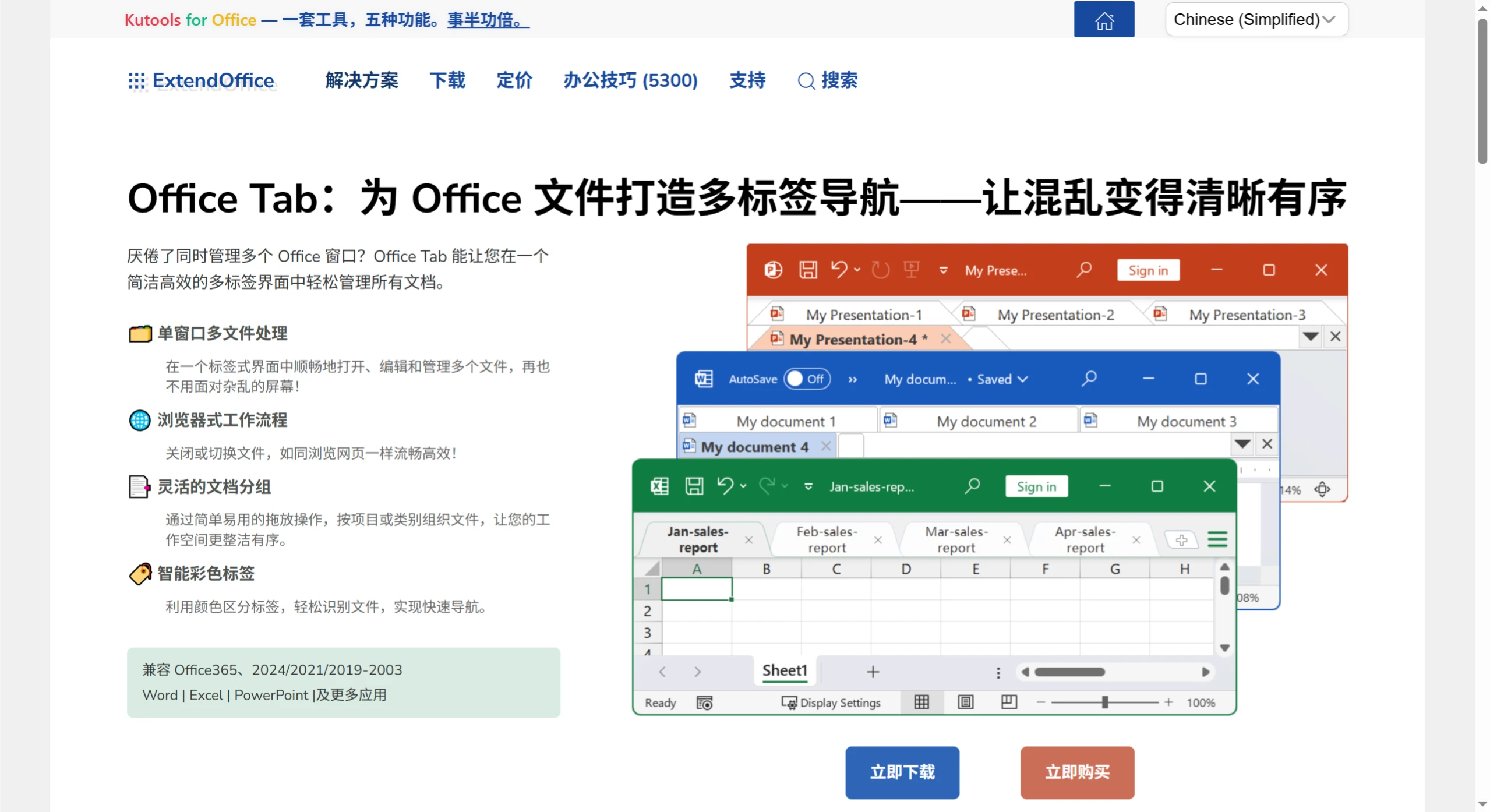
Main Features of Office Tab
Save time with integrated operations: When multiple files are open, the right-click menu includes "Save All," which saves all files with one click; "Close All" can close everything at once.
Group document management: You can put saved Office files into a group, and documents within the group can be quickly opened, closed, or saved, such as a group of Excel files.
Easy file renaming: No need to open the "Save As" dialog box; simply right-click the tab and select "Rename." To save to another folder, choose "Save As" from the right-click menu.
Display full file name: The Windows taskbar often truncates long file names, but the full name can be seen in the tab bar.
Practical right-click menu: Right-clicking a tab or the tab bar brings up a menu that includes commonly used Office commands, making them easy to find.
Keyboard shortcut support: Many built-in shortcuts are available, and you can set your own to manage tabs, show/hide the tab bar, switch tabs, or select a specific tab. Setting custom shortcuts is simple.
Place the tab bar anywhere: It can be placed at the top, bottom, right, or left of the workspace. When there is only one tab, the tab bar can be hidden. You can also set a shortcut to show/hide the tab bar, with the default being "Win + Q."
Versatile right-click menu options: Includes "Open," "Open in New Window," "Open Folder," and more, making it convenient to open existing files or folders, and you can open multiple tabbed windows at once.
Useful Settings Center: All Office Tab settings can be adjusted here, such as enabling/disabling tabs individually, using shortcuts, tab bar position, tab style, and custom tab colors.
Convenient document creation and saving: Double-clicking the left mouse button on the blank area of the tab bar can quickly create a new document; or use "New" from the right-click menu. The "Save" and "Save All" options in the right-click menu save all documents with one click and mark modified ones. Flexible close options like "Close," "Close All," and "Close Others" are also available. Double-clicking the left mouse button on a tab, or clicking the middle mouse button, can quickly close a document.
Adjustable tab length: Can be set to Auto, Adaptive, or Fixed, with "Auto" being the default.
Versions and Compatibility
Editions and versions: There are Free Edition and Enterprise Edition. The wiki states the latest version is 14.00; check the official website for specifics.
Supported applications: The standard edition supports Word, Excel, and PowerPoint; the Enterprise Edition additionally supports Project and Visio, and Publisher and Access can also use tabs.
System and bitness: The wiki states support for Windows XP/2003/2000/Vista/7, compatible with 32/64-bit Office 2003–2013. Third-party download pages also mention support for Office 2016; support may vary across versions, so it's best to refer to the official documentation.
Languages: Available in Chinese and English interfaces.
Office Tab Installation Steps
Download the installer, preferably from the Office Tab official website ExtendOffice or a reliable source.
Double-click to install, choose language, installation location, etc.
Restart Office applications after installation.
After installation, a tab bar will appear at the top of any Word/Excel/PowerPoint window. You can adjust position, skin, shortcuts, and tab width in the "Office Tab Settings Center." Use "My Favorites" to create and manage document groups, enabling one-click open/save/close of entire groups of files.
If tabs don't appear, go to "File > Options > Add-ins" to enable the Office Tab add-in, and make sure to check the COM Add-ins.
Trial and Licensing
Office Tab can be used for free for 30 days with full functionality. Purchasing the official version requires a license; the Enterprise Edition supports more Office components. You can buy it from Shuma Lizhi's "Office Tab" for 89 RMB, which is much cheaper than the official website.