Script Planner Assistant▸
 AI Apps
 AI News

Uiverse: An Open-Source, Free UI Elements Library
Uiverse: An Open-Source, Free UI Elements LibraryIntroduction
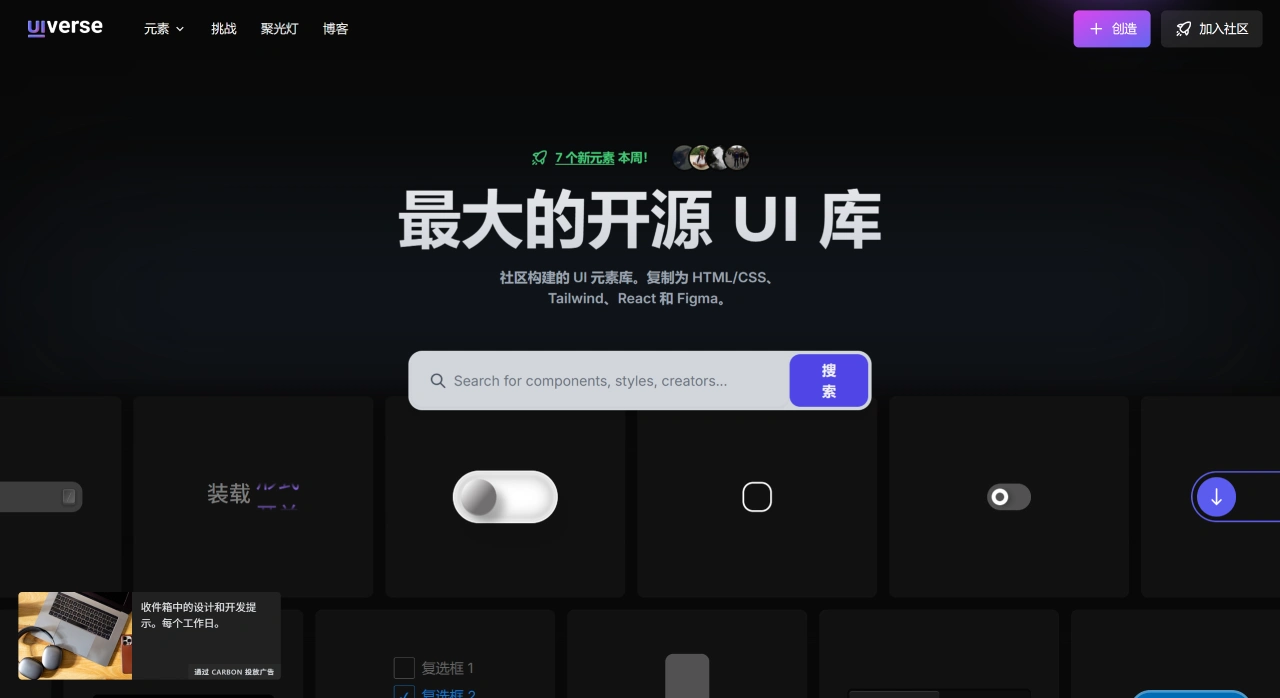
Uiverse is an open-source, free UI element community library, maintained together by developers around the world on GitHub. It contains more than 3,500 ready-made components (such as buttons, cards, forms, loading animations, etc.), all written in pure CSS or Tailwind CSS. This code can be copied directly into projects like Webflow, Wix, React, Vue, etc., without installing dependencies, free of charge, and without attribution. In addition, it supports one-click copy to Figma, making it easy for designers to quickly build prototypes.
Main Features of Uiverse
Lots of resources: It currently collects more than 6,975 community-created UI elements, and is constantly being updated.
Completely free: Available for free for both personal and commercial use (because it is open-source).
Full formats: One-click copy into HTML/CSS, Tailwind, and React formats, and can be imported into Figma, making it convenient for both design and development.
Previewable: You can see the real interactive effects online, making it easy to quickly select the right one and for debugging.
How to Use Uiverse
Go to the official site uiverse.io, search at the top or browse through the categories to find the elements you want, such as buttons, cards, forms, prompt boxes, loading animations, etc. Click into the component page and click "Get code". The left side of the page is a live preview, and the right side is the code you can copy. You can modify it according to your own needs and then copy it into your project. If you need to collaborate on design drafts, copy the component directly into Figma, so that visual and interaction specifications can be unified.
Quick Start Guide for Beginners
Open uiverse.io, search for "button gradient", pick the 3rd one, and click "Copy Code" in the bottom right corner. Create a new index.html file locally, paste the code into it, and change the href in the <link> tag to a CDN address or download it locally. Open the browser, and the button should work; press F12 to switch to mobile view, and as long as the animation works normally, you're good. Want to change the color? Change --color-primary in :root to your brand color, and refresh the page. Want to use it in bulk? Install the tool with the command "npm i -g uui", then enter "uui search button --limit=30 --output=./lib", and drag the generated files into your project to finish.
Suitable Use Cases for Uiverse
It is suitable for quickly building prototypes and admin interfaces, and can also be used to learn interaction details and find code inspiration. However, these components mainly focus on styles and interactions, and generally do not have complex business logic. When actually using them, you need to combine them with your project framework for state management and accessibility optimization. Commercial use is fine; the resources follow the MIT license and can be used freely in both personal and commercial projects.
Frequently Asked Questions
Q: As an open-source UI element library, what are Uiverse's core advantages? What practical problems can it solve for designers and developers?
A: There are three core advantages. First, lots of resources and free: there are 6,975 community-created UI elements, and they are 100% free for both personal and commercial use, reducing the cost of obtaining high-quality UI resources. Second, wide format support: it supports copying in four formats—HTML/CSS, Tailwind, React, and Figma—without additional conversion, solving the problems of "design drafts being hard to convert to code" and "different development frameworks being hard to adapt to". Third, an active community: with 246,805 contributors and a Discord communication community, you can get new resources in a timely manner, solve usage problems, and avoid information silos when developing on your own.
Q: On Uiverse, if you want to use a certain UI element in a Figma design or React development project, how exactly do you operate?
A: It depends on the scenario:
Figma design scenario: Go to the detail page of the target UI element, directly use the "Copy to Figma" function provided by the platform, as mentioned in the docs, "Copy and paste to Figma from any element page", copy and paste the element into Figma and you can use it directly.
React development scenario: Go to the detail page of the target UI element, click the "Get code" button on the page, select the "React" format code, copy the code into your own React project, and adjust the parameters as needed for a smooth integration.