Script Planner Assistant▸
 AI Apps
 AI News

Jitter: Animated Logo Templates & Motion Design Tool
Jitter: Animated Logo Templates & Motion Design ToolIntroduction
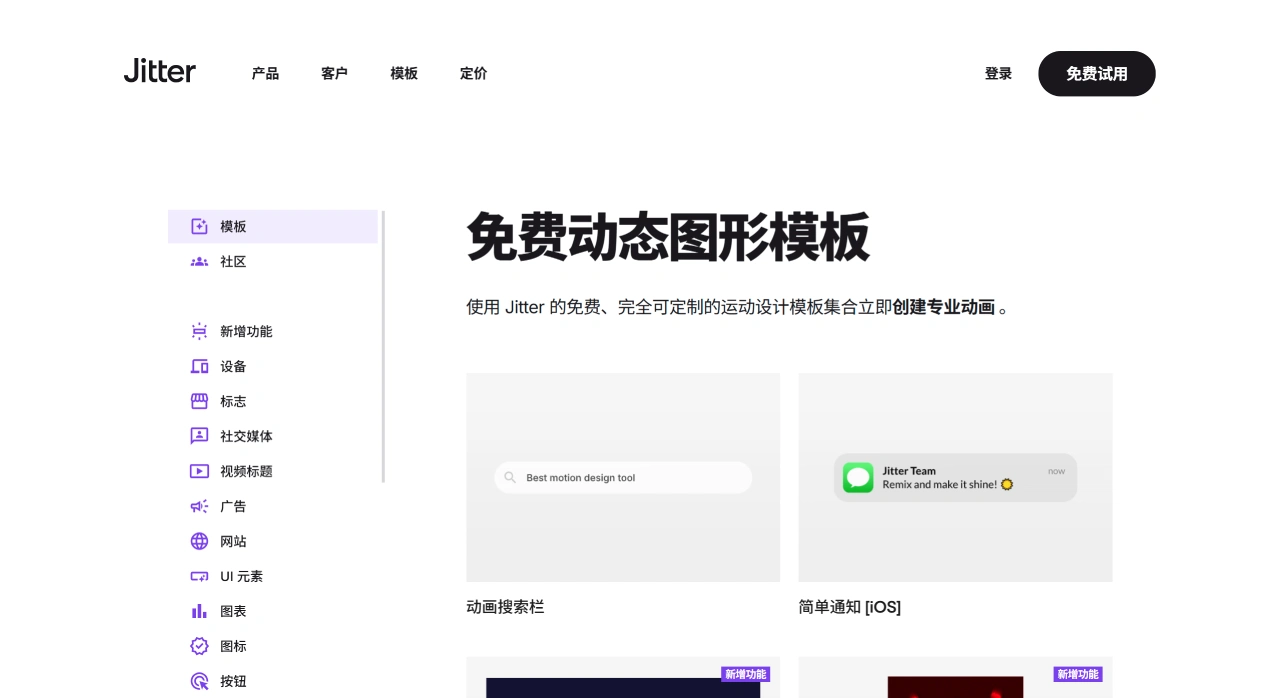
Jitter is a motion design tool in the browser that lets you arrange content of different sizes and versions on an infinite canvas — perfect for fast production and teamwork across marketing, advertising, branding, and product teams. It offers text animations, effects like gradients, blur, shadows, masks, customizable animation speed, video and audio import, and more than 300 free templates, with the emphasis on instant preview and quick export. If you're not familiar with After Effects but want to quickly create marketing animations, small UI motion effects, or social media GIFs, this tool is a great fit.
jitter main features:
Templates and ai presets: plenty of entrance, transition, looping loaders, and other presets that can be applied with one click, then adjusted for duration and animation speed. You can typically produce a 6–10 second video in about 3–5 minutes.
Perfect integration with Figma: through the official plugin you can import designs precisely; when your design changes in Figma, the animation in Jitter updates automatically. You can also drag and drop SVG, images, video, audio, and other assets directly to edit.
New "Pen + Morph" feature: released in July, this tool lets you draw your own paths with the Pen, then use the Morph function to smoothly transform one shape into another — great for logo morphs, button-to-card transitions, liquid loading animations, and more.
Multi-format, high frame rate export: supports up to 4K at 120fps, including alpha channels (ProRes 4444 / WebM). Export as MP4, GIF, or Lottie JSON to meet any need across social media, web, and development.
The free version is commercially usable but includes a watermark. The Pro version at $12/month removes the watermark and unlocks all advanced presets and 4K export.
Real-time multi-user collaboration and version management: with an infinite canvas, you can manage animations of different resolutions and versions in a single file. Multiple editors can browse history versions — ideal for fast iteration in small teams.
how to use jitter
Choose a template or blank canvas: go to the official site jitter.video, pick from the template library or create a new project. Templates can be used directly by swapping in your own images and text.
Two ways to create animations: Using presets — select an object, click Animate at the top, choose New animation, then pick an In/Out preset. Custom — select an object, click Animate, choose New animation, then choose Custom, and set duration, delay, and animation speed. The animation appears on the timeline and can be fine-tuned in the properties panel on the right.
Reuse and arrangement: use alignment and staggering on the timeline to control animation rhythm; copy animations across multiple layers to keep the motion consistent.
Export and formats: supports MP4, GIF, and Lottie. The free version typically exports at 720p/30fps; higher specs such as 1080p/60fps, 4K, and watermark-free export are usually paid features. Check the official site for the latest pricing and quotas.
jitter pricing and plans
The free plan supports unlimited projects and editors and exports to MP4/GIF/Lottie, typically at 720p, 30fps. The Studio plan is about $12/month (billed annually) and includes no watermark, up to 4K at 120fps, and team libraries, among other features. Enterprise pricing is custom and includes SSO, priority support, and dedicated service. Pricing and features may be updated, so refer to the official site for the latest information.
jitter compared to other tools
Choose Jitter: if you want something lightweight and quick, with collaboration in the browser, for most motion design needs.
Choose Rive / LottieLab / SVGator: if you need interactive, reusable vector motion graphics that can be controlled in apps or on the web.
Choose After Effects: if you need 3D, particle effects, complex compositing, or access to a rich plugin ecosystem.
Figma plugin link:https://www.figma.com/community/plugin/961270034818256057/jitter-animation-for-figma