Script Planner Assistant▸
 AI Apps
 AI News

iCraft Editor – Professional Web-Based 3D Architecture Diagram Tool
iCraft Editor – Professional Web-Based 3D Architecture Diagram ToolIntroduction
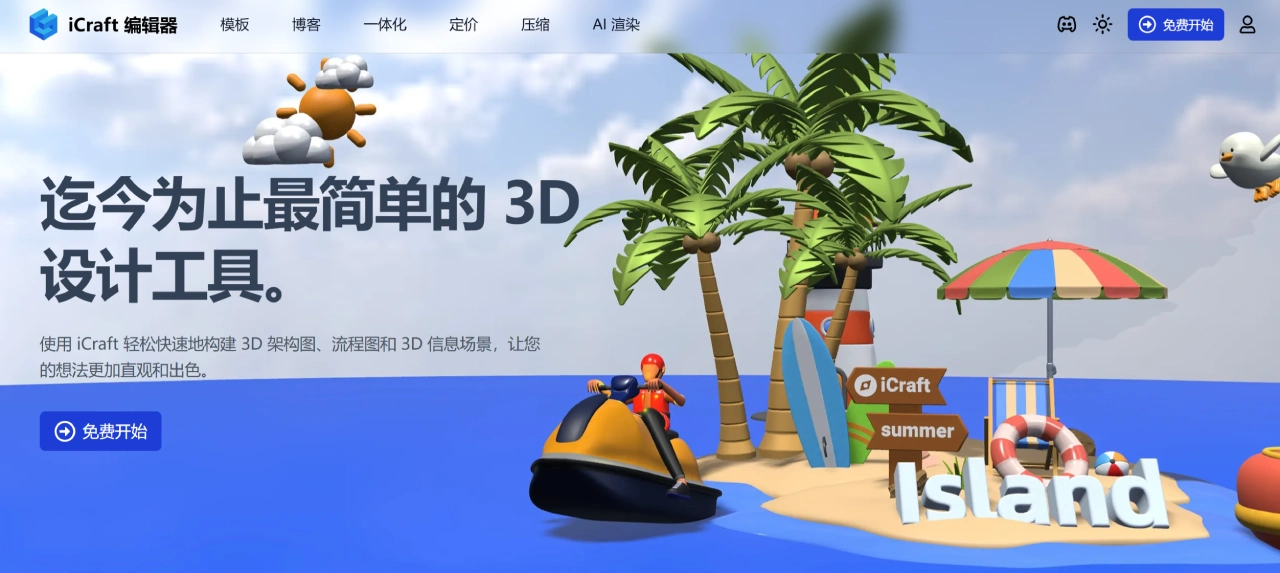
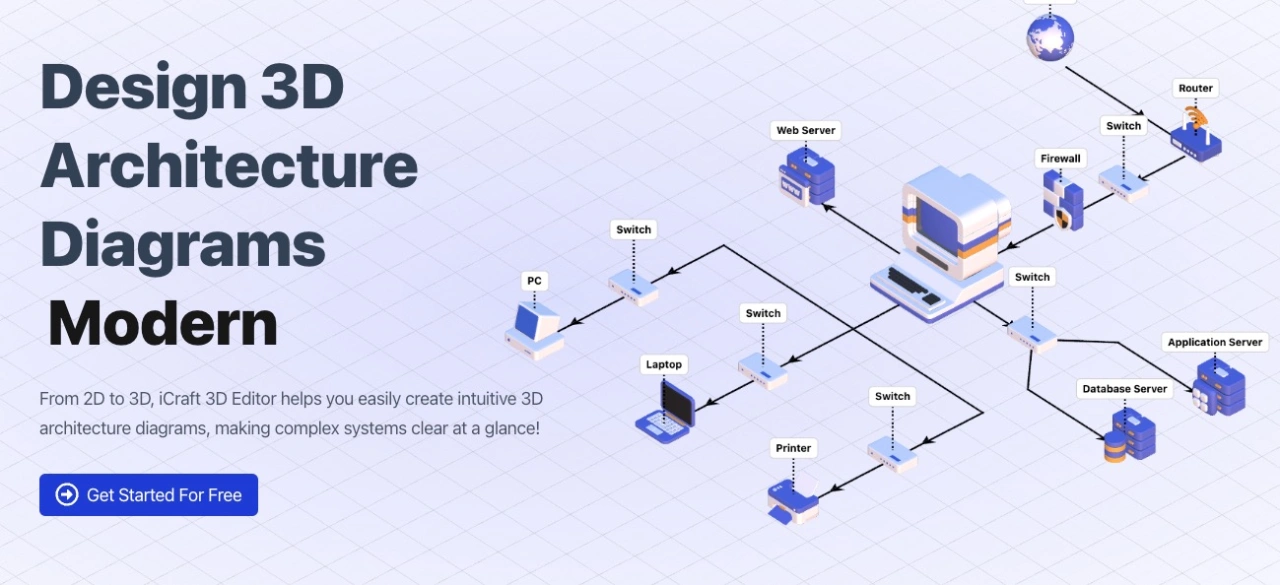
iCraft Editor is a web-based 3D architecture diagram editing tool. Its main focus is using three-dimensional space to display complex system architectures, helping developers, architects, product managers, and others more intuitively understand and communicate system structures. Compared with traditional 2D diagrams, it offers stronger visualization and a better interactive experience, making it a great helper for designing complex systems.
Core Features of iCraft Editor
Convenient 3D design tool: iCraft Editor provides a rich library of 3D models (including common components such as servers, databases, and network devices) and example templates, and supports converting 2D diagrams to 3D with one click, helping users get started with design quickly. The editor features auto snap-to-grid and automatic element stacking, making connections much easier and saving a great deal of design time.
Immersive 3D presentation: Through 3D panoramic technology, users can freely rotate, zoom, and drag models to view architectural details from different angles; animation effects are supported (such as flowing pipes and dynamic objects), making design ideas more vivid; the seamless sub-scene switching feature can split complex designs into multiple layers (such as front-end, back-end, infrastructure), making information display more organized.
Digital twin and real-time sync: iCraft Editor provides a web rendering component (JavaScript SDK) that can be easily embedded into web applications, allowing control of 3D element states via SDK (such as highlighting abnormal nodes); it supports real-time data synchronization, mapping data such as server CPU usage and network traffic from the system onto the 3D architecture diagram, intuitively displaying the system's operating status for quick anomaly detection.
Powerful editing and extensibility: iCraft Editor supports importing multiple 3D file formats such as GLB, glTF, and OBJ. Users can upload custom models (such as corporate logos and specialized equipment) to extend design resources; it provides auto snap-to-grid and automatic element stacking features, improving drawing accuracy and efficiency.
Use Cases of iCraft Editor
Software architecture design: Helps architects clearly display each system component and their relationships, making it easier for the team to understand and communicate.
System deployment and maintenance: Allows operations staff to intuitively understand the deployment and operating status of servers, network devices, and more.
Training and communication: Through vivid 3D architecture diagrams and animations, students can more easily understand complex concepts.
Industrial design: Suitable for industrial designers, providing precise 3D modeling tools.
E-commerce: E-commerce users can create attractive 3D product displays.
Educational presentations: Educators can create vivid 3D teaching materials.
How to Use iCraft Editor
Online Use
Visit the official site: Simply open the iCraft Editor official site at https://icraft.design/; no software installation is required.
Create a project: Create a new project on the iCraft Editor official site or open an existing one.
Add elements: Use the tools in the toolbar to add 3D models (such as servers and network devices).
Adjust the layout: Drag and rotate operations to adjust the position and orientation of elements, as well as set properties such as size and color.
Add connections: Add connection lines based on the relationships between elements to represent their connections.
Add text descriptions: Add text to elements so the audience can understand them more easily.
Save and export: Once the design is complete, you can save it to the cloud or export it as an .iplayer file for embedding into other projects or viewing offline.
Local Use
Prepare the environment: Make sure Node.js and Git are installed on your system.
Clone the project: Use the command git clone https://github.com/gantFDT/icraft.git to download the project to your local machine.
Install dependencies: Go into the project folder and run npm install to install the required dependencies.
Start the project: Run npm start in the project folder to launch it, then open http://localhost:3000 in your browser to view it.
Edit and save: Design in the local editor and save the project when finished.
Using Nested Sub-scenes
Enter a sub-scene: Select an element and click the sub-scene button on the floating toolbar to enter that element's sub-scene.
Edit the sub-scene: Add elements, adjust their positions, make connections, and more within the sub-scene until your requirements are met.
Return to the main scene: After the sub-scene editing is complete, return to the main scene to continue adjusting the overall architecture diagram.
Integrating into Other Projects
Install the frontend component: If you want to embed a 3D scene created with iCraft Editor into a React project, run the command pnpm install @icraft/player-react --save to install the component library.
Integration code: Use the corresponding code in the project to integrate the 3D scene.
import { ICraftPlayer } from "@icraft/player-react";
export default function MyScene() {
return <ICraftPlayer src='your-scene.iplayer' />;
}
Here, your-scene.iplayer is the 3D scene file exported from iCraft Editor.
iCraft Editor project address: https://github.com/gantFDT/icraft