Script Planner Assistant▸
 AI Apps
 AI News

Bhava: Quickly Generate and Edit Diagrams
Bhava: Quickly Generate and Edit DiagramsIntroduction
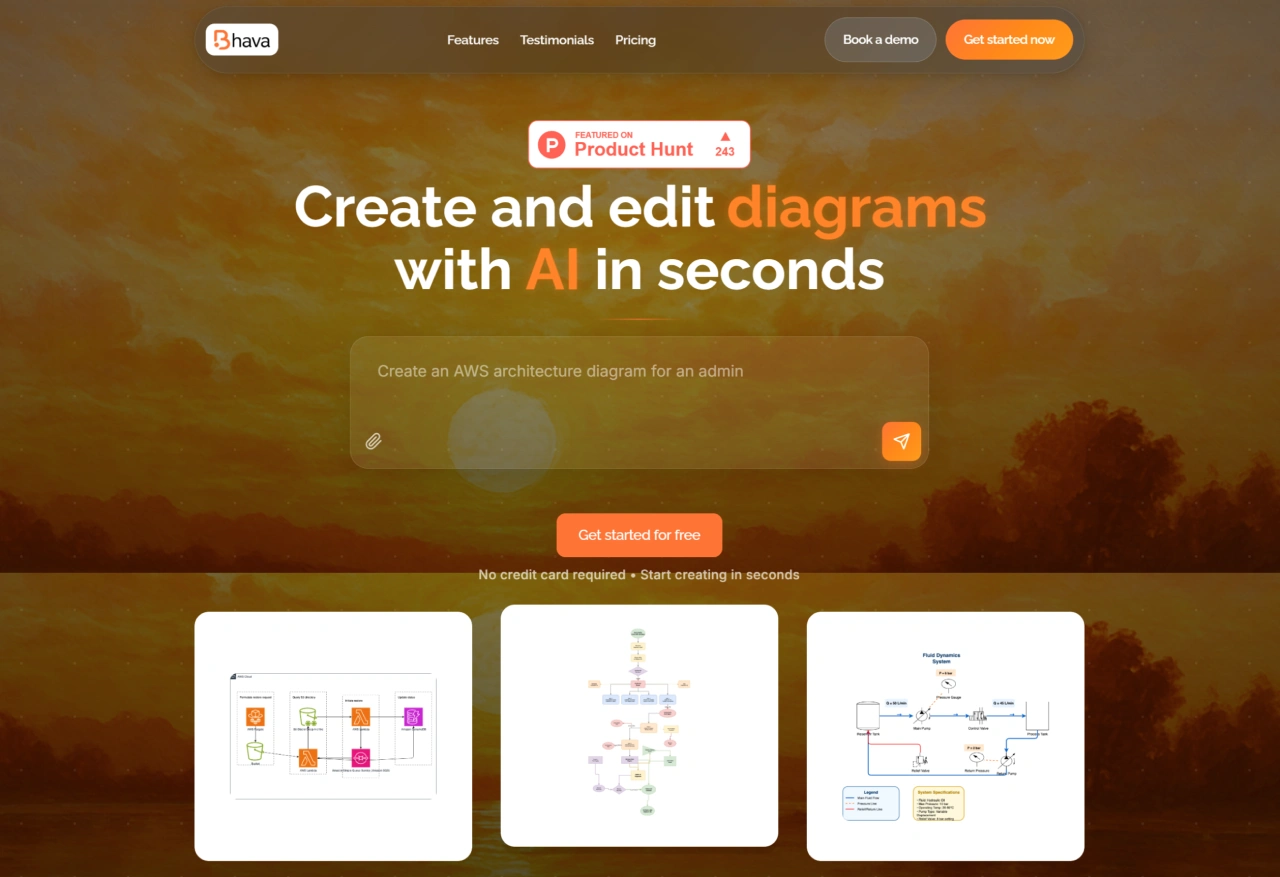
Bhava is a tool that lets you quickly draw and edit diagrams. It can generate draft charts based on the text requirements you write, automatically recognize service icons in images (like AWS, GCP, etc.), and intelligently adjust the layout. In addition, it supports importing files from draw.io or Mermaid, and can also export to formats like PNG and SVG, with no usage restrictions.
Bhava Main Features
Quickly Generate Diagrams
Generate drafts from text: Enter your requirements, such as "design an e-commerce order payment flowchart" or "draw an AWS cloud architecture diagram", and Bhava can generate a basic draft of the corresponding type of diagram in just a few seconds. It supports many types of diagrams, including flowcharts, architecture diagrams, UML diagrams, and ERD diagrams.
Convert images to diagrams: Upload a hand-drawn sketch, whiteboard photo, or screenshot of an existing diagram, and Bhava will automatically recognize the elements inside, such as service symbols, process nodes, and connecting lines, then match them with professional icons to turn the image into an editable digital diagram, so you don't have to manually redraw everything piece by piece.
Flexible Editing Features
Fully customizable: For the generated diagrams, whether it's the position, size, or shape of elements, the styles (line color, thickness, line style, shape fill color, transparency), or text content (font, size, color, alignment), everything can be adjusted however you want.
Smart assistance: Bhava has "Smart Layout" and "Auto Connector" features. When you add or move shapes, the system automatically arranges the elements to avoid overlapping or crossing lines; connectors can automatically snap to shape nodes, and you can also adjust the curvature and arrow direction, saving you from spending too much time on manual adjustments.
AI assistance and collaborative editing: While editing, you can enter commands to ask AI for help, such as "@Bhava change all red rectangles to blue circles"; it also supports multiple people editing online at the same time, and team members can make changes simultaneously while seeing what others have edited in real time.
Compatibility with Other Tools and Export
Multi-source import: Bhava can import files from commonly used diagram tools like draw.io and Mermaid, preserving the original file's layer structure, element grouping, and style settings completely, so you don't need to reformat anything.
Multi-format export: Once you've finished editing, you can export to common formats like PNG, SVG, and PDF, suitable for different scenarios (e.g., PNG can be inserted into documents, SVG can be placed on web pages, and PDF can be used for printing). The exported files can also be further edited in other tools, giving you full control over the file.
Basic Guarantees and Extensions
Comprehensive diagram types: It can draw flowcharts, system architecture diagrams, UML diagrams, ERD diagrams, network topology diagrams, organizational structure charts, mind maps, hardware schematics, etc., making it useful for technical personnel, product managers, management staff, and more.
Rich icon library: Bhava comes with a large collection of icons, including mainstream cloud service icons and industry-common icons, so you don't need to download anything extra.
Bhava Use Cases
For Technical Personnel
Creating system architecture diagrams: When engineers need to show the team or clients the relationships between system modules (such as how AWS Fargate, S3 Glacier, and Lambda work together), you can describe your requirements in text, quickly generate a draft, then make minor adjustments to the details, and you're done in just a few minutes. What used to take hours can now be finished much faster, making communication smoother.
Visualizing technical solutions: When developers are sorting out interface call flows (UML sequence diagrams) or database table relationships (ERD diagrams), they can upload hand-drawn sketches, and Bhava will automatically match professional icons to generate standardized diagrams, so there's no need to worry about hand-drawn sketches being unclear or spending too much time.
For Product Personnel
Sorting out requirement flows: Before requirement reviews, product managers can use Bhava to quickly draw user operation flowcharts (such as "User Registration - Verification - Login - Enter Homepage") or feature module breakdowns (mind maps), turning complex requirements into intuitive visuals, reducing misunderstandings caused by text interpretation and making requirement alignment smoother.
Cross-department communication: When syncing product plans with operations, design, and development teams, use organizational structure charts to show who is responsible for what, and flowcharts to show business logic, using visual content to reduce communication costs.
For Team Collaboration and Management
Planning project progress: Project managers can draw project flowcharts, clearly marking the tasks and dependencies for each stage, and team members can work together online to add details, making progress visible and easier to manage.
Organizing organizational structure and processes: When HR updates the company's organizational structure chart, they can import the old file and quickly make modifications; when administrative or operations staff sort out cross-department collaboration processes (such as "Reimbursement Application - Department Approval - Finance Review - Payment"), using flowcharts to clarify who is responsible for each node can significantly improve work efficiency.
For Personal and Learning Use
Organizing study notes: Students or professionals can use mind maps to sort out knowledge points (such as "Harry Potter Character Growth Timeline" or "Fluid Dynamics System Parameter Relationships"). After generating a draft with text, add branches and highlight key points to make notes more structured, making them easier to memorize and review.
Planning personal projects: When freelancers are sorting out project execution steps (such as "Align with client requirements - Design solution - Delivery acceptance - After-sales follow-up"), using flowcharts to clarify tasks helps avoid missing anything; exporting as PNG and inserting it into the project plan makes the document look more professional.
Bhava Usage Workflow
Quick Start
Open the official website (https://bhava.app). No registration is required — just click "Start creating" to enter the editor. First-time users can choose a template or simply start with a blank canvas.
Generate Diagram Drafts
Generate from text descriptions: Enter your requirements in the input box on the left side of the editor, making sure to clearly state the diagram type, core elements, and logical relationships. After typing, click "Generate" and the tool will produce a draft in just a few seconds, automatically arranging the elements and adding connecting lines.
Generate from uploaded images: Click the "Upload Image" button at the top and select a local hand-drawn sketch, whiteboard photo, or screenshot. The tool will automatically recognize elements and match professional icons to generate an editable diagram; if the recognition isn't perfect, you can manually add elements and make changes.
Edit and Refine Diagrams
Adjust elements: Select a shape and drag it to change its position; pull the "resize handles" on the edges to change its size; right-click to copy, delete, or group elements. Select a connector to adjust its curvature, and right-click to add arrows or change the line style.
Modify styles: In the "Style Panel" on the right, you can adjust the shape's fill color, border color and thickness, as well as the text's font, size, and color; you can apply styles to multiple elements at once, or use "Style Templates" to change the overall style of the entire diagram with one click.
AI-assisted editing: Type "@Bhava" in the editing area followed by what you want to change, and the AI will execute the action immediately.
Collaborative editing (optional): Click the "Share" button at the top to generate a collaboration link and send it to team members. Members can click the link to edit together, see who is online and what others have edited in the "Collaboration Panel", and add comments to communicate.
Import and Export
Import files: Click the "Import" button at the top, select the file source, and upload the local file. After importing, the system automatically preserves the original file's layers, grouping, and styles, so you can make changes directly on top of the existing content.
Export files: Click the "Export" button at the top and select the format you want to export. When choosing PNG, you can set the resolution (e.g., 300 DPI for printing, 72 DPI for on-screen viewing); when choosing SVG, you can check "Preserve editing information" (which makes it easier to import back into Bhava for further editing). After confirming the settings, click "Export", and the file will be automatically downloaded to your computer, ready to be inserted into documents, placed on web pages, or shared.