Script Planner Assistant▸
 AI Apps
 AI News

Aice PS: Web-Based AI Photo Editor
Aice PS: Web-Based AI Photo EditorIntroduction
aice PS is a web-based AI photo editor that leverages the advanced capabilities of Google AI Studio. It supports AI image generation, intelligent photo retouching, creative filters, and more. Built with React 19, TypeScript, and other technologies, it can be deployed locally or on Vercel, and calls the API via environment variables for free. It is suitable for creative design, photo editing, and similar scenarios.
Aice PS Core Features
AI Image Generation: Generate high-quality images from text descriptions, supporting multiple aspect ratios such as 1:1, 16:9, 9:16, 4:3, and 3:4.
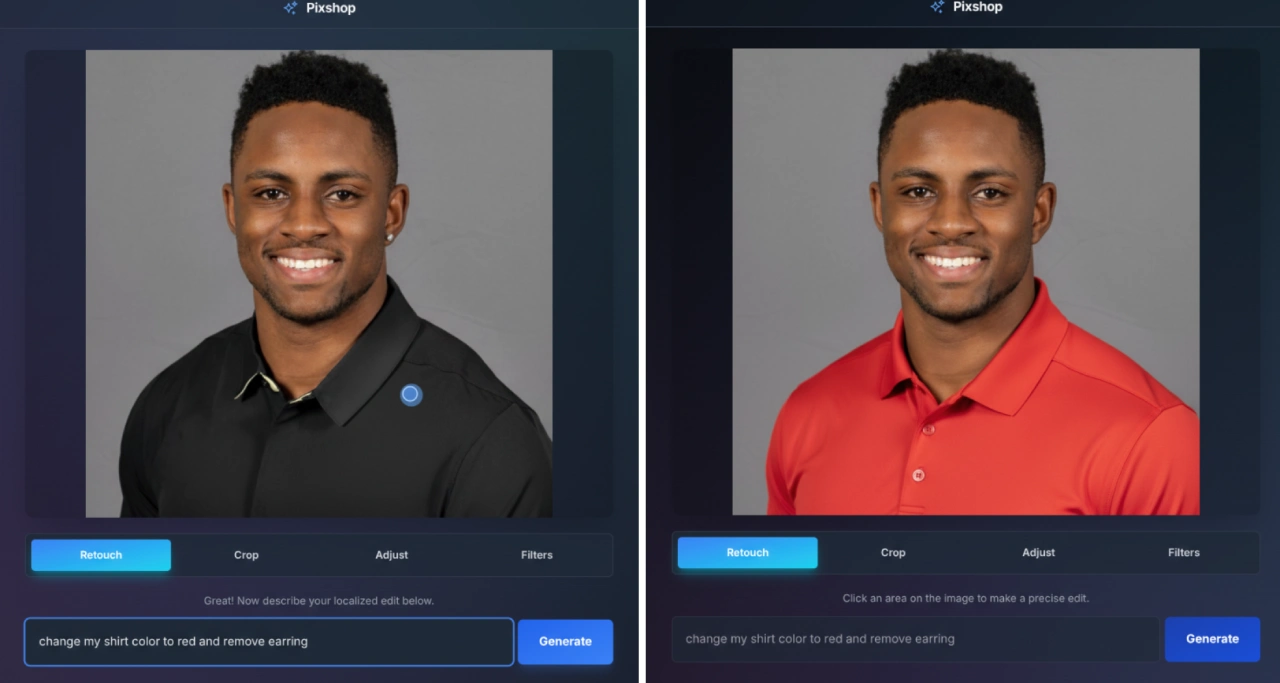
Intelligent Retouching: Enter text commands at any location on the image to modify specific areas (e.g., "remove this object" or "change the shirt to red").
Creative Filters: Apply artistic styles with one click, such as anime, composition wave, and Lomo effects.
Professional Adjustments: Provides global adjustment options like background blur, detail enhancement, warm tone lighting, and studio lighting effects.
Intelligent Composition: Upload 1-3 images and seamlessly blend them together through text descriptions.
Texture Overlay: Add creative textures such as cracked paint, wood grain, and brushed metal.
One-click cutout: Automatically remove image backgrounds and generate PNG images with transparent backgrounds.
AI Inspiration Suggestions: AI analyzes the image and recommends suitable editing effects.
Basic Editing: Supports unlimited crop, undo/redo, compare with original, save, and download.
Aice PS Technical Features
Based on three Google Gemini API models: gemini-2.5-flash-image-preview, imagen-4.0-generate-001, and gemini-2.5-flash.
Developed with React 19, TypeScript, and Tailwind CSS, with no complex build steps required.
Supports local development and quick deployment on Vercel.
Provides keyboard shortcuts: Ctrl/Cmd+Z for undo, Ctrl/Cmd+Y for redo, Ctrl/Cmd+S for save.
Aice PS Application Scenarios
Creative Design
Generate images from scratch based on descriptions;
Convert ordinary photos into artistic styles such as anime or vintage;
Add creative textures and effects to images to enhance visual impact.
Photo Editing
Optimize portraits (adjust lighting, retouch details);
Replace or blur backgrounds;
Restore and enhance old photos;
Modify specific parts of products (e.g., change clothing colors, remove objects).
E-commerce & Marketing
Optimize product images and composite scenes;
Generate nine-grid social media images;
Create product showcase scenes;
Generate virtual display images for products such as figurines.
Content Creation
Generate illustrations for articles and social media;
Process stylized humanistic photography;
Blend multiple image materials for creation;
Convert specific perspectives (e.g., generate first-person view images).
How to Use Aice PS
Quick Start
Access the app: Open it via the DEMO link in Google AI Studio or the locally deployed version.
Two usage methods: Upload an existing image to edit, or directly enter text descriptions to generate a new image.
Basic Operation Flow
Select Image:
Click the "Upload Image to Edit" button to choose a local file;
Or directly drag and drop an image into the upload area;
Or use the "Generate Image" feature to create a new image.
Select Editing Function:
Select function tabs (adjust, filter, retouch, etc.) in the editing interface;
Choose preset effects or enter custom editing commands.
Apply Edits:
Click the "Apply" button to execute the edit;
You can click the "Get Inspiration" button to obtain AI-recommended editing plans.
Save & Export:
Use the "Save Image" function to download the edited image;
Adjust editing steps via undo/redo;
Use the compare function to view before-and-after effects.
Advanced Feature Usage
Multi-image Blending: Upload a main image and 1-2 material images, and enter a blending description to achieve seamless composition.
Local Retouching: Under the "Retouch" tab, click a specific location on the image and enter modification commands for precise editing.
Style Conversion: Use the filter function to select a preset style or enter a custom style description.
Background Removal: Remove the background with one click and generate a transparent background image for various scenarios.