Script Planner Assistant▸
 AI Apps
 AI News

Best Teleprompter: A Free Online Teleprompter
Best Teleprompter: A Free Online TeleprompterIntroduction
Best Teleprompter is a free online tool that works well for professional content creators. It offers practical features such as smart drag scrolling, dual display mode, and advanced mirror control, making it suitable for video recording, speeches, and live streaming. Users can adjust the font size and scrolling speed themselves, and can also edit scripts and view word counts. It comes with full-screen and immersive window modes, and can be used together with recording software like OBS.
All Best Teleprompter features are free, with no registration required, and it works without an internet connection.
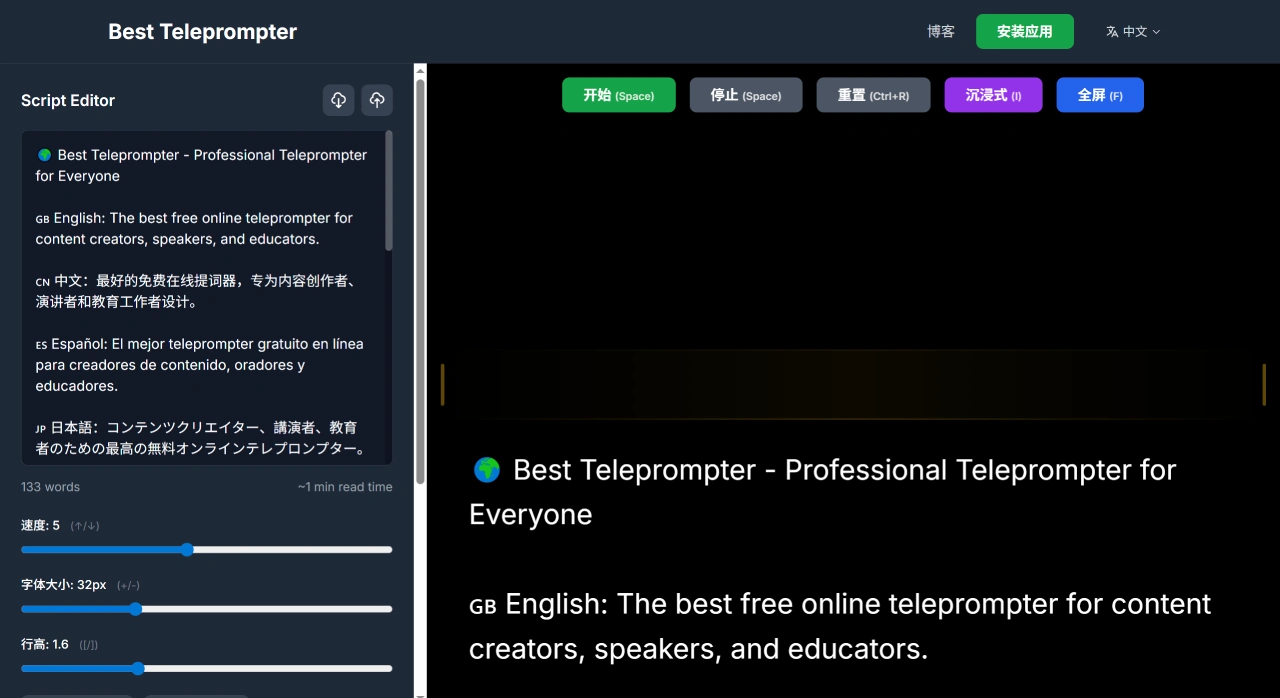
Best Teleprompter Features
Smart Scrolling: The scrolling speed is divided into 10 levels (1-10), which are quick to adjust and meet the prompting needs of various scenarios.
Mirror Mode: Text can be flipped horizontally or vertically, which is very convenient when using a beam-splitter teleprompter mirror.
Keyboard Shortcuts: There are professional shortcuts, such as the spacebar to pause/resume scrolling and arrow keys to adjust speed, enabling fast operation during recording.
Dual Display Mode: You can choose full-screen or immersive window mode, making it suitable for use with recording software like OBS.
Script Editor: Best Teleprompter comes with a built-in editor that shows real-time word count, and scripts can be edited even in full-screen mode.
Mobile Adaptation: Optimized for devices like phones, with a floating control panel for convenient single-handed operation.
Privacy Protection: Best Teleprompter does not collect user data and can be used without registration.
Offline Function: Best Teleprompter works as a teleprompter even without an internet connection.
Best Teleprompter Core Advantages
Completely Free: Permanently free, with no hidden fees, paid plans, or watermarks; all professional features are available right away.
Strong Performance: Fast loading, supports smooth 60fps scrolling, and reading text never stutters.
Privacy and Security: Scripts are stored only on the user's own device, not in the cloud, and no data is collected, ensuring content security.
Best Teleprompter Use Cases
YouTube Creators: Record professional videos without memorizing scripts. Open the immersive window mode, and when recording with OBS, place the teleprompter in a small window so it does not affect the main picture.
Podcasters and Livestreamers: During live streaming, you can drag and adjust the script position so show notes are always visible without interrupting the stream.
Online Teachers: Use keyboard shortcuts to adjust scrolling speed, precisely controlling the pace of lectures to make teaching content more engaging.
Business Professionals: Deliver smooth presentations in video conferences. After enabling immersive mode, you can still see your script while sharing your screen, avoiding the embarrassment of forgetting your lines.
Professional Video Production: Compatible with professional teleprompter glass, with separate horizontal and vertical flip controls, compatible with various beam-splitter devices, meeting professional shooting needs.
How to Use Best Teleprompter
Visit the Website: Open the official Best Teleprompter website.
Prepare the Script: Write your content in your usual editor, copy and paste it into the teleprompter, or type directly in the teleprompter.
Initial Setup: For first-time use, it is recommended to set the font size to 40px and the speed to 4, and then adjust based on actual conditions.
Position the Camera: Place the camera as close to the screen as possible to maintain eye contact.
Practice Test: Record a 30-second test video and slightly adjust the scrolling speed and text position.
Full Recording: When recording long-form content, use keyboard shortcuts to keep things running smoothly.
Best Teleprompter Usage Tips (Keyboard Shortcuts)
Spacebar: Start or stop scrolling
↑/↓ keys: Adjust scrolling speed
+/- keys: Adjust font size
[/] keys: Adjust line height
E key: Show or hide the built-in script editor
F key: Toggle full-screen mode
I key: Toggle immersive window mode
H key: Trigger horizontal flip
V key: Trigger vertical flip
Key Questions
Question 1: As a free online teleprompter, what makes Best Teleprompter better than other similar tools?
Answer: It mainly excels in three areas. First, it is completely free with no restrictions—100% permanently free, with no hidden fees, no paid plans, and no watermarks; professional features like smooth 60fps scrolling, mirror control, and import/export are all freely available. Second, privacy and security: scripts are stored only on the user's own device, not in the cloud, and no data is collected, preventing content leaks. Third, it adapts to multiple scenarios: it works on both computers and phones, supports professional equipment like teleprompter glass and beam splitters, and works with OBS and other recording tools, with a full set of keyboard shortcuts—suitable for both individual creators and professional teams.
Question 2: When recording video with Best Teleprompter (e.g., using OBS), how can I set it up so I can see the script but it does not appear in the recording?
Answer: Use the "Dual Display Mode" combined with "Resize Window." The steps are: 1. After opening and editing the script, press the I key on the keyboard to open "Immersive Window" mode; the teleprompter will become an independent small window. 2. Drag the window edges to resize it, ensuring you can read the script clearly while it does not block the subject you are filming. 3. Open recording software like OBS, select "Window Capture" under "Sources," and only capture the camera feed, not the teleprompter window. 4. When adjusting scrolling speed or font, use the keyboard shortcuts (↑/↓ to adjust speed, +/- to adjust font) without switching windows. This way, the teleprompter won't be recorded into the video while you can still see the script.
Question 3: Is the script data in Best Teleprompter secure? If I switch devices, can my previous scripts be transferred over?
Answer: Script data is secure because the platform adheres to a "privacy-first" principle. All scripts are automatically stored only in the browser of the current device, not uploaded to cloud servers, and no data is collected, fundamentally avoiding cloud-based leakage. When switching devices, scripts are stored by default in the browser of the original device, so they cannot be automatically synced directly. However, you can transfer them using "Import/Export": on the original device, export the script as a .txt or .md file; transfer the file to the new device, then use the "Import" function in Best Teleprompter on the new device to upload this file, and your previous scripts will be restored.