Script Planner Assistant▸
 AI Apps
 AI News

MapGenie: Interactive Maps for Popular Games
MapGenie: Interactive Maps for Popular GamesIntroduction
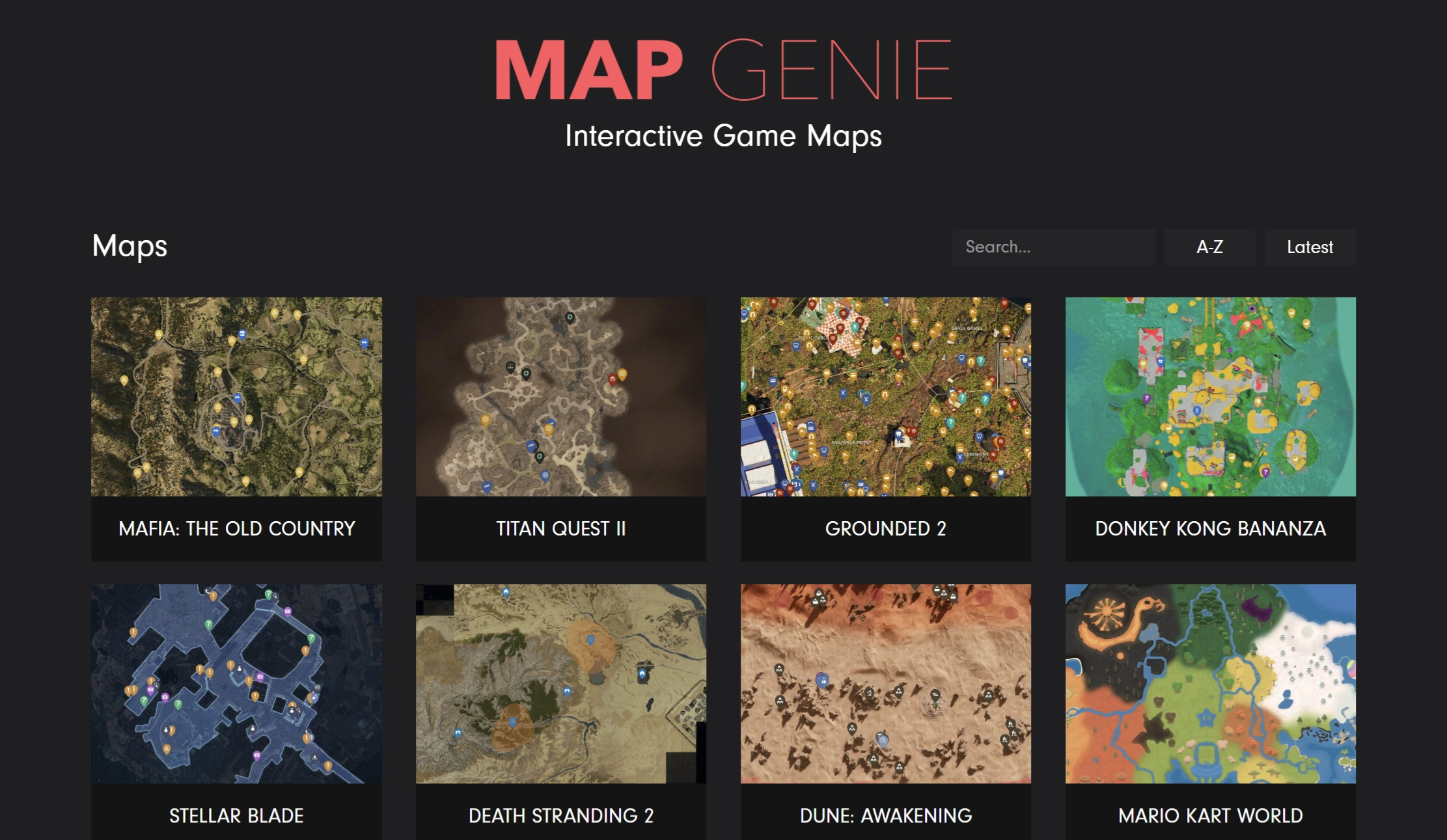
MapGenie is a website that provides interactive maps for popular games. Players can use it to view high-definition maps, with support for zooming, searching locations, switching views, and more. Additionally, it allows users to add custom markers on the map, record notes, and mark locations, items, or quests as "completed" to help track game progress.
MapGenie Main Features
Map Browsing and Interaction
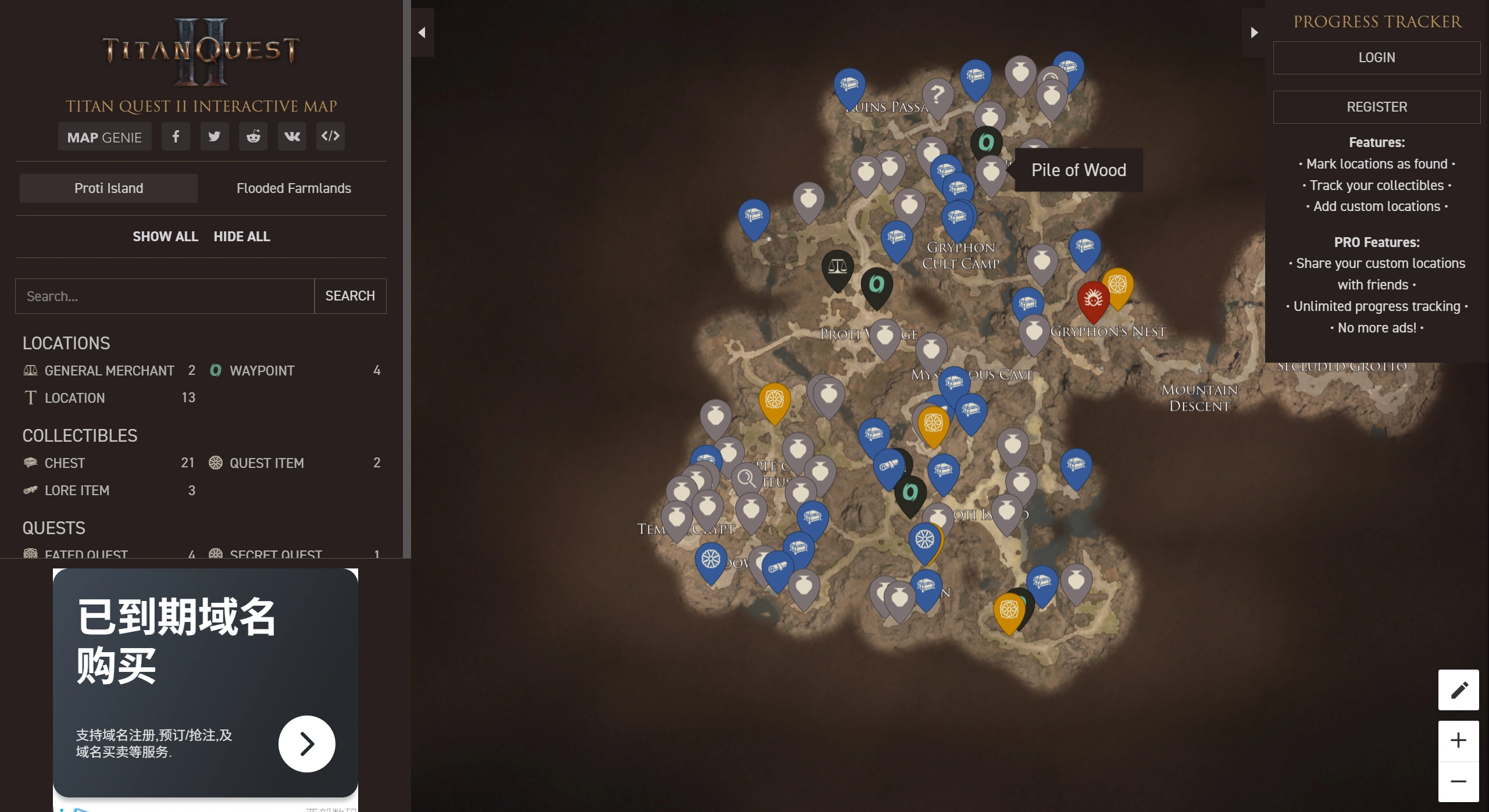
High-definition maps: Provides high-definition interactive maps with Google Maps-like controls, offering high resolution and rich detail.
Zoom function: Supports multi-level zooming. Zooming in lets you view details such as building interiors and hidden paths; zooming out helps you understand the terrain and layout of the entire game world.
Search function: Enter keywords (such as location names, quest names, resource names, etc.) to quickly locate the corresponding position on the map, saving time spent searching for specific locations in large open-world games.
Map view switching: Offers multiple map views, such as normal view, exploration view (showing explored and unexplored areas), and quest view (highlighting quest-related locations).
Markers and Progress Tracking
Custom markers: Players can add custom markers on the map, such as marking interesting locations, hidden treasure spots, important quest clues, etc. Each marker can include detailed notes.
Progress tracking: Locations, items, or quests on the map can be marked as "completed," making it easy for players to understand their game progress and avoid missing important content.
Categorized tracking (paid feature): The paid version supports categorizing markers by type, such as dividing resources into herbs, ores, etc., and quests into main quests, side quests, etc., for systematic marker management.
Information Annotation
Comprehensive annotations: The map features detailed annotations of various in-game information, including quest points, resource points, collectibles, NPCs, etc.
Timely updates: As games receive updates, MapGenie also updates its map information in a timely manner to ensure players have access to the latest content.
Cross-platform Support
Multi-platform compatibility: The maps can be used across multiple gaming platforms, including PC games, console games (such as PlayStation, Xbox, etc.), and mobile games.
Web and app versions: Available in both web and app versions. The web version is suitable for quick access on a computer, while the app version is better suited for use on mobile devices.
MapGenie Common Use Cases
Game Exploration
Open-world games: In open-world games like "The Legend of Zelda: Breath of the Wild," players can use high-definition interactive maps to understand terrain distribution and plan exploration routes.
Finding hidden elements: Many games feature hidden treasures, secret passages, and other hidden elements. MapGenie's detailed annotations can help players locate these elements.
Resource collection: For games that require resource gathering, the resource distribution annotation feature is very useful, allowing players to quickly find resource-rich areas based on the annotations.
Game Quests
Quest navigation: When accepting a quest, the quest point annotations and navigation features help players quickly find the starting and target locations of the quest.
Quest clue organization: For complex quests, the notes feature allows players to record quest clues on markers, helping them sort out logical relationships.
Quest progress management: Marking quests as "completed" provides a clear view of completed and unfinished quests, helping players plan their gaming time effectively.
Sharing Game Guides
Guide assistance: When viewing game guides, combining them with MapGenie's maps helps better understand the guide content, as map annotations can visually display the locations and routes mentioned in the guide.
Guide creation: Players who enjoy creating game guides can use MapGenie's map annotation and marker features to organize their gaming experiences and discoveries, then create guides to share with other players.
How to Use MapGenie
Visit the website: Go to MapGenie's website at https://mapgenie.io/.
Select a game map: In the game list on the homepage, use the search box or browse directly to find the map corresponding to the game you want to play. Click the game name or map icon to enter that game's map page.
Map operations: After entering the map page, use the mouse wheel to zoom in or out, and hold the left mouse button to drag the map to view different areas.
Search for locations: Enter keywords (such as "fast travel point," "quest item," etc.) in the search box on the map page. Press Enter or click the search button, and the map will highlight the search result location. Click the result, and the map will automatically navigate to and display detailed information.
Add markers: Click on a blank area of the map to add a custom marker. In the pop-up editing box, enter the marker name, add notes, etc. Once added, the marker will appear on the map and in the marker list.
Progress tracking: For annotated quest points, item points, etc., click the nearby "Completed" button to mark them as completed. These points will be displayed in a different color or icon.
Save and share: You can save your map settings and markers to continue using them on your next visit. Some game maps support a sharing feature, allowing you to share maps with markers added to other players.