Script Planner Assistant▸
 AI Apps
 AI News

AniColors: A Site for Curating and Creating Anime Color Palettes
AniColors: A Site for Curating and Creating Anime Color PalettesIntroduction
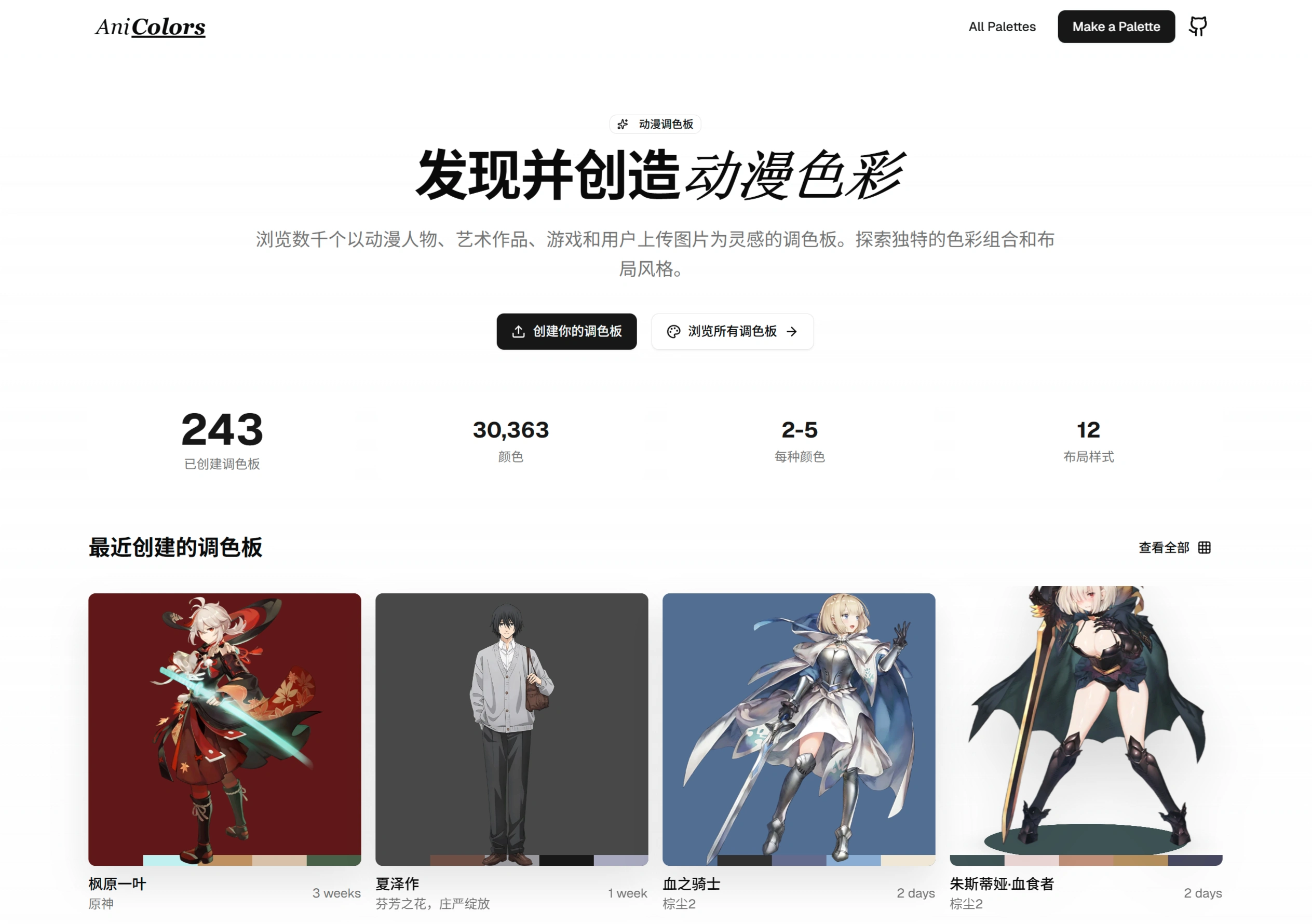
AniColors is a palette generation tool focused on anime colors, helping anime enthusiasts and designers quickly find and create unique anime color schemes.
Two Core Features
Daily Curated Inspiration Palette Gallery
Hand-picked by anime and game enthusiasts, featuring character-specific, scene atmosphere, and work-themed color cards.
Character palettes: for example, "Saber"'s armor colors, "Hatsune Miku"'s blue-green hair color.
Scene palettes: for example, the sky colors in Makoto Shinkai's films, the neon nightscape colors in "Cyberpunk: Edgerunners".
Themed palettes: for example, the iconic red and black color scheme of "Persona 5", the youthful tones of "Bocchi the Rock".
Usage:
Browse the homepage gallery; each palette comes with precise HEX color codes, ready to use directly in your creations, and can also serve as wallpapers or design assets.
Custom Palette Generator
Users can upload images to quickly generate palettes.
Usage:
Upload image: click the upload button to select an image (supports JPG, PNG, GIF, WebP formats, no larger than 10MB), or drag and drop to upload.
Extract colors: use the magnifier to manually pick colors precisely, such as a character's eye or clothing color; or let ai generate them automatically.
View and export: after generation, you can choose different layouts, click "Export" to save as a high-definition image, or copy the color codes for use in Procreate, Photoshop, and other software.
Technical Features
Supports algorithmic automatic recognition of anime character colors, and supports manual drag-and-drop modifications
Supports manual identification of anime characters' eyes, skin tones, clothing, weapons, and other color schemes
Has collected a large number of high-quality anime palettes, as well as colors for various parts
Supports free export of high-quality shareable cards.
Free download of character images without backgrounds
Local Deployment
Strapi Backend:
Install dependencies: cd strapi, run pnpm install.
Copy file: cp .env.example .env.
Start: pnpm develop (the development environment uses local resources and does not upload to Cloudflare R2).
Next.js Frontend:
Install dependencies: cd nextjs, run pnpm install.
Copy file: cp .env.example .env.
Start: pnpm dev.
How to Use AniColors
Generate a Palette from an Image:
Visit the official website and upload anime screenshots, game art images, etc. (supports JPG, PNG, GIF, WebP formats, no larger than 10MB).
Extract colors: use the color picker to manually select colors, or let AI generate them automatically.
View: within a few seconds, a palette containing 2-5 colors will be generated, with 12 layouts to choose from.
Save and export: copy HEX codes for use in other software, or download the image to save and share.
Browse Pre-generated Palettes:
Visit the official website homepage to see the latest palettes.
Use the "Browse All Palettes" and "Discover" features to search by anime character, work, game, and other categories.
Each palette will display its source (such as character name, anime name) and creation time.