Script Planner Assistant▸
 AI Apps
 AI News

Xiaowang AI Screenshot: Versatile AI Screenshot & Screen Recording Tool
Xiaowang AI Screenshot: Versatile AI Screenshot & Screen Recording ToolIntroduction
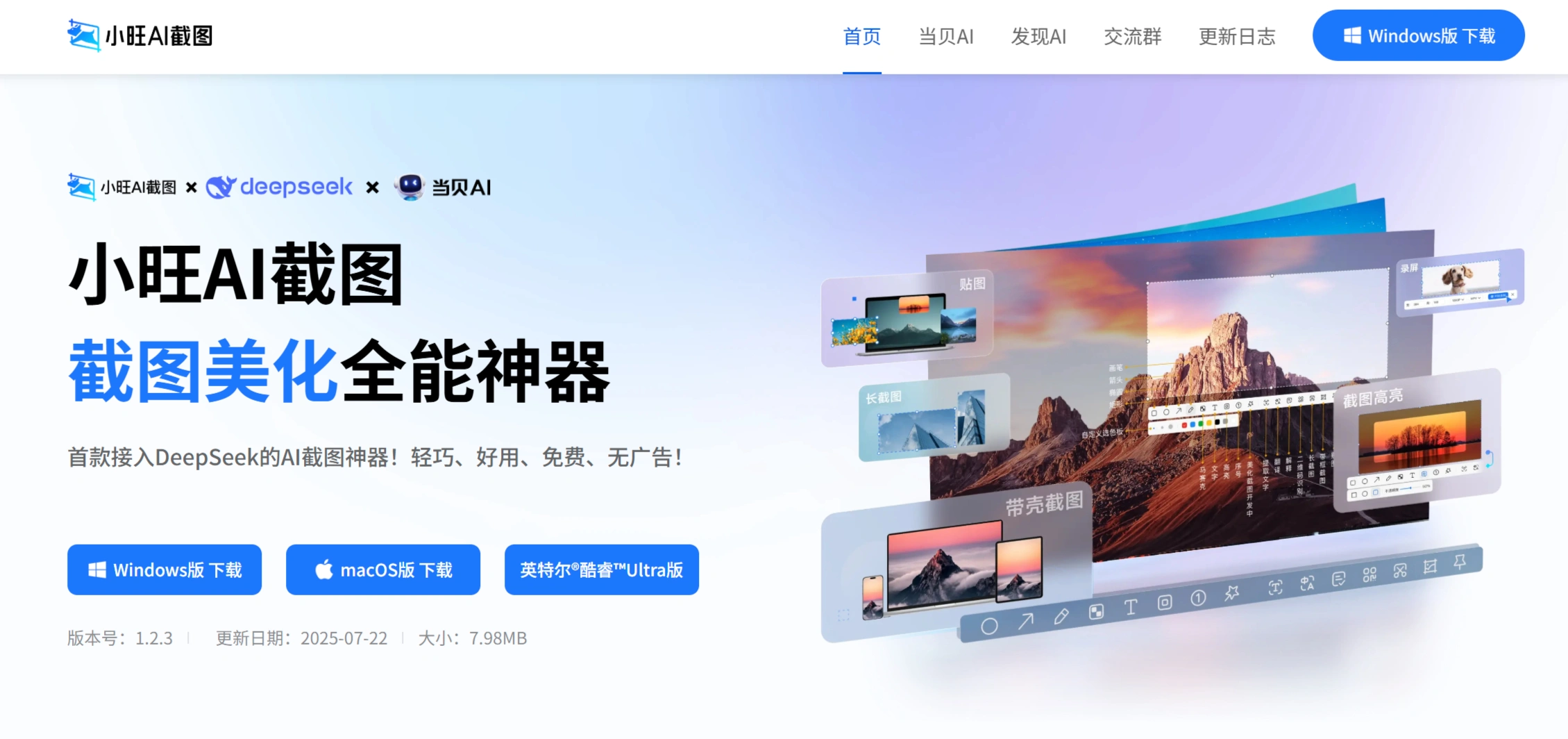
Xiaowang AI Screenshot is the first AI screenshot tool integrated with DeepSeek. It supports basic functions such as screenshot, screen recording (free, no watermark), and long screenshot. Combined with AI, it offers special features including text extraction, translation, Q&A, personalized annotation, and privacy mosaic. No login required, ready to use anytime, screenshots are automatically archived, boosting efficiency in learning, office, and entertainment scenarios.
Features
✅ Smart Screenshot & Annotation: Supports multiple modes including region, window, and long screenshot, with built-in arrow, mosaic, and text annotation tools, enabling layered content management.
✅ AI OCR & Translation: Based on the DeepSeek large model for high-precision text recognition, supporting translation between 28 languages, with an academic literature translation accuracy of 94%.
✅ GIF and Video Recording: Free high-definition GIF/video recording, customizable size, resolution, and format, with editing features like clipping, adding text/stickers, etc.
✅ Content Parsing & Encyclopedia Query: Select complex charts or unfamiliar objects (such as plants, icons), and AI automatically parses and outputs trend interpretations or encyclopedia information.
✅ Localized Storage Management: Screenshots are automatically categorized by timeline, supporting quick retrieval and encrypted storage, not uploaded to the cloud to ensure privacy.
Advantages
✅ Lightweight: Installer is only 7.4MB, running memory as low as under 20MB, runs smoothly on older devices.
✅ No Login: No registration required, ready to use upon opening.
✅ Completely Free: All features (including GIF recording, AI translation, video editing) are unlimited and ad-free.
Use Cases
✅ Office & Learning: Capture meetings/courseware, use AI translation and OCR to organize notes.
✅ Content Creation: Record tutorials/GIF memes for direct secondary creation.
✅ Gaming & Entertainment: HD recording of game/film clips with annotations for sharing.
✅ Foreign Language Learning: Capture foreign literature/web pages, AI translates and analyzes difficult points in real time.
✅ Design Collaboration: Use color value extraction, framed screenshots and other features to communicate design details.
How to Use Xiaowang AI Screenshot
✅Installation
Windows version: Double-click the installer to run, select a non-system drive path, check "Start at boot", and the tray icon will appear in the taskbar; the single-file version can be used immediately after extraction, no permission configuration required.
macOS version: For Intel models, drag the .dmg to "Applications"; for M-series chips, select the ARM-specific version. After installation, enable "Screen Recording" and "Accessibility" permissions in "System Settings → Privacy & Security".
✅Initial Configuration
Shortcut keys: Default screenshot Alt+Z, screen recording Alt+R, customizable.
Permissions: On first launch, "Screen Recording" and "Accessibility" must be allowed (on macOS, manually enable in System Preferences).
✅Screenshot Operation
Launch: Press Alt+Z (default) or click the screenshot button, select region/window/long screenshot mode, etc.
Annotation & Editing: Use arrows, text, brushes and other tools to annotate, highlight, or add privacy mosaic.
AI Features: OCR automatically extracts text; AI translates foreign language images; select charts/unfamiliar objects, AI parses and outputs information.
✅Screen Recording Operation
Launch: Press Alt+R (default) or click the screen recording button, select full screen or a selected region.
During Recording: Can pause to skip content, adjust the recording range.
Finish: Press the screen recording shortcut again or click "Stop", and an editing window for video/GIF will pop up automatically.
✅Other Features
Framed Screenshot: Select a phone/computer model to generate a display image with one click.
History Management: Screenshots are archived by timeline, supporting keyword search and batch export.
GIF Editing: Recorded GIFs can be adjusted in speed and cropped.
Key Questions
✅ Compared with other screenshot tools, what is the most prominent advantage of Xiaowang AI Screenshot?
Answer: Integrated with the DeepSeek large model, realizing AI translation, Q&A, text extraction and other functions; no login required 7x24 hours, installer is only 7.4MB, lightweight with no burden.
✅ What measures does Xiaowang AI Screenshot take to protect user privacy?
Answer: Privacy mosaic can cover and hide sensitive information, with anti-cracking mechanisms to ensure security.
✅ What specific work scenarios is Xiaowang AI Screenshot suitable for?
Answer: Covers multiple fields such as learning (analyzing knowledge points), office work (translation/text extraction), human science (recording moments), design (annotation & communication), and content creation (AI assistance).
Related Information: