Script Planner Assistant▸
 AI Apps
 AI News

TabBoost: A Chrome Extension for Effortless Browsing
TabBoost: A Chrome Extension for Effortless BrowsingIntroduction
TabBoost is a Chrome-based extension tool inspired by the Arc browser. It primarily addresses tab management issues, making web browsing more efficient and convenient. It covers features such as link preview, tab operations, multitasking, and personalization settings, adapting to different usage scenarios.
Core Features
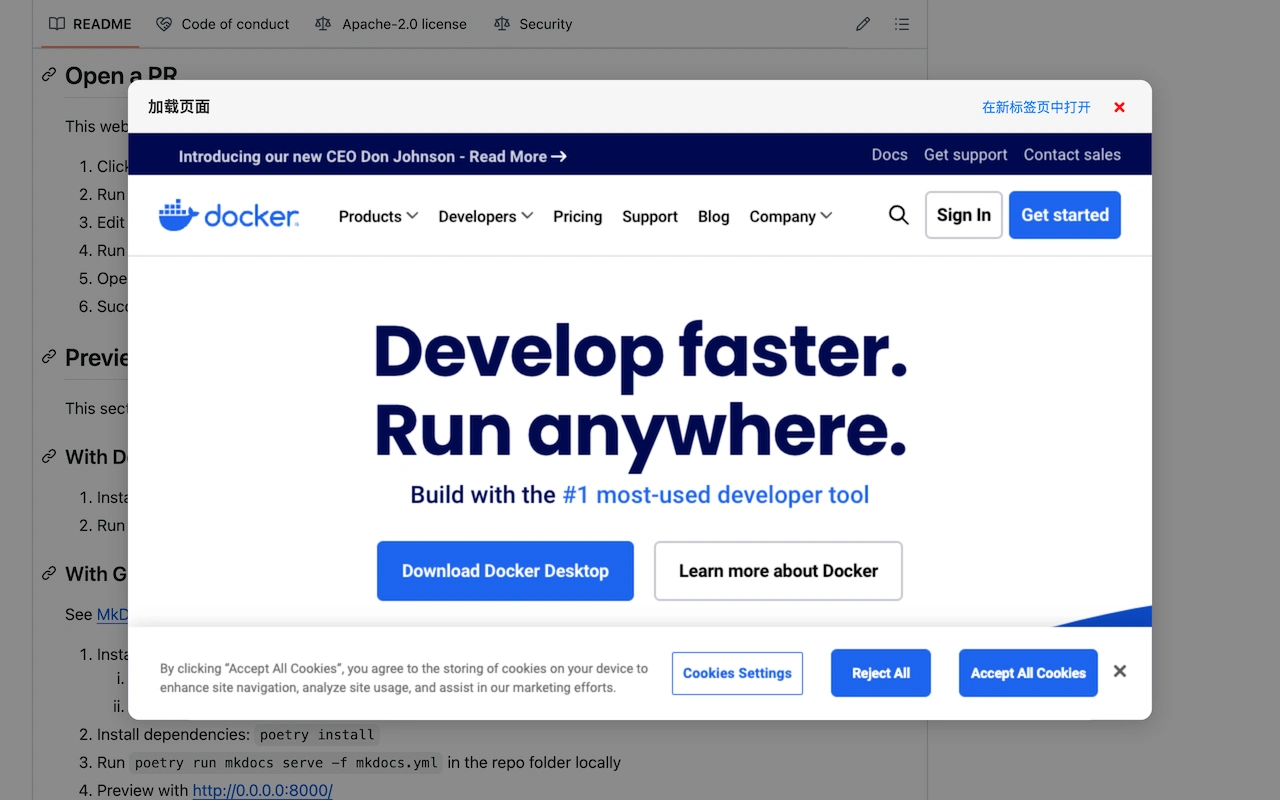
Link Preview: Hold the Command key (Mac) or Ctrl (Windows, can be changed by default) and click a link, and a small window will pop up on the current page to preview the content directly without navigating to a new tab.
Split-Screen Browsing: Display two web pages side by side within a single tab, suitable for comparing content or handling multiple tasks simultaneously. It can be triggered via keyboard shortcuts or the extension menu, and the split-screen ratio can be freely adjusted.
Tab Duplication: By default, use Ctrl+M (customizable) to quickly duplicate the current tab, which is convenient for price comparison or managing similar tasks.
URL Copy: By default, use Shift+Command+C (Mac) or Alt+C (Windows, can be changed by default) to copy the current page address to the clipboard with one click.
Typical Use Cases
Information Gathering and Comparison
Online Shopping Comparison: Open multiple product pages at the same time and compare prices, specifications, and reviews intuitively in split-screen mode for quick decision-making.
Academic Research: View different literature or reports side by side, making it easier to cite and compare content, improving research efficiency.
Multitasking
Work and Study: When looking up information while writing documents, the split-screen view avoids frequent tab switching and helps maintain focus.
Online Office: Simultaneously use project management tools, online documents, and email, and use the tab duplication feature to quickly switch between tasks, saving time.
Daily Browsing
Link Preview: When you encounter an interesting link but don't want to leave the current page, hold the specified key and click to bring up a pop-up preview, reducing tab accumulation.
Save Interception: If you accidentally trigger the save shortcut, a confirmation box will pop up first to avoid accidentally saving incorrect content.
Installation Method
Standard Installation: Search for "TabBoost" in the Chrome Web Store and click "Add to Chrome" to complete the installation.
Developer Version Installation: Download the latest files from GitHub, enable Developer Mode on the Chrome extensions management page, and select "Load unpacked" to import the folder.
Feature Operation Guide
Link Preview: Hold Command/Ctrl and click a link to preview directly in a pop-up window.
Split-Screen Mode: Activated via keyboard shortcuts or the extension menu, with customizable split-screen ratios.
Compatibility Settings: Automatically adapts to website previews, and can be toggled on/off or set with an ignore list in settings.
Tab Duplication: Default Ctrl+M (customizable) to quickly duplicate the current tab.
URL Copy: Default Shift+Command+C (Mac) / Alt+C (Windows, can be changed by default) to copy the address.
Save Confirmation: A confirmation box pops up when the save shortcut is pressed to avoid misoperation.
Shortcut Override: Intercepts the system save shortcut and replaces the pop-up prompt with a notification in the lower right corner.
Personalization Settings
The extension supports adjusting the default icon action, pop-up window size, feature toggles, and keyboard shortcut configuration, as well as switching the interface language.
TabBoost's core goal is to help users manage their tabs more efficiently. Whether it's information gathering, multitasking, or daily browsing, its features can reduce operational steps and improve browsing fluency.