Script Planner Assistant▸
 AI Apps
 AI News
ScanPDF: Free Online Tool to Make PDFs Look Scanned
ScanPDF: Free Online Tool to Make PDFs Look ScannedIntroduction
ScanPDF是什么?
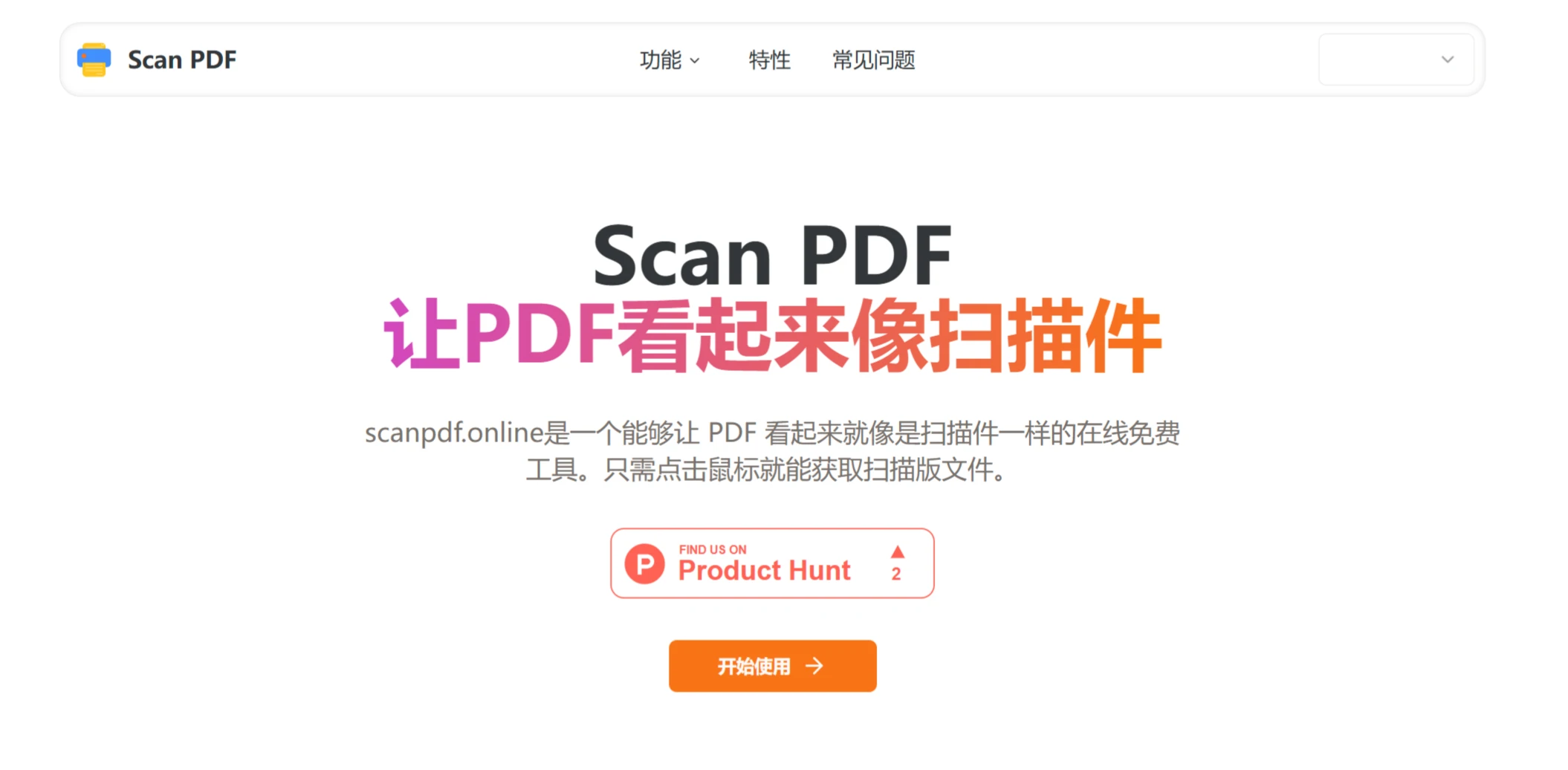
ScanPDF.online is a free tool that converts PDF files into PDFs with a scanned look, eliminating the hassle of printing and then scanning. Its advantages are: data is processed locally to protect privacy; it uses WebAssembly technology for fast processing, completing in just seconds, with real-time preview of settings; and it supports offline use without relying on the internet.
ScanPDF功能特点:
Fast and efficient: Greatly saves the time spent preparing and processing with traditional scanners, quickly generating scanned copies. Ideal for situations that require quickly producing large numbers of scanned copies, like mock exam papers in education, archiving old documents in office settings, and creating vintage looks in design.
Quickly generates a scanned effect: No need to print and scan — just a few clicks and you get a scanned-looking PDF.
Versatile effects: Simulates natural paper creases, fading, and noise to produce highly realistic scanned copies. It also offers different paper types such as regular paper, kraft paper, and old newsprint, as well as scanning modes with high or low resolution.
Privacy and security: Data stays on your own device and is not stored on servers; all processing is completed in the browser.
Fast processing: Based on WebAssembly technology, the scanned PDF effect is produced instantly with one click.
Customizable settings: For each different process, all parameters can be previewed in real time so you can achieve the effect you want.
Offline use: Offline processing is also supported, so it works normally even without a network.
ScanPDF使用方法:
Open the website and enter the URL https://scanpdf.online/ .
Click the "Get Started" button.
Select "Choose PDF". You can drag and drop, or choose a file from your computer to upload (the file size cannot exceed 2 MB).
Choose the scanned effect: Pick a preset style from the toolbar, such as "Normal Scan", "Old Document", "Faded Paper". You can also adjust these parameters yourself:
Paper color: Different colors such as white paper, ivory, and beige.
Paper texture intensity: Controls the intensity of the paper texture.
Degree of blur: Simulates the slightly blurry feel of a real scan for a more lifelike look.
Preview the page and download: After processing, you can preview and make further adjustments on the preview page. Once confirmed, click "Generate", then click "Download" to save as a PDF or JPG/PNG.
常见问题:
Q: What types of PDF can be used with the Scan PDF tool?
A: Basically any PDF can be used — whether it's a text-only PDF or one with images, you can try to create a scanned effect.
Q: How do I adjust the scanned effect parameters?
A: You can use the parameter controls in the ScanPDF interface to adjust the scan effect intensity, color, etc., and then check the result via the real-time preview.
Q: Will PDF files be stored on the server?
A: According to ScanPDF's privacy statement, data is stored on the user's device and not on the server. All processing is done in the browser, ensuring privacy and security.
Q: Is it safe to use this tool?
A: ScanPDF runs on WebAssembly technology, meaning it runs in the browser and does not upload to them. However, it's suggested to use a reliable network connection to keep your device safe.