Script Planner Assistant▸
 AI Apps
 AI News

Pandoc: A Powerful Cross-Platform Document Conversion Tool
Pandoc: A Powerful Cross-Platform Document Conversion ToolIntroduction
What is Pandoc?
Pandoc is an open-source, cross-platform document format conversion tool, developed by John MacFarlane, a philosophy professor at the University of California, Berkeley (primarily written in Haskell), and is now co-maintained by German developer Albert Krewinkel. It is extremely popular on GitHub, with over 27,000 "Stars" and more than 3,000 contributors. Many people call it the "Swiss Army knife of document conversion"—it can convert between virtually any format and is highly flexible. Simply put, whether you're writing a paper, making course slides, or organizing notes, it can help you transform documents from one format to another.
Pandoc Features
Supports a Wide Range of Formats
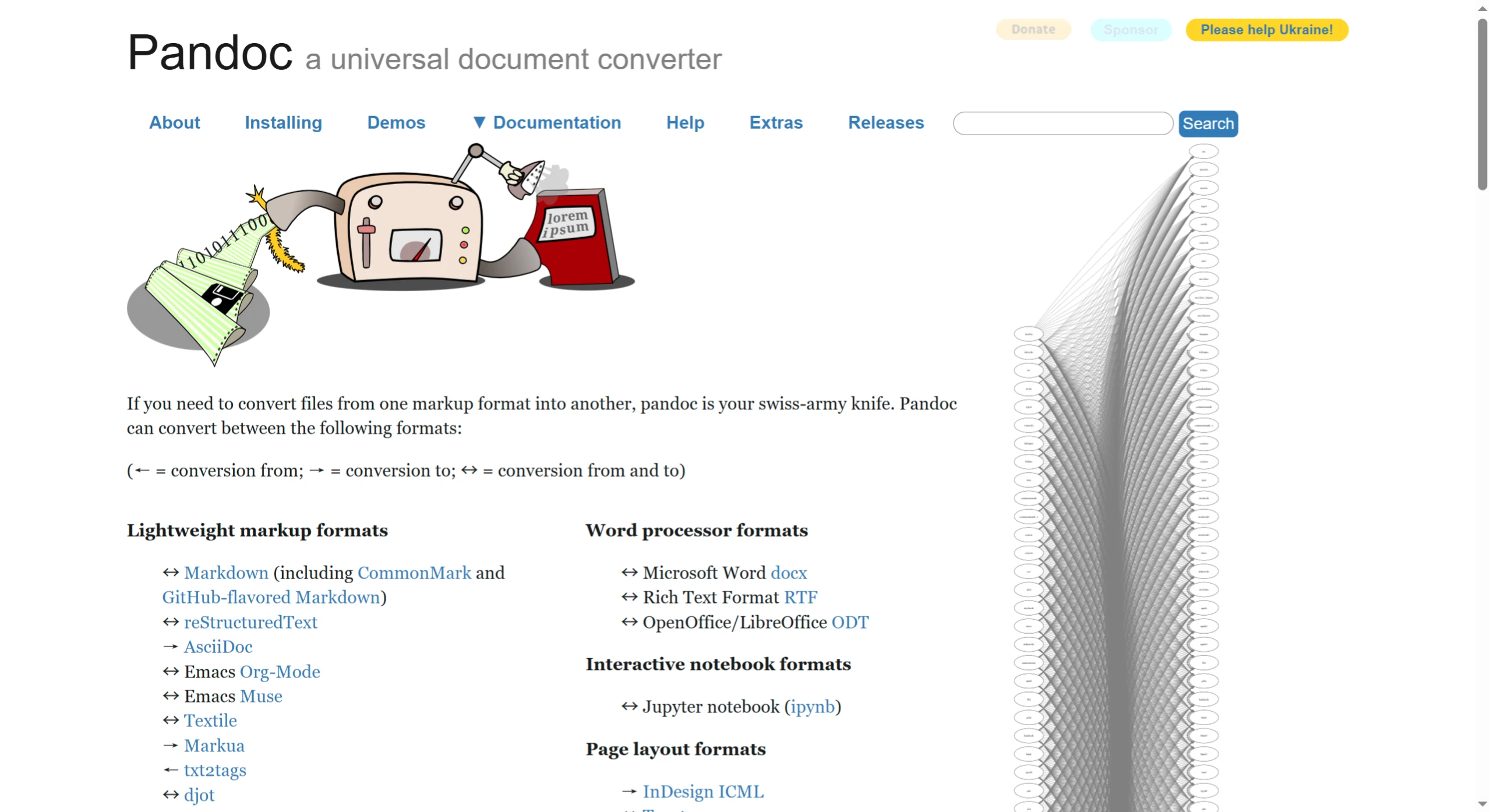
Pandoc can handle conversions between more than 50 document formats. For example:
Text formats: Markdown (a lightweight format widely used for note-taking today), LaTeX (a powerful tool for academic typesetting), reStructuredText (a documentation format commonly used in the Python community), HTML (web page code);
Office documents: Word .docx files, OpenDocument format (.odt, used by LibreOffice, for example);
E-books: EPUB (an e-book format suitable for mobile reading), MOBI (a format used by Amazon Kindle);
It can also generate high-quality PDFs through LaTeX—for scenarios requiring strict typesetting, such as graduation theses and academic reports.
Customizable Rules
If the default conversion results don't meet your needs, you can write scripts in Lua or Python to customize the rules. For example:
Use your own templates to generate Word or PDF documents with specific styles (such as fixing the company logo in the header);
Write a small program to automatically adjust the content in documents (such as changing all heading fonts to bold Song typeface).
Other Useful Features
Merge multiple files and convert them in one go (such as combining 3 Markdown notes into a single PDF);
Render LaTeX math formulas (such as equations when writing a paper, which remain clear after conversion to HTML or PDF).
Pandoc Use Cases
Students/teachers writing papers or course slides: For example, write a draft in Markdown (simple and easy to edit), then convert it to Word with one click to show the supervisor, or convert it to PDF for printing; you can also convert LaTeX documents to Word, making it easier to collaborate with classmates who don't know how to use LaTeX.
Writing technical documentation or tutorials: For example, if you wrote a software user guide in Markdown and need both a web version (HTML) and a print version (PDF), Pandoc can generate both formats directly with one click.
Making PPT: Write a speech in Markdown, convert it to Beamer slides (suitable for academic presentations), or convert it to a PowerPoint .pptx file (suitable for company reports).
Automated document processing: For example, a company uses Pandoc combined with scripts to regularly convert database content into PDF manuals; or, when writing code, use it to automatically generate HTML documentation from code comments.
Unified formats for team collaboration: Technical teams are used to writing documentation quickly in Markdown, product managers need Word versions to confirm requirements, and legal contracts need to be edited back and forth between LaTeX and DOCX—Pandoc can easily handle these needs.
Installing Pandoc
Pandoc supports Windows, Mac, and Linux, and is quite easy to install:
For Windows users:
The easiest method: Go to the Pandoc official website to download the installer (.msi file), double-click to run it and follow the prompts to install. After installation, open the Command Prompt (press Win+R and type cmd), enter pandoc --version. If you see a version number, the installation was successful.
Another method: If you have Chocolatey (a Windows package management tool) installed on your computer, simply enter choco install pandoc in the command line to install it automatically.
For Mac users:
If you have Homebrew (a commonly used software management tool on Mac) installed, enter brew install pandoc in the terminal, and it will be installed after a short while.
You can also go to the official website to download the macOS version of the installer and double-click to install.
For Linux users:
Debian/Ubuntu systems: Open the terminal and enter sudo apt-get update to update the software list, then enter sudo apt-get install pandoc to install.
Arch/Manjaro systems: Enter sudo pacman -S pandoc.
Other Linux systems can be installed using the corresponding package management tool, or compiled and installed directly from source code (suitable for users who know how to code).
Using Pandoc
The simplest conversion
For example, convert a Markdown file to PDF:
pandoc input.md -o output.pdf
Or convert a LaTeX file to HTML:
pandoc input.tex -o output.html
Merge multiple files and convert
For example, combine two Markdown notes into a single HTML file:
pandoc input1.md input2.md -o combined.html
Generate slides
Write a speech in Markdown and convert it to Beamer slides (suitable for academic presentations):
pandoc input.md -t beamer -o slides.pdf
Or convert to a PowerPoint file:
pandoc input.md -t pptx -o presentation.pptx
Add custom information
For example, fix the title, author, and other information in the generated PDF:
pandoc input.md -o output.pdf --metadata title="我的笔记" --metadata author="张三"
In short, Pandoc is like an all-purpose translator—regardless of what format your document is in, no matter what format you want to convert it to, it can almost certainly handle it. Moreover, it supports custom rules, making it suitable for various needs from students to professionals.
Open Source Link
https://github.com/jgm/pandoc