Script Planner Assistant▸
 AI Apps
 AI News

CleanShot X: Screenshot and Screen Recording Tool for Mac
CleanShot X: Screenshot and Screen Recording Tool for MacIntroduction
What is CleanShot X?
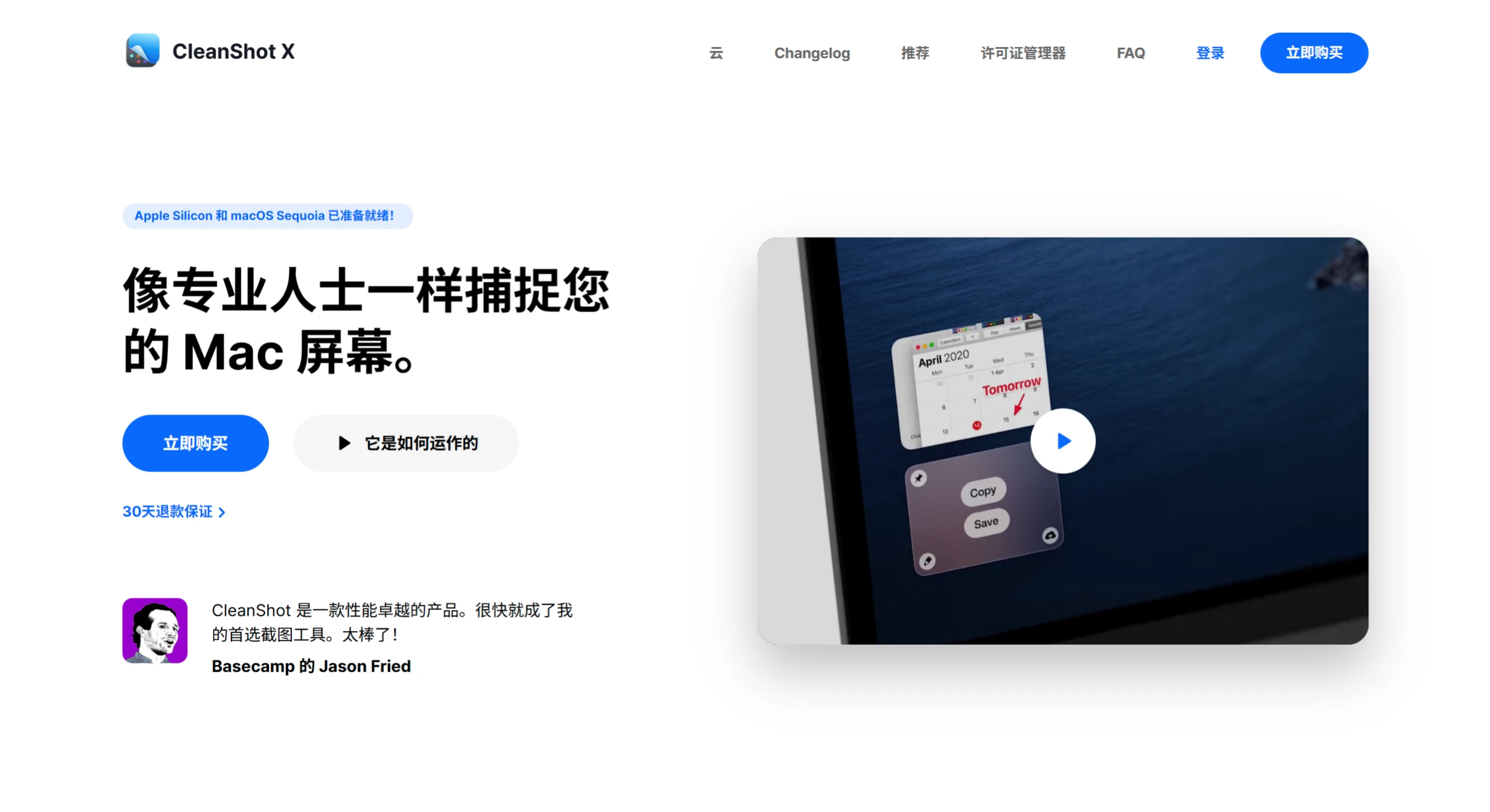
CleanShot X is a powerful screenshot and screen recording tool designed for Mac, featuring quick access, smart annotation, cloud collaboration, text recognition, and many other practical functions.
CleanShot X Features
Quick Access: Easily save, copy, or drag and drop screenshots and screen recordings to other apps via an overlay, adapting to various workflows.
Annotation: Highlight key points in screenshots in seconds with annotation tools. Multiple text styles are built in, making the operation simple and the results visually appealing.
Scrolling Capture: Capture content beyond the screen, such as chat logs, long code snippets, etc., applicable to various applications.
Screen Recording: Record the screen and save as video or optimized GIF files. It also supports showing the webcam feed, recording microphone and system audio, highlighting mouse clicks and keystrokes, automatically hiding notifications, and comes with built-in editing tools.
Background Tool: Create beautiful screenshots for social media posts. 10 stylish backgrounds are built in, and custom backgrounds can also be added.
Text Recognition: Use OCR technology to quickly recognize text in images or scanned documents, making it easy to copy unselectable text.
Other Features: Supports pinned screenshots with adjustable size and opacity; can hide desktop icons for screenshots or recordings, with auto-hide settings; includes a selfie timer; automatically scales Retina screenshots to standard resolution; offers a crosshair mode for precise alignment; supports custom wallpapers; provides extensive settings options to customize your workflow.
CleanShot X User Guide
Screenshot Methods
Area Screenshot: The default shortcut is ⇧ Shift + ⌘ Command + 4. Hold the left mouse button and drag to draw a rectangular box to select the area, then release the left mouse button to complete the screenshot. While dragging, press Space to move the selection box, press ⇧ Shift to lock the aspect ratio, and press ⌥ Option to expand from the center.
Window Screenshot: The default shortcut is ⇧ Shift + ⌘ Command + 4, then press Space. Move the camera icon to the target window and click the left mouse button to capture. Press ⌥ Option to capture the window without shadow, press ⌘ Command to capture the entire desktop containing the window, and press ⇧ Shift + ⌘ Command to capture the window after hiding desktop icons.
Full-Screen Screenshot: The default shortcut is ⇧ Shift + ⌘ Command + 3. Press it to immediately capture the entire screen. Quickly hold ⇧ Shift after pressing the shortcut to hide desktop icons during full-screen capture.
Scrolling Screenshot: Requires customizing a shortcut in Preferences. Open the target content, press the shortcut, and CleanShot X will automatically detect the scrollable area and display a toolbar. Click the "Start" button or press Space to begin scrolling capture, and click the "Stop" button or press Esc to end it. The success rate of scrolling capture depends on the design of the web page or application. Try not to move the mouse or perform other operations during the process.
Timed Screenshot: Customize the shortcut in Preferences. Open the CleanShot X main interface, click the "Timed Screenshot" button, select the screenshot type, set the countdown time, and click the "Start" button. The screenshot will be taken automatically when the countdown ends.
Screen Recording Methods
The default shortcut is ⇧ Shift + ⌘ Command + 5. Press it to display the recording toolbar, select the recording area (full screen, window, or custom area) and audio recording options, and click the "Start Recording" button to begin recording. Click the "Stop" button when finished. During recording, annotation tools can be used for real-time marking. After recording, you can choose to save as GIF or MP4 format, with custom video frame rate and resolution supported.
Annotation Methods
After a screenshot or recording is completed, CleanShot X will automatically open the quick access overlay. Click the "Edit" button to open the annotation toolbar. Annotation tools include arrow, rectangle, ellipse, line, text, highlight, mosaic, blur, numbered markers, and pen, allowing you to annotate screenshots or videos.
CleanShot X Pricing
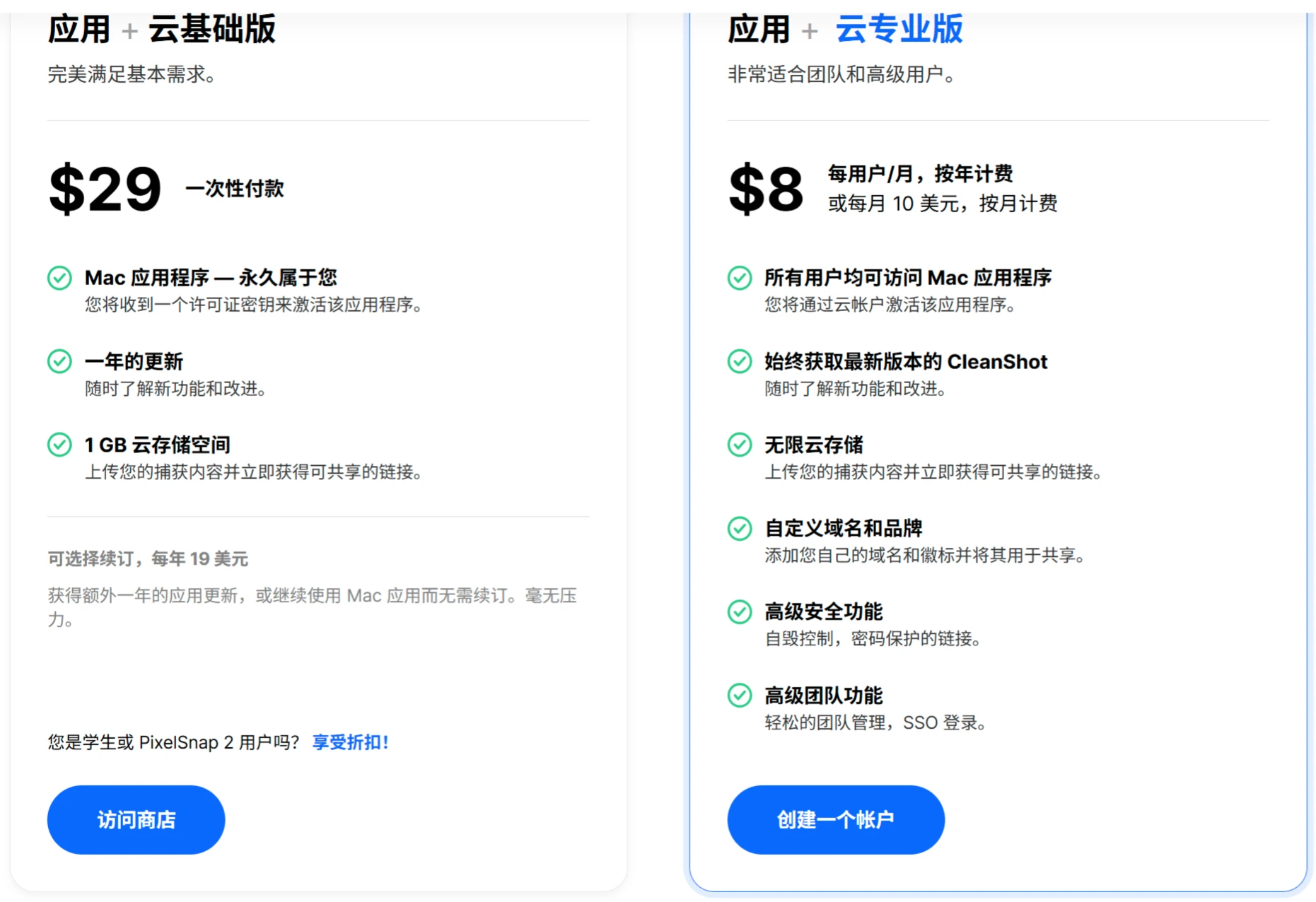
Personal Edition: $29 (approximately 206 RMB). Purchase includes a perpetual usage license, 1 year of updates, and 1 GB of cloud storage. Updates can be renewed optionally at $19 per year.
Team Edition: $8/user/month, billed annually. Includes unlimited cloud storage, custom domain and branding, advanced security features, and team management features.
Domestic discounted prices may be available on 数码荔枝.