Script Planner Assistant▸
 AI Apps
 AI News

MotionShot: Create Interactive Screen Guides, Tutorials & Demos with Ease
MotionShot: Create Interactive Screen Guides, Tutorials & Demos with EaseIntroduction
What is MotionShot?
MotionShot is a tool that makes it easy to create interactive product walkthroughs, SOPs, screen guides, tutorials, and demos. It supports exporting guides as MP4, GIF, or PDF, or embedding them directly into your own webpage. The free version has limitations, while the paid version offers more features.
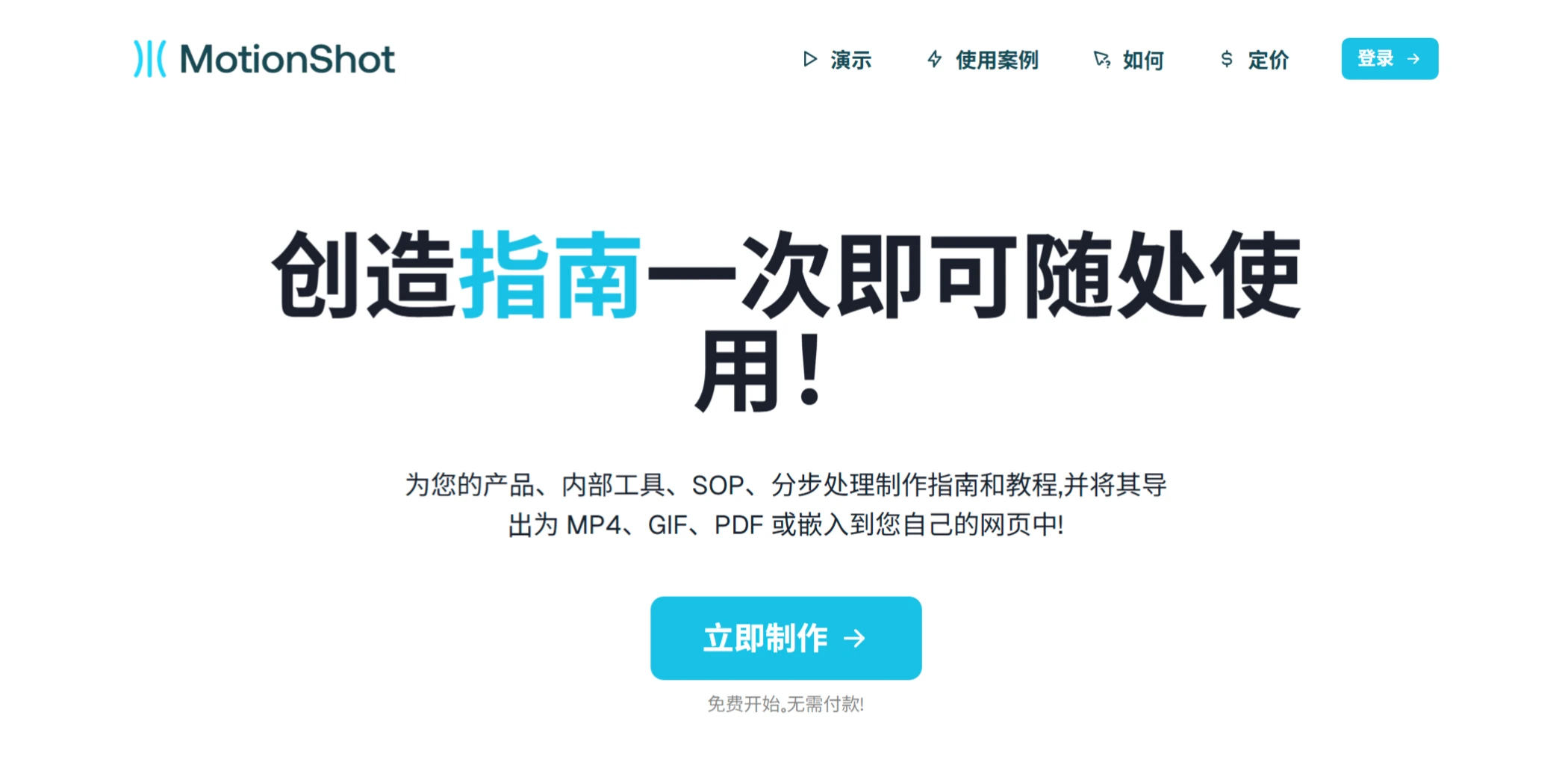
MotionShot Main Features
Automated Screen and Click Capture: Through a Chrome extension, users can automatically capture screens and clicks while browsing the web, making it easy and quick to generate step-by-step guides.
Highly Customizable: Users can upload screenshots, add annotations, customize duration and zoom levels, and arrange steps in order to create personalized tutorials. In addition, background colors, text, and layouts can be customized according to branding needs.
Rich Interactive Elements: Supports adding titles, descriptions, call-to-action buttons, and other elements in tutorials to enhance user engagement.
Multiple Export Options: Users can export created guides as MP4, GIF, PDF, and other formats, or embed them directly into their own websites.
Data Analytics and Feedback: Provides analytics tools to help users track user engagement and collect feedback to optimize content.
MotionShot Advantages
Automated Screen Capture: Through the Chrome plugin, users can easily capture screens and click actions without manually taking screenshots.
Highly Customizable: Users can customize background colors, text, and layouts according to branding needs.
Multilingual Support: Supports multiple languages, helping users reach a broader audience.
MotionShot Use Cases
Customer Support: Reduce the number of support tickets and customer service inquiries by creating detailed guides.
Employee Onboarding Training: Help new employees quickly master internal tools and standard operating procedures (SOPs).
Content Creation: Create and host guides for the community to share knowledge.
Product Demos: Create product demos for potential customers to increase conversion rates.
MotionShot Tutorial Creation Steps-by-Step
Create a New Guide: Go to the MotionShot platform, click "New walkthrough" to create a new blank guide, and enter the editor page.
Add Screenshots: Find the entry point for adding screenshots in the editor, which supports dragging and dropping uploading multiple screenshots at once. After uploading, you can view all added screenshots in the corresponding area.
Set Screenshot Style: Configure the style of the added screenshots, such as setting padding, border radius, and outline. You can also set a background color for the entire guide to make the tutorial visually more appealing.
Add Steps: Click "Edit" to add steps on the screenshot. You can choose the pointer type, click the canvas to complete the step addition. At this point, you can see the added steps with step numbers.
Enrich Step Content: Add annotations for each step to provide detailed explanations of operations; configure step duration and zoom level to control display effects; you can also add voice narration to enhance the tutorial's guidance; use the rectangle tool to drag and select areas you want to highlight on the screenshot, emphasizing key content. Multiple steps can be added based on tutorial requirements.
Add Tutorial Elements: If needed, continue adding more screenshots to enrich the tutorial content; set appropriate background music for the entire tutorial to enhance the viewing experience.
Download or Publish the Tutorial: After completing the tutorial, you can choose to video download it to your computer, supporting MP4, GIF, PDF, and other formats; you can also choose to publish the tutorial, filling in detailed information such as the guide's title, description, CTA (Call to Action) label, and link when publishing. Once published successfully, a shareable link will be generated, and you can also get an embed code (iFrame) to embed the tutorial into webpages for sharing with customers, employees, etc.
Pricing
Lifetime Version: One-time payment of $147, with up to 300 guides generated per month and 22,000 voice characters supported per month.
Discount Offer: Refer others to use and enjoy a 50% discount.
Related Information: