Script Planner Assistant▸
 AI Apps
 AI News
Quick Prompt: Prompt Management & Quick Input Browser Extension
Quick Prompt: Prompt Management & Quick Input Browser ExtensionIntroduction
What is Quick Prompt?
Quick Prompt is a browser extension plugin focused on prompt management and quick input. It helps users create, manage, and organize their own prompt library, and quickly insert preset prompt content into any webpage input box.
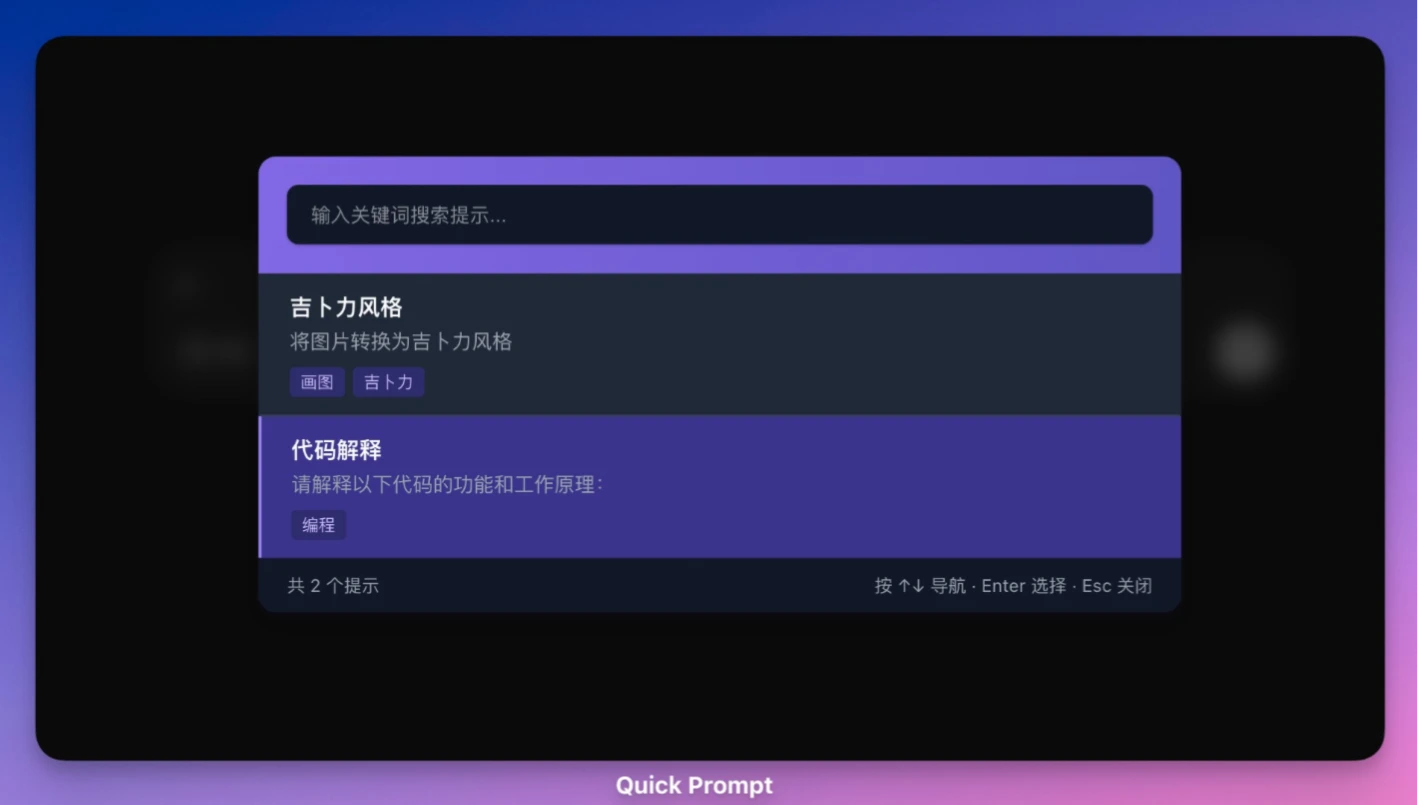
Main Features of Quick Prompt
Prompt Management: Users can conveniently create, edit, and manage their own prompt library.
Quick Input: By typing the /p shortcut command in a webpage input box or using the keyboard shortcut (Ctrl+Shift+P / Command+Shift+P), users can quickly trigger the prompt selector.
Save Prompts: Supports using keyboard shortcuts (Ctrl+Shift+S / Command+Shift+S) or the right-click menu to save selected text as a prompt.
Data Backup: Supports exporting the prompt library as a JSON file and importing prompts from a local JSON file, making it easy to migrate and back up across devices.
Search and Filter: Quickly find the prompts you need.
Custom Prompts: Users can add titles, content, and tags to prompts.
Automatic Theme Adaptation: Automatically switches between light and dark themes based on system settings.
Use Cases of Quick Prompt
Content Creation: Content creators can store commonly used writing prompts, such as templates for generating blog posts, social media posts, or marketing copy.
AI Development & Testing: Developers can save test cases and quickly switch prompts when debugging AI models.
Academic Research: Researchers can store complex query prompts for literature analysis or data processing.
Daily Office Work: Professionals can save email templates or report generation prompts to quickly produce professional content.
Quick Prompt Installation Process
1. Download the Extension
Visit the GitHub Quick Prompt page (https://github.com/wenyuanw/quick-prompt).
Click the Code button and select Download ZIP to download the source code, or clone the repository directly:
git clone https://github.com/wenyuanw/quick-prompt.git
Extract the downloaded ZIP file to a local folder.
2. Load the Extension into the Browser
Open the Chrome browser and go to Settings > Extensions, or directly visit chrome://extensions/.
Enable "Developer mode" in the top right corner.
Click "Load unpacked extension" and select the extracted quick-prompt folder.
Once the extension is loaded successfully, the Quick Prompt icon will appear in the browser toolbar.
3. Verify Installation
Click the Quick Prompt icon in the toolbar to open the management interface.
If the interface displays a prompt list or a "New Prompt" button, the installation is successful.
How to Use Quick Prompt
Create and Manage Prompts
Click the Quick Prompt icon in the browser toolbar to enter the management interface.
Click the "New Prompt" button and enter the prompt content, for example:
Generate a 500-word tech article for me on the future development of artificial intelligence.
Add tags to the prompt (such as "Article Generation" or "AI Interaction") for easy categorization.
After saving, the prompt will appear in the list. Users can quickly find prompts by entering keywords in the search box.
Quickly Insert Prompts
Right-click in any text input box on a webpage (for example, the ChatGPT dialog box).
Select "Quick Prompt > Insert Prompt" from the right-click menu.
Choose the desired prompt, and its content will be automatically filled into the input box.
Alternatively, use the default keyboard shortcut (such as Ctrl+Shift+P) to open the prompt selection window, select a prompt, and insert it.
Customize Keyboard Shortcuts
In the Quick Prompt management interface, click the "Settings" tab.
Find "Keyboard Shortcut Settings" and enter a custom key combination, such as Alt+P.
After saving the settings, the new shortcut will take effect.
Sync Prompt Library
Enable the "Cloud Sync" feature in Settings (requires logging into a GitHub account).
The prompt library will be automatically uploaded to the cloud and synced to other devices.
Install Quick Prompt on a new device and log into the same account, and the prompt library will be automatically downloaded.
Advanced Feature: Dynamic Templates
Quick Prompt supports dynamic templates, allowing users to use variables in prompts. For example:
Generate a {{字数}}-word article for me on the topic of {{主题}}.
When used, the system will prompt the user to enter "字数" (word count) and "主题" (topic), generating a customized prompt.