Script Planner Assistant▸
 AI Apps
 AI News

Supercut: Professional Screen Capture Tool
Supercut: Professional Screen Capture ToolIntroduction
What is Supercut?
Supercut is a screen recording tool that helps you quickly capture content on your screen and instantly share it with others. It supports both public and private sharing options. Recorded videos can automatically generate chapters for easy editing and navigation. You can also add comments on the video timeline or generate documents to record key information. It lets you see who watched the video and for how long, helping you understand audience feedback. Recording quality supports up to 4K, delivering excellent clarity. Additionally, it features call-to-action buttons that can guide viewers toward next steps. Whether for work reports, technical demonstrations, or creative presentations, it helps you express your ideas more professionally.
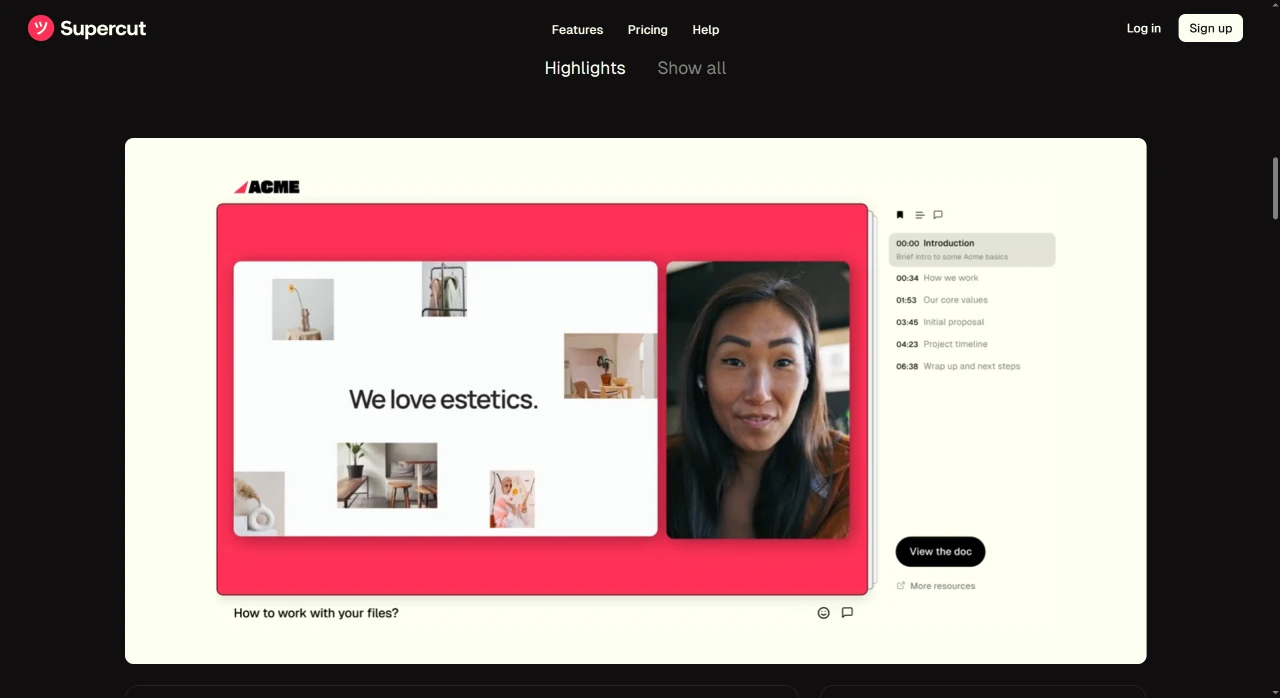
Supercut Features
High-Definition Recording: Supports screen recording up to 4K resolution, ensuring recordings are clear and sharp.
Automatic Chapter Navigation: Uses AI technology to automatically generate video chapter indexes, allowing users to quickly locate and navigate.
Real-Time Interaction Features:
Supports adding comments and annotations on the timeline.
Customizable call-to-action buttons (CTAs) can be embedded to enhance user engagement.
Multiple Layout Options: Provides various preset templates and supports branded customization, suitable for different scenarios.
Sharing and Collaboration:
Supports public or private sharing of recordings.
Provides team collaboration features, allowing multiple users to create and manage recordings under the same account.
Data Analytics: Tracks video views and user engagement, helping users understand interaction situations.
Convenient Operation:
No software download required; can be used directly through the browser.
Supports picture-in-picture mode, allowing simultaneous recording of screen and webcam.
Supercut Use Cases
Product Demos: Use picture-in-picture mode to show operating steps and presenterers, and automatically generate jumpable product catalogs.
Online Courseswork: AI automatically splits course chapters, generates learning progress bookmarks, and helps students precisely locate key content.
Client Presentations and Training: Clearly demonstrates operating processes, providing professional and efficient communication tools.
How to Use Supercut
Register/Login: Visit the Supercut official website and register for an account, then log in.
Start Recording: Click the "Record a Supercut" button to begin a new screen recording.
Select Recording Options: Choose recording quality (supports up to 4K). Choose which part of the screen to capture (e.g., entire screen, specific window, or browser tab).
Record Content: Start recording screen content, capturing anything you need to share or demonstrate.
Add Enhancement Features:
Automatic Chapter Navigation: AI automatically generates video chapter indexes for quick viewer navigation.
Comments and Annotations: Add comments or annotations on the timeline for team collaboration and feedback.
Call-to-Action Buttons (CTAs): Embed custom buttons to guide viewers toward next actions (such as clicking links, downloading files, etc.).
Share Recordings:
Share recordings via generated links (format: supercut.video/share/[name]/[id]).
Choose to share publicly or set as private, visible only to specific viewers.
Chrome Web Store Installation:https://chromewebstore.google.com/detail/supercut-%E2%80%93-screen-recorde/hckmppmaoaidpkomkccngcgoojlmhelk
Related News: