
 Script Planner Assistant▸
 AI Apps
 AI News

Pippit AI: CapCut's One-Click Creative Assistant for Marketing Videos & Images
Pippit AI: CapCut's One-Click Creative Assistant for Marketing Videos & ImagesIntroduction
What is Pippit ai?
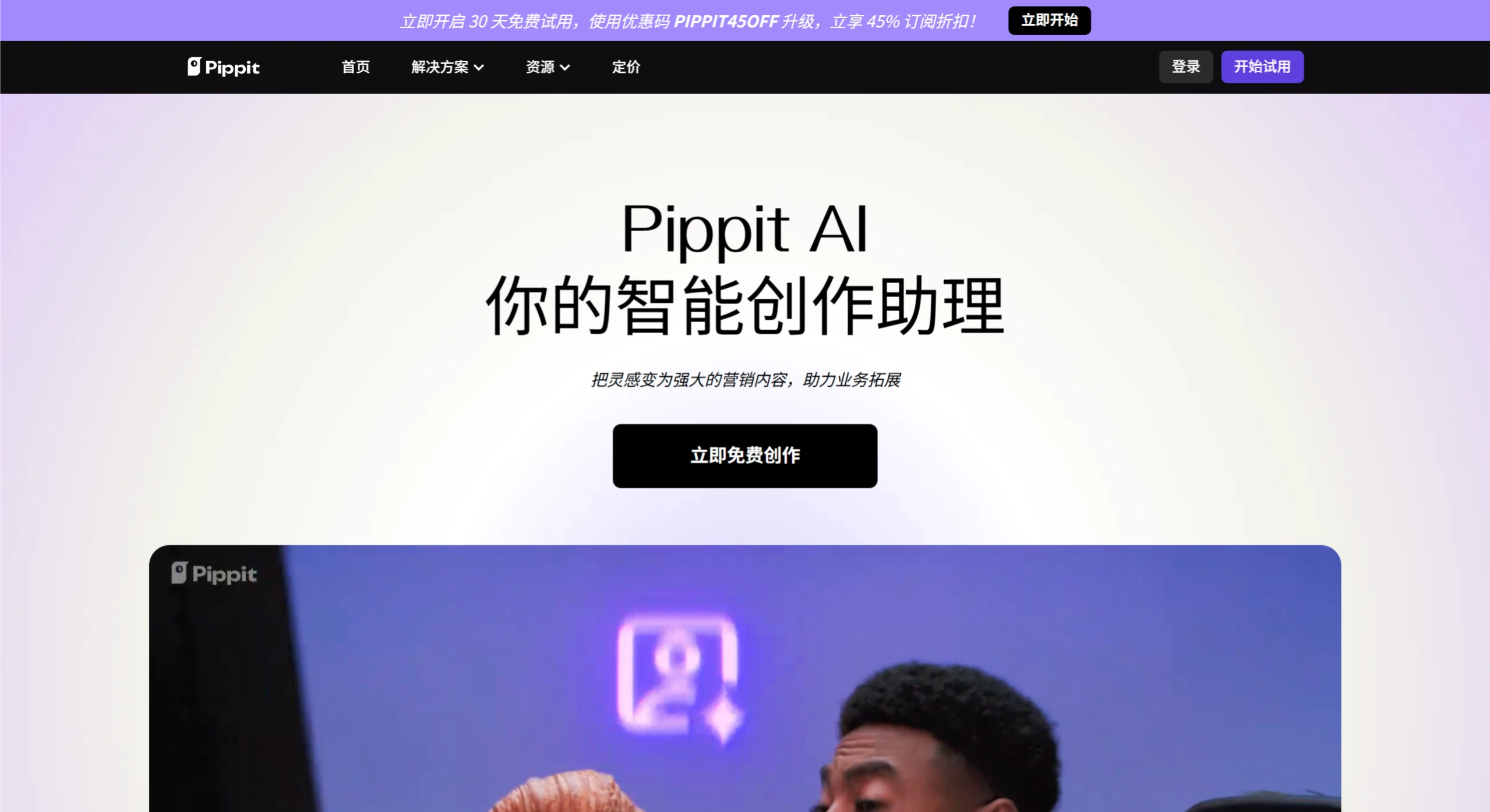
Pippit AI is an AI-powered creation tool launched by CapCut, focused on marketing content production. Users can quickly generate videos, images, and AI digital avatars by inputting product links or uploading materials, suitable for social media and e-commerce platforms. Pippit AI offers features such as one-click generation, batch processing, auto-publishing, and data analytics. It also comes with a large library of commercial templates, helping businesses and creators efficiently produce professional content.
Core Features of Pippit AI
One-click video generation: Quickly generate marketing videos in various styles by inputting product links or uploading materials.
Batch image generation: Generate product images required for e-commerce platforms with one click, supporting background replacement and beautification.
AI avatars and voiceover: Create virtual presenters with multilingual voiceover support, ideal for personalized videos.
Auto-publishing and scheduling: Schedule content in advance and automatically publish to TikTok, Instagram, and Facebook.
Data analytics: Provide metrics such as views and engagement rate to optimize content strategy.
Commercial template library: Provide video, image, and audio templates that support commercial use.
Image background removal: Remove image backgrounds with one click, generating transparent backgrounds or custom scenes.
Smart cropping: Automatically adjust video ratios to fit different platforms.
AI try-on and shadows: Generate try-on effects for apparel products with realistic shadows and lighting.
Quick text-based editing: Edit videos directly through transcribed text, speeding up the editing process.
Pippit AI Application Scenarios
E-commerce product promotion: Quickly create content for Shopify or TikTok Shop and automatically publish promotional ads.
Social media content creation: Produce personalized short videos.
Small business marketing: Create professional ad videos and posters.
Education and training videos: Generate multilingual instructional videos.
Tutorial on Using Pippit AI
1. Sign Up and Log In
Visit the official website and register an account. You can choose to sign up with an email or log in via a social media account. After registration, Pippit offers a 30-day free trial that includes 400 creation credits (which can produce approximately 400 seconds of video or 200 images).
2. Tutorial on Main Features
Smart Video Generation
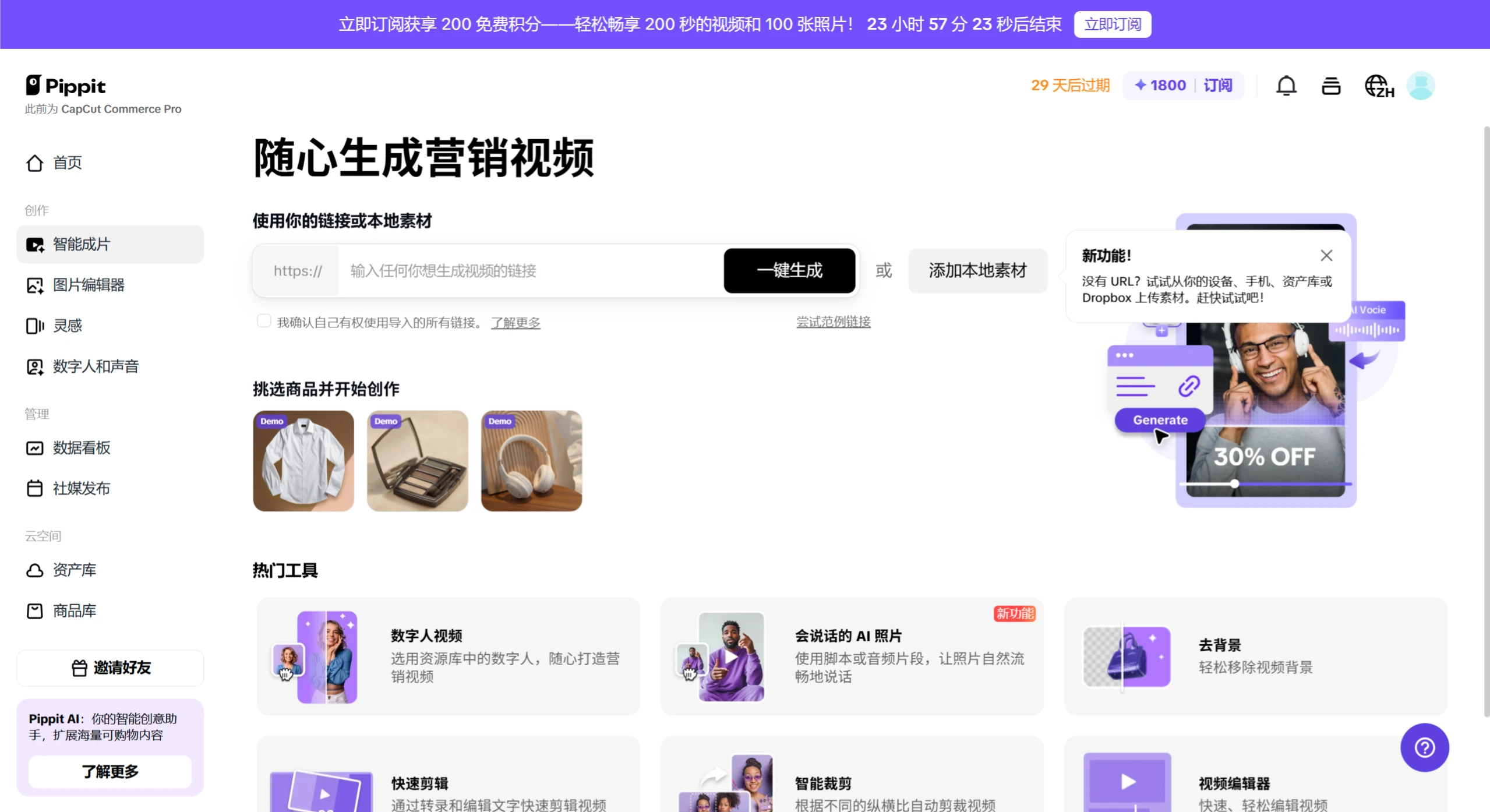
Access the feature: After logging in, click "Smart Video Generation" in the left toolbar.
Input materials: Paste a product link (such as a Shopify product link) or upload images and text descriptions.
Select a template: The system will recommend various templates based on your materials (such as promotional style, story style, etc.). Click to preview the effect.
Generate video: Click "Generate," and multiple video versions will be created within seconds.
Edit and export: Select a video version to enter the editor, where you can adjust text, music, transitions, or duration. After editing, click "Export," supporting 1080p MP4 format.
Image Editor
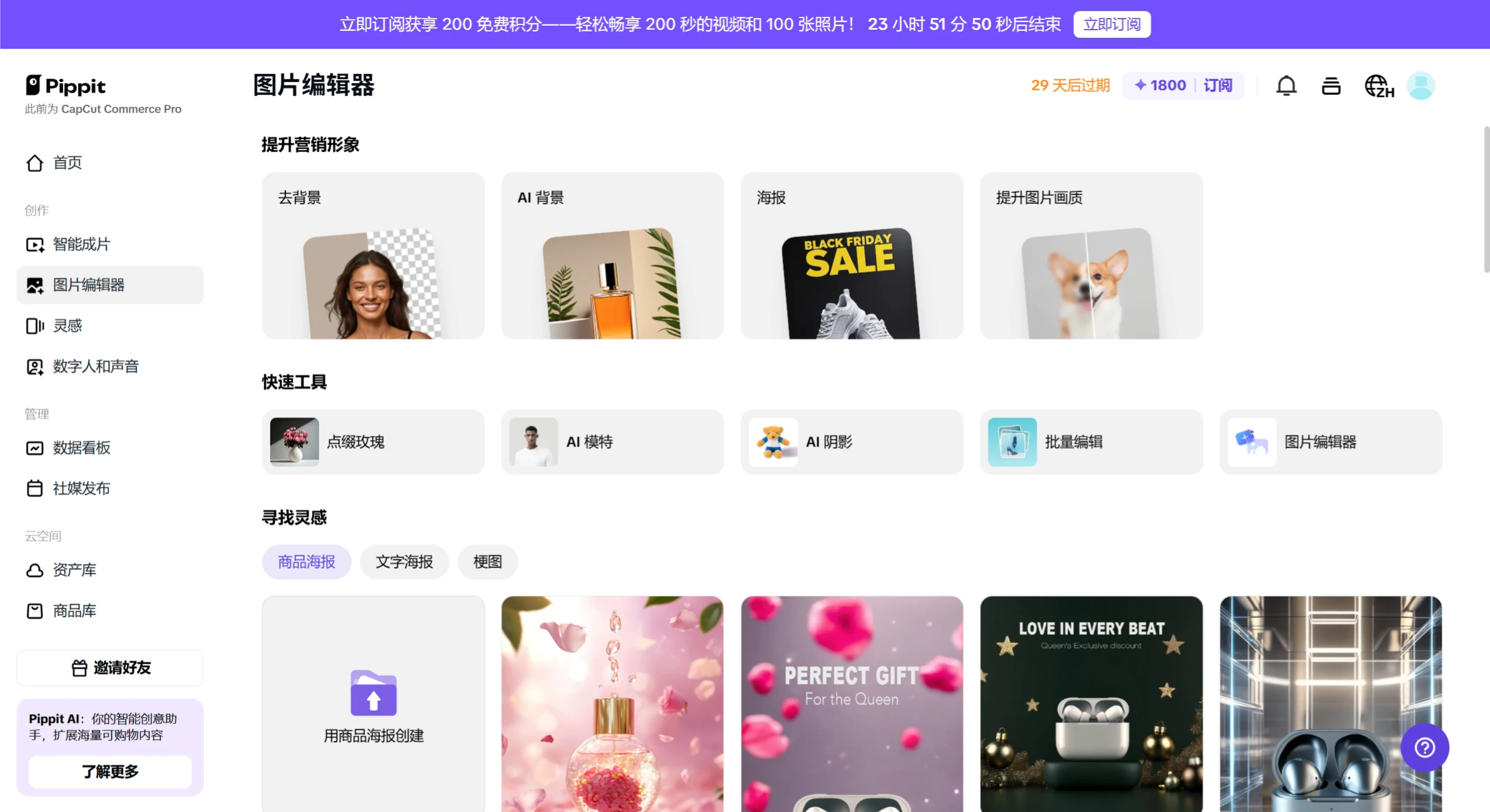
Access the feature: Click "AI Product Images" in the left toolbar.
Upload materials: Upload product images (JPG, PNG formats supported; high-resolution images recommended).
Select a background: Preset backgrounds: Choose from system-provided templates (such as simple white wall, wooden tabletop).
Custom background: Upload a reference image, and the AI will generate a similar background.
Text description: Enter a scene description (such as "sunset by the sea"), and the AI will generate a background based on the description.
Generate images: Click "Generate," and the system will output multiple images. You can adjust lighting, angle, or cropping.
Batch export: Select the images you need, click "Export," supporting batch downloads suitable for platforms such as Amazon and TikTok Shop.
Digital Avatars and Voice
Access the feature: Click "Digital Avatars and Voice" in the left toolbar.
Select an avatar: Choose from the avatar library (different genders and styles supported), or upload a photo to customize an avatar.
Add voiceover: Enter a script and select a language (such as Chinese, English, Spanish). You can adjust parameters such as speech speed and pitch.
Generate video: Click "Generate," and the system will combine the avatar and voiceover into a video.
Edit and export: You can add backgrounds or subtitles and export in MP4 format.
Social Media Publishing
Authorize accounts: Select "Publish and Analytics" under "Tools," click "Authorize," and log in to TikTok, Instagram, or Facebook to grant publishing permissions.
Upload content: Select the generated video or images, and write a title, tags, and description.
Set time: Choose a publishing time and click "Schedule." The content will be automatically published to the authorized social media platforms at the specified time.
Data Dashboard
Access the feature: Click "Data Dashboard" in the left toolbar.
View data: The member dashboard displays views, likes, comments, and engagement rate (currently mainly supports TikTok data, may extend to other platforms in the future).
Generate report: Click "Export Report" to generate a PDF report for easy sharing or archiving.
Image Background Removal
Access the feature: Click "Background Removal" in the left toolbar.
Upload image: Upload the image that needs to be processed.
One-click removal: Click "Remove," and the system will automatically identify the subject and generate a transparent background.
Select new background: You can choose a new background image or export directly in PNG format.
AI Try-On and Shadows
Access the feature: Click "AI Try-On" in the left toolbar.
Upload clothing image: Upload an image of the clothing.
Select AI model: Choose AI models with different body types.
Generate try-on effect: Click "Generate," and the system will display the try-on effect.
Add shadow effect: Add lighting effects in the "AI Shadow" feature to enhance realism.
Export image: Export the image, suitable for e-commerce platforms or social media display.
Quick Text-Based Editing
Enter Function: Click "Text Quick Clip" in the left toolbar.
Upload video: Upload the video that needs editing.
Transcribe and edit: The system automatically transcribes the speech in the video into text. Edit the text (such as deleting redundant parts), and the video will be trimmed synchronously.
Export video: Export the edited video.
Product Library
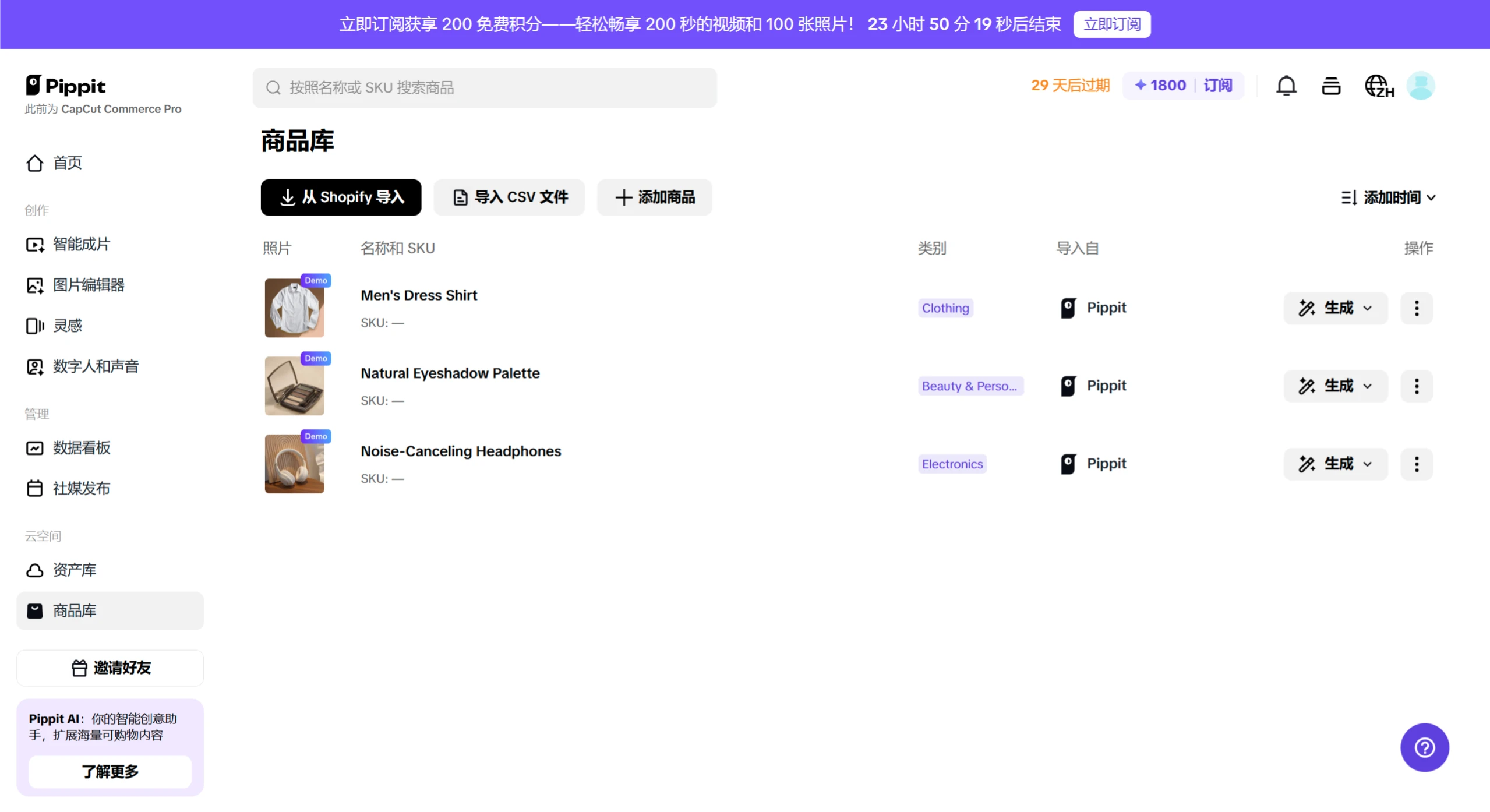
Access the feature: Click the "Product Library" page in the left toolbar.
Browse templates: Browse video, image, and audio templates.
Preview and edit: Click a template to preview, and after confirming, enter the editor to replace materials or text and generate content that matches your brand style.
Pippit AI FAQ
Q: Do I need to download software?
A: No, Pippit is a web-based tool that can be used directly in the browser.
Q: What are the free trial limitations?
A: The 30-day trial includes 400 creation credits, covering all features, with no credit card required.
Q: Can the content be used commercially?
A: Most templates support commercial use on TikTok and CapCut platforms. For other platforms, please refer to the specific template's license agreement.
Q: How do I cancel my subscription?
A: Log in to your account, go to the "Subscription" page, and click "Cancel auto-renewal".
Q: Which platforms support auto-publishing?
A: Currently TikTok, Instagram, and Facebook are supported, with more platforms to be added in the future.











